
Prepare Lacerte returns for conversion to GoSystem Tax
For Lacerte returns, you need to back up the data files through the Lacerte software to a temporary directory.
important
- Because the initial conversion is current‑year to current‑year, one locator is required for that step, with a second locator needed to roll the results forward into the subsequent year. Take care not to convert duplicate clients or test returns.
- Before you export your data, remove all client passwords. If you skip this step the data won’t be converted.
- Lacerte allows multiple returns with the same client ID. Ensure each client has a unique ID before converting.
- Create a folder on your computer or server to save the return data to. This folder needs to be somewhere you can easily access.
- Open Lacerte.
- Select the entity type to convert from theTax Typeselection on the Client menu.
- In theClientstab, select the clients you want to convert.
- SelectClient, then chooseBackup.
- Change theDestinationlocation to a folder you can easily access.
- Make sureDelete original after backupis not marked.
- Repeat steps 3 to 6 for each entity. Use the same Destination for each backup.
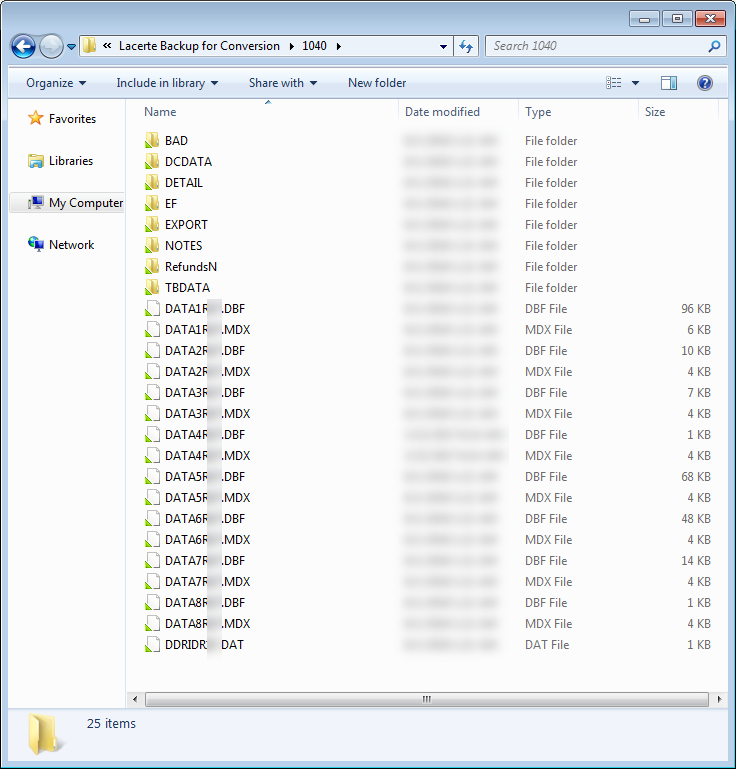
- Check that the backup Destination folder contains the following list of items. If the folder is not set up this way we can't convert the data.
- BAD folder
- DCDATA folder
- DETAIL folder
- EF folder
- EXPORT folder
- NOTES folder
- RefundsN folder
- TBDATA folder
- Multiple .DBF and .MDX files
- One .DAT file
- Zip up the folders to which you backed up your firm's client data and note the location of the ZIP file. When you zip up folders, don’t assign a password to the ZIP file or encrypt the ZIP file. Secure Data Exchange automatically encrypts all data. Password-protected ZIP files won’t be accepted. For information about how to ZIP files and folders, refer to the Microsoft Windows help.

