
Get started with Tax & Accounting Professionals Learning Center
Access Thomson Reuters Learning Center
- Go to the Thomson Reuters Learning Center website.
- Use your Thomson Reuters ID (TRID) to sign in to the Tax & Accounting Professionals Learning Center. If you don't have a Thomson Reuters ID, you can create one. The Welcome to the Thomson Reuters Tax & Accounting Professionals Learning Center Guide provides guidance on Thomson Reuters ID Setup.noteIf you've just created your Thomson Reuters ID, make sure your sign in works by signing in and then back out again. The Thomson Reuters Learning platform updates every night, so you may not be able to sign in to the Learning Center for up to 24 hours after creating your Thomson Reuters ID.
- If you're having trouble signing in, make sure you're using Google Chrome. You can also try to clear your cache and cookies or reset your password. For Common Thomson Reuters ID Troubleshooting steps, go to the Welcome to the Thomson Reuters Tax & Accounting Professionals Learning Center Guide.
If you need further assistance with the Tax & Accounting Professionals Learning Center, you can email Support or call Support at 1-800-431-9025 and when prompted say,
Technical Support
then Learning
.For AuditWatch and TaxWatch only customers
Follow these steps to sign in:
- Go to the Thomson Reuters Learning Center website.
- SelectNew User Registration.
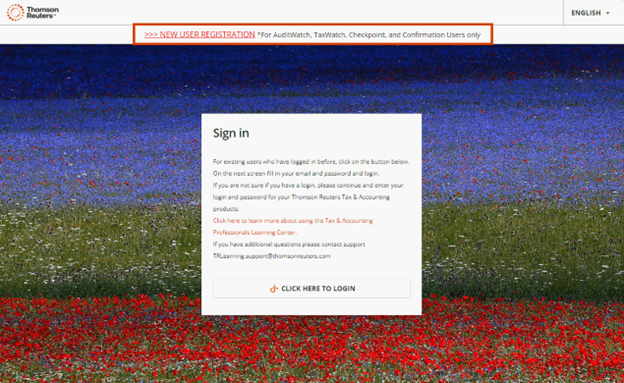
- Enter your information and selectRegister.
I'm signed in to the Learning Center. What should I do first?
- SelectMy Profile, and change the time zone in thePreferencessection to show your time zone. Live classes will display your local time.
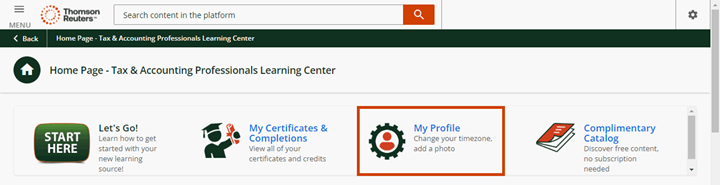
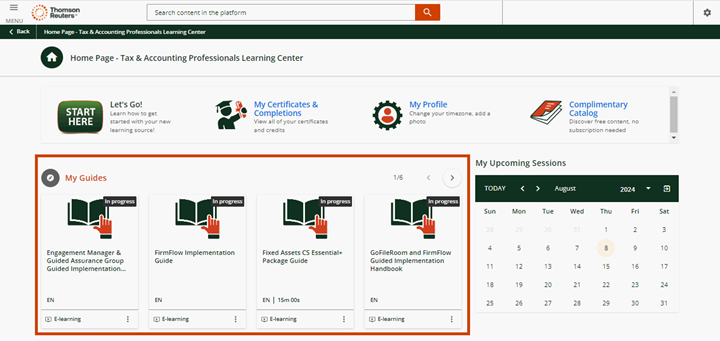
- Under Guides, your purchased implementations and/or maintenance package guides will be available. Select each to get started and access additional resources available.noteIf you haven't purchased an implementation and/or maintenance package, access the Complimentary Courses on the homepage for a Catalog of Complimentary Tax & Accounting Professionals Courses available.
Courses, learning plans, and catalogs
We provide a complimentary catalog of select courses for all customers. The Complimentary catalog includes courses for Checkpoint, FileCabinet CS, and additional CS Professional Suite applications as well as Onboarding Learning Plans for specific products.
What's the difference between a course and a learning plan?
A course is a standalone training offered as a live instructor-led webinar or as an eLearning. A Learning Plan is a series of courses, often arranged sequentially to teach you the essentials for products you own.
What's the difference between an eLearning and live instructor-led webinar?
An eLearning is an interactive session without a live presenter, and a live instructor-led webinar is a remote session conducted by a live presenter.
Is there a fee for courses?
Tax & Accounting Professionals Courses are available as part of Implementation, Refinement and/or Optimization packages that you can purchase from your Sales Representative. There are a limited number of free courses you can access without purchasing a package.
Will I be sent reminders about my course registrations?
Yes. The Learning Center periodically sends reminder emails about upcoming webinars you've registered for, including 2 days prior and 3 hours prior to the scheduled webinar.
Register for courses
Use these steps to register for a course.
- Select a course you'd like to take to view the dates and times the course is offered.
- Select the arrow next to the session and then selectEnroll into this session.
- You'll receive an email confirming your enrollment in the course.
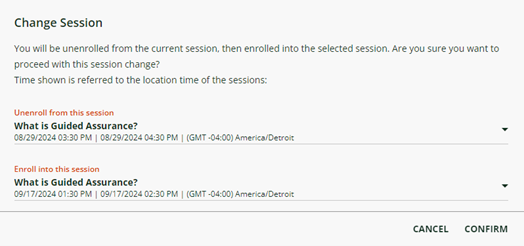
Use these steps to change the date of a course you're enrolled in.
- Select the course to view the course details.
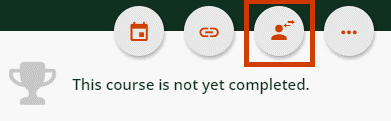
- Select the Change Session
 icon.
icon. - Select a new date and select theYes, I want to proceedcheckbox.
Use these steps to attend a live instructor led webinar course again.
- Select the Guide and then select the course you'd like to retake.
- Select the Change Session icon.
- In theEnroll into this sessionfield, select the date/time you'd like to attend.
- Select theYes, I want to proceedcheckbox and then selectConfirm.
Use these steps to unenroll from a live instructor-led webinar course.
- Select the course to view the course details.
- Select theUnenrollicon.
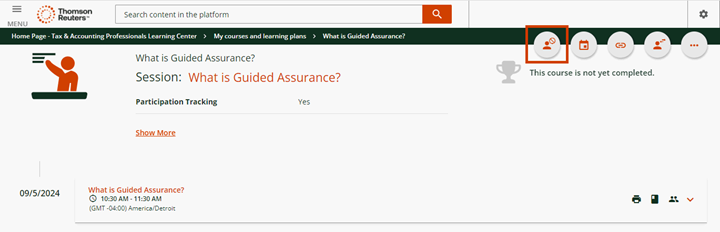
- Select theYes, I want to proceedcheckbox and selectConfirm.noteWe recommend that you test your computer's microphone, camera, and internet browser before your course.
Professional Services offerings
Foundational or guided packages include the following items:
- A guide/learning plan of live instructor-led webinars and eLearning courses.
- A catalog of additional live instructor-led webinars and eLearning courses.
- Engagement with Professional Services staff (varies by package).
Continued learning or Essential packages include engagement with Professional Services staff and a catalog of live instructor-led webinars and eLearning courses. There is a guide available under Guides for each package purchased with a full list of available courses including recommended new staff training courses.
Troubleshooting
A live instructor-led webinar doesn't load or is stuck on the
Loading your Experience
screen.- Attempt to access the live instructor-led webinar via the My calendar section on the home dashboard.
- Try another web browser. We recommend Google Chrome, Microsoft Edge, or Mozilla FireFox. Internet Explorer is not supported.
- Clear your cookies and cache.
- In Google Chrome, select the menu icon, and then select History > History. You can also press Ctrl + H on your keyboard.
- SelectClear browsing data.
- Select theCookies and other site dataandCached images and filescheckboxes and then select Clear data.
- Make sure that you have third-party cookies enabled.
- Disable plugins and extensions.
- Select the menu icon, then select More tools > Extensions.
- Select Remove to delete an extension, or switch the extension off.
- Do the same for any plugins you have installed.
- After your session, you can re-enable the extensions and plugins you turned off.
- Sign in to the Learning Center using Incognito mode (Chrome) or Private mode (Edge).
- If none of the previous steps work, reset Chrome to the default settings.
- Select the menu icon, and then Settings.
- Select Advanced > Reset and clean up.
- Select Restore settings to their original default.
Live Webinar System Requirements
Thomson Reuters uses an application called Kaltura to facilitate our live virtual training sessions. If you are running into trouble with the live webinar application, make sure your computer meets the Live Webinar System Requirements.
Microphone and/or camera aren't working
In Chrome, select Settings > Privacy & Security > Site Settings > Camera & Microphone settings.
Cell Phone Usage
Cell phones are not supported for accessing training content on the Tax & Accounting Professionals Learning Center. Courses must be taken using a supported device and browser.
CPE and Certificates
Please allow 3-5 business days for CPE and other certificates to become available for download. Once available, you can download certificates here.
Provide feedback about the session either at the end of the course or via the course completion email received after attendance.
How can multiple people obtain CPE when attending a course together in the same room?
- Everyone who needs CPE must register for the course before the start of the course.
- Download and complete the CPE proxy form.
What types of certificates are available?
- CPE certificate:CPE may be offered for live instructor-led webinars. CPE is not available for eLearning classes because they don’t qualify for continuing education credit under the IRS continuing education program.
- Course completion certificate:You can earn a course completion certificate by completing a Learning Plan or individual courses that don’t qualify for CPE credit.
For more help, contact Support at 1-800-431-9025 and when prompted say,
Technical Support
, then Learning
.