
Creating a Matter Group
Matter groups let you treat a group of matters as one for budgeting and financial reporting purposes. Using matter groups provides a company with the ability to create company budgets at the matter group level instead of at the matter level. You can also create summary reports of spending for the matter group that includes all matter spending within the group.
Required role | Matter groups are critical to the organization and setup of matters. For security reasons, only Company System Administrators and Office Administrators can create a matter group.
- SelectMatters, thenMatter list.
- On the toolbar, clickCreate group matter.
- Complete fields on page 1 of the New Matter Group page. Similar to the process of creating an individual matter, you must complete all the fields on page 1 and select the matter type template to continue to the second page.Field helpFieldDefinitionMatter Type (Template)Click theSelectbutton, then select the matter type template you want to apply.Firm AccessInternal:Only Company users can access the matter.One firm (or multiple firms with a coordinating counsel):This is for when one firm is working on the matter, or multiple firms with one lead firm coordinate the other firms’ efforts.Multiple firms with no coordinating counsel:This is for when multiple firms are working on a matter but there is no lead firm. Firms cannot see that other firms are working on the matters.Matter CurrencyYour company's default matter currency.Exposure/Recovery (Company estimates only)Exposure and recovery information applies only to litigation or dispute matters. Litigation exposure, reserve, and recovery information is entered for the matter group level (not in the individual matters assigned to the group), or that information is entered in each assigned matter and not in the matter group.
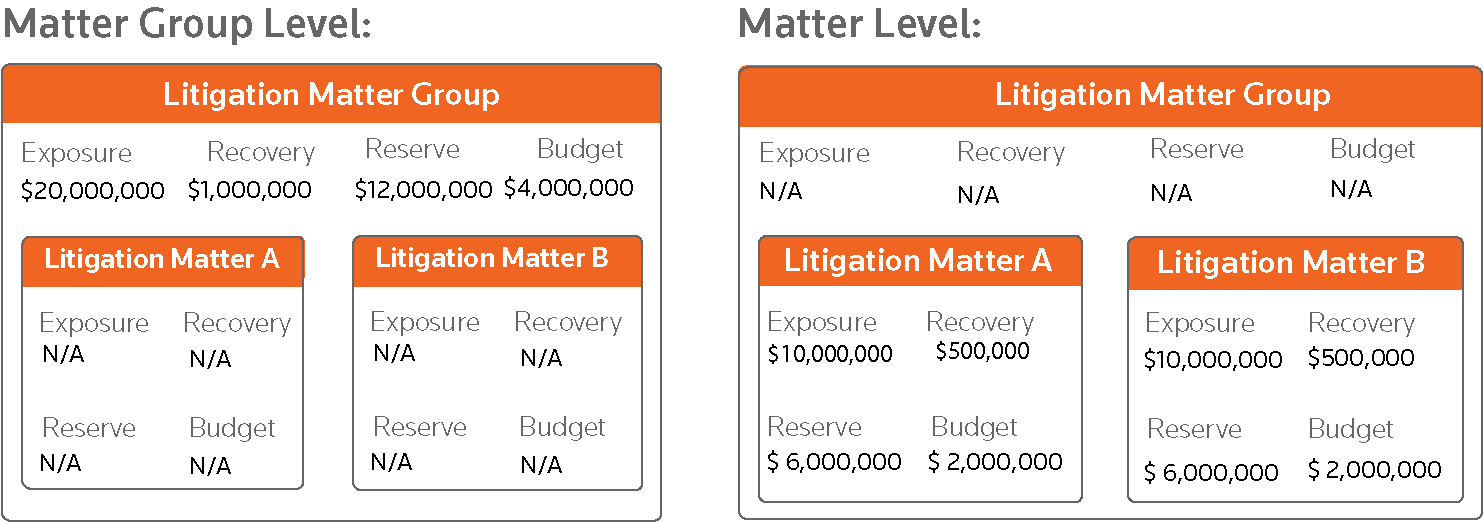 If none of the matters that will be assigned to this matter group are litigation-related, selectEnter exposure/recovery in each Matterto enter information at the matter level. However, if it is possible that one or more matters will be litigation-related, you must decide whether to track the data at the matter group level or the individual matter level.noteEntering data at the matter group level causes data in individual matters to be deleted. If you enter exposure, reserve, or recovery information to a matter group, when you assign a matter to this matter group, all litigation exposure, reserve, or recovery data in the matter will be permanently deleted.
 - If you want to define additional settings related to status reports, departmental budgets and reforecasts, and accruals selectView Financial and Status Report Options. Additional fields appear.Field HelpFieldDescriptionStatus Report Options: Require Status Reports
- Select theNobutton if status reports will not be required.
- SelectMonthlyto require status reports to be submitted monthly.
- SelectQuarterlyto require status reports to be submitted quarterly.
Departmental Budgets / Reforecasts and Accruals Options: Where is data enteredThe options you select here depend on whether you want accruals to be calculated per matter, or at the matter group level.Departmental Budgets / Reforecasts and Accruals Options: Include matter group in the Dept. Budget/Reforecasts?The options you select here depend on whether you want accruals to be calculated per matter, or at the matter group level.Departmental Budgets / Reforecasts and Accruals Options: Calculate an accrual for this matter group?The options you select here depend on whether you want accruals to be calculated per matter, or at the matter group level.Financial Data Edit Authority: Which company users can edit?The matter roles of the company users who have financial data review authority. - SelectNextto go to the second page and complete the fields.Company & Setup SectionFieldDefinitionFull Matter Group NameA complete descriptive name of the matter group.Short Matter Group NameA brief description of the matter group.Lead Company PersonA Tracker matter role assigned to the company user who will manage a matter and who will be included on the invoice approval route for the matter. Tracker defaults to assigning the Lead Company Person role to the company user who creates the matter, but this role can be assigned to any company user.#2 Company PersonThis field typically identifies a co-lead attorney or the paralegal responsible for a matter.Organizational UnitThe business unit or division, such as Human Resources, Manufacturing or Finance, of your company that legal work is provided for.This field is not required but contributes to more detailed reporting capabilities. Legal Tracker does not require the organizational unit of matters in a matter group to be the same. Also, if a user has Organizational Unit or Practice Group access to a matter group, that does not grant them automatic access to all matters assigned to the matter group. Only users who are direct participants or delegates of direct participants in the matter will automatically have access to all matters assigned to the matter group.Practice GroupThe internal team in the legal department (for example, the Litigation team) that works on a matter.Matter Information SectionUse the fields in this collapsible section to define details about the matter. The specific fields on this page depend on the matter sub-type you selected on page 1.FieldDescriptionSubstantive LawThe area of law applicable to a matter. The list of substantive laws is created by your company's Tracker Coordinator.Use theSelectbutton to open the list and select the option you want to apply.Start DateThe date the matter began. When creating a matter, the date is automatically populated with the matter creation date, but can be changed.Use the calendar icon to select the date.Matter Group DescriptionAn explanation of the matter group.Notes/MiscUse this field to provide additional notes or information about a matter.Invoice Processing Information SectionFieldDefinitionPre-configured allocationThe name of the pre-configured allocation. A preconfigured allocation provides the ability to select accounting code allocation strings that are appropriate to many matters. For example, all of your Human Resources matters are coded to Cost Center 123, GL Account 456. This accounting code string can be selected from a list.Company System Administrators and Accounting Code Reviewers can change the definitions of the pre-configured allocation or the values used for the default accounting code allocations at any time. Allocations from previously submitted invoices are not affected.Default Accounting Code AllocationsUse the fields in this section to define the default percentages to be allocated to accounting codes for this matter.
- On the toolbar, selectSave & close.
Related Content
-
Matter Groups Overview
Format: Article