
Matters List Page
The
Matters List
page is your starting point for finding, reviewing, managing, and creating matters and matter groups.You will be able to view matters where you are:
- a direct matter participant,
- a delegate, or
- a user with financial access.
You won’t be able to view matters where you are only an indirect matter participant.
note
What you can view and do depends on how your company has configured Legal Tracker, including your system role, admin profile settings, personal preferences, feature settings, and other permissions. Your experience may differ from what is described here.
Using this page
Quick Filters
Quick filters help you narrow the list of matters displayed on the page. You can select any of the following options:
Filter | Description |
|---|---|
All matters | Displays all matters you can access. |
Recently reviewed | Displays the last 20 matters you accessed. |
Open | Displays all open matters you can access. |
Closed | Displays all closed matters you can access. |
My favorites | Displays the matters you have marked as favorites. |
My open | Displays matters you are responsible for. This is not necessarily a complete list of all matters you can access. |
To mark a matter as a favorite, open the matter profile, select the three-dot menu in the upper-right corner, and then select
Add to favorites
.If a matter belongs to a matter group, it doesn’t appear in your
My favorites
list. However, you can mark the matter group as a favorite.My open
A matter appears in
My open
if one of the following applies:- You are theLead Company Person.
- Another user accessed the matter and specifically granted you access as aMatter Administrator.
- You are a delegate of a user who has access through one of the two previous reasons.
A matter won’t appear in this list if your access is only indirect, such as access granted through a special organizational unit or practice group.
To check whether your access is indirect:
- Open the matter.
- SelectParticipants.
- ChooseAll Who Have Access.
If
Indirect access
appears next to your name, your access to that matter is indirect. View options
Use
View
to organize the list by individual matters or matter groups. You can choose from the following options:- Matter groups & standalone matters: Displays matter groups and standalone matters.
- All matter and matter groups: Displays standalone matters, matters within a group and matter groups.
- Matter groups: Displays matter for groups only.
Matters grid
The grid displays all matters that match your selected filters.
You can:
- drag and drop columns to rearrange them,
- customize the layout to match your preferences, and
- expand the drawer to view more details without opening each matter.
These changes apply only to your view and don’t affect other users.
At the bottom of the grid, you can move through additional pages of results. Use
Items per page
to control how many records appear on each page.Drawer details
The drawer provides additional information about each matter, including:
- Most recent status report– Shows the latest status entered in theStatustab for the matter. This field is displayed by default and can only be viewed in the drawer.
- Matters in this group– For matter groups, shows the matters included in the group. Up to 9 matters are displayed. To view the full list, selectView all matters in this group. This opens theMatterstab within the matter group.

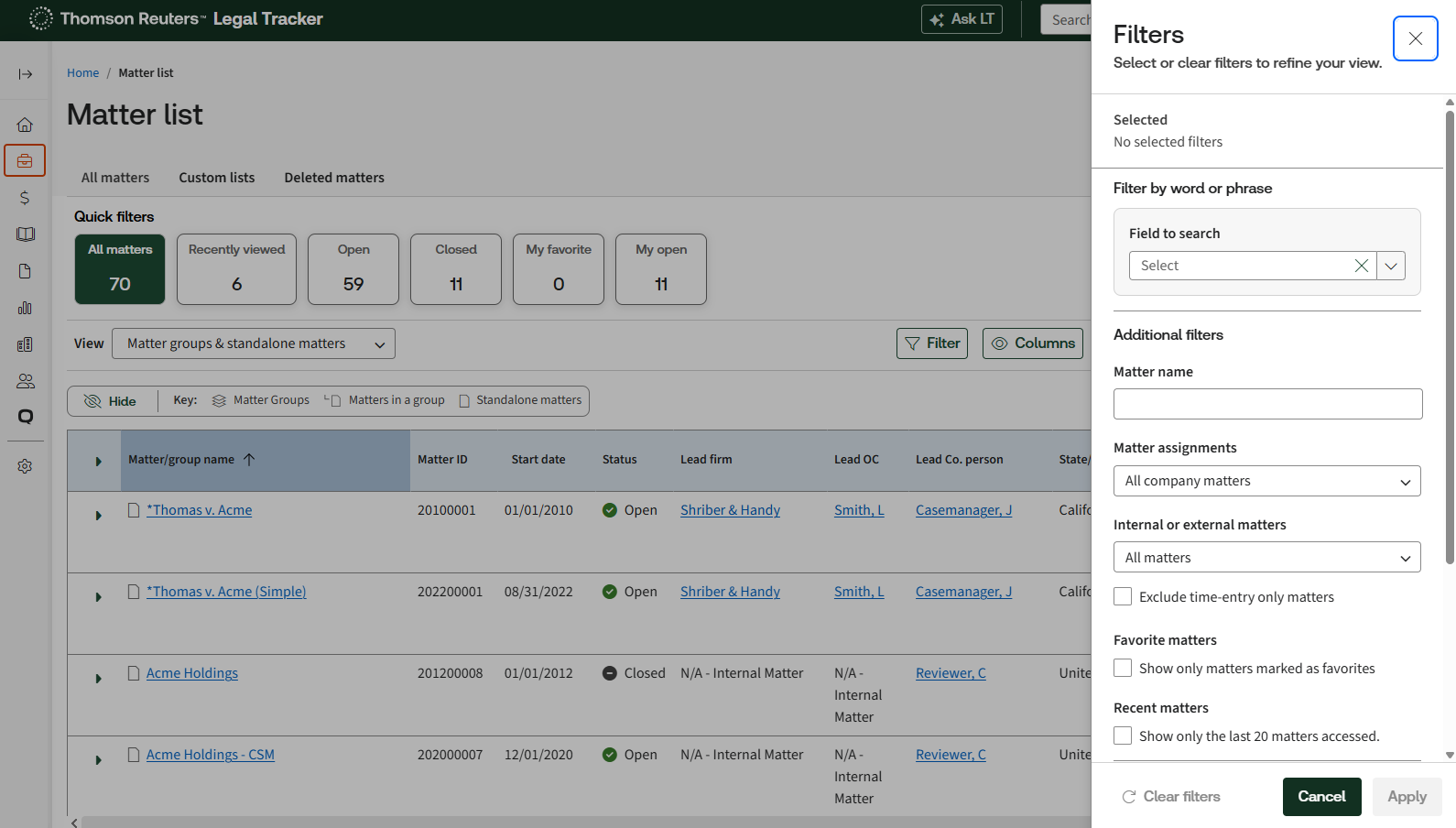
Search & Filter
Use
Search & Filter
to refine the results shown in the grid.You can:
- search by fields such as matter name,
- apply additional filters to narrow results, and
- selectApplyto update the grid.
Applied filters appear at the top of the grid, where you can remove them individually.
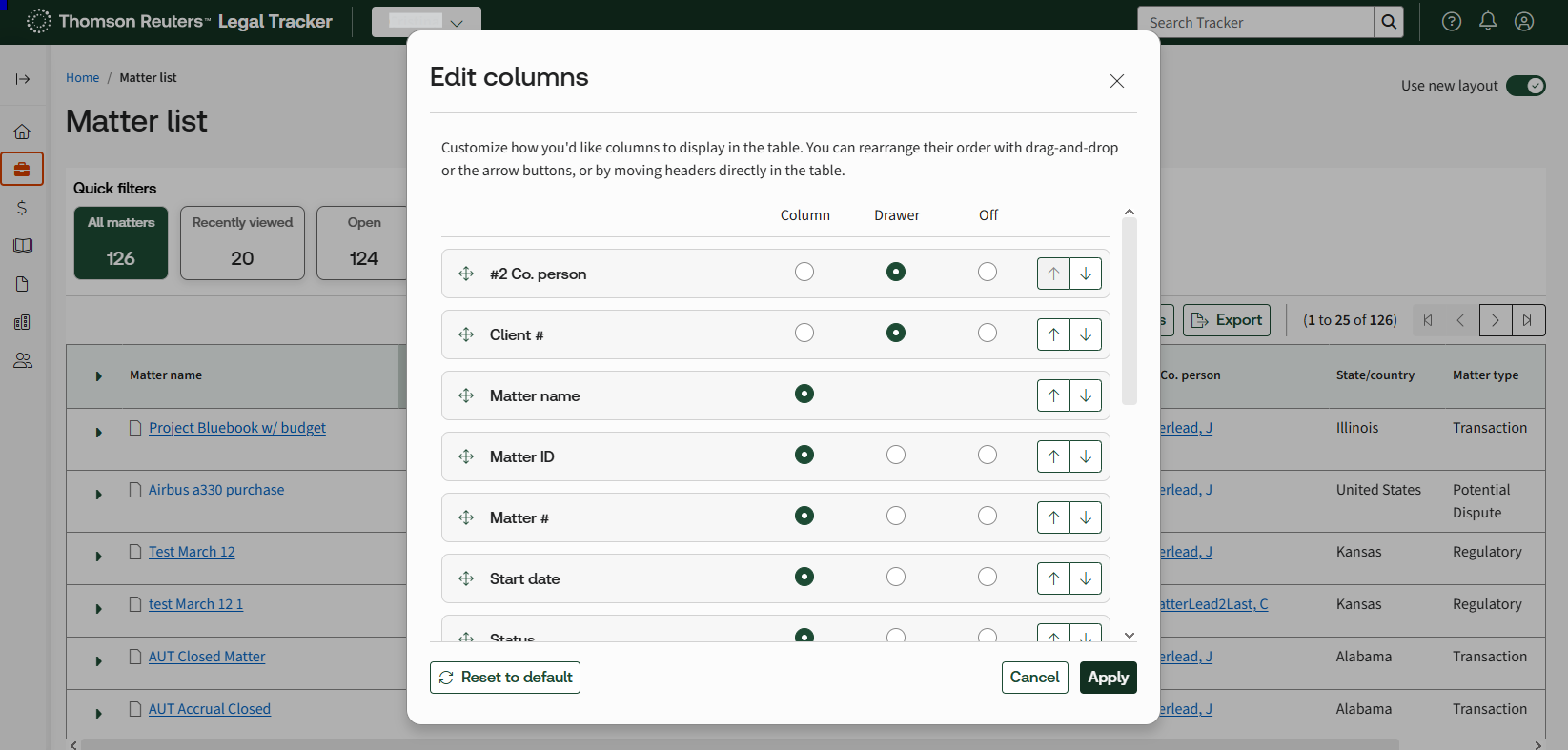
Columns
Use
Columns
to choose:- which fields appear as columns in the grid,
- which fields appear in the drawer, and
- which fields are hidden.
You can also use the right and left arrows to change the order in which columns appear in the grid.
Export
Use
Export
to download the grid data as a CSV file.The exported file includes any filters and quick filters currently applied, making it easier to understand the results.
Custom lists
You can create your own custom lists by selecting
Save as a custom list
.In the
Custom lists
tab, you can view all saved custom lists. You can also customize a list by changing which fields appear in the grid and drawer.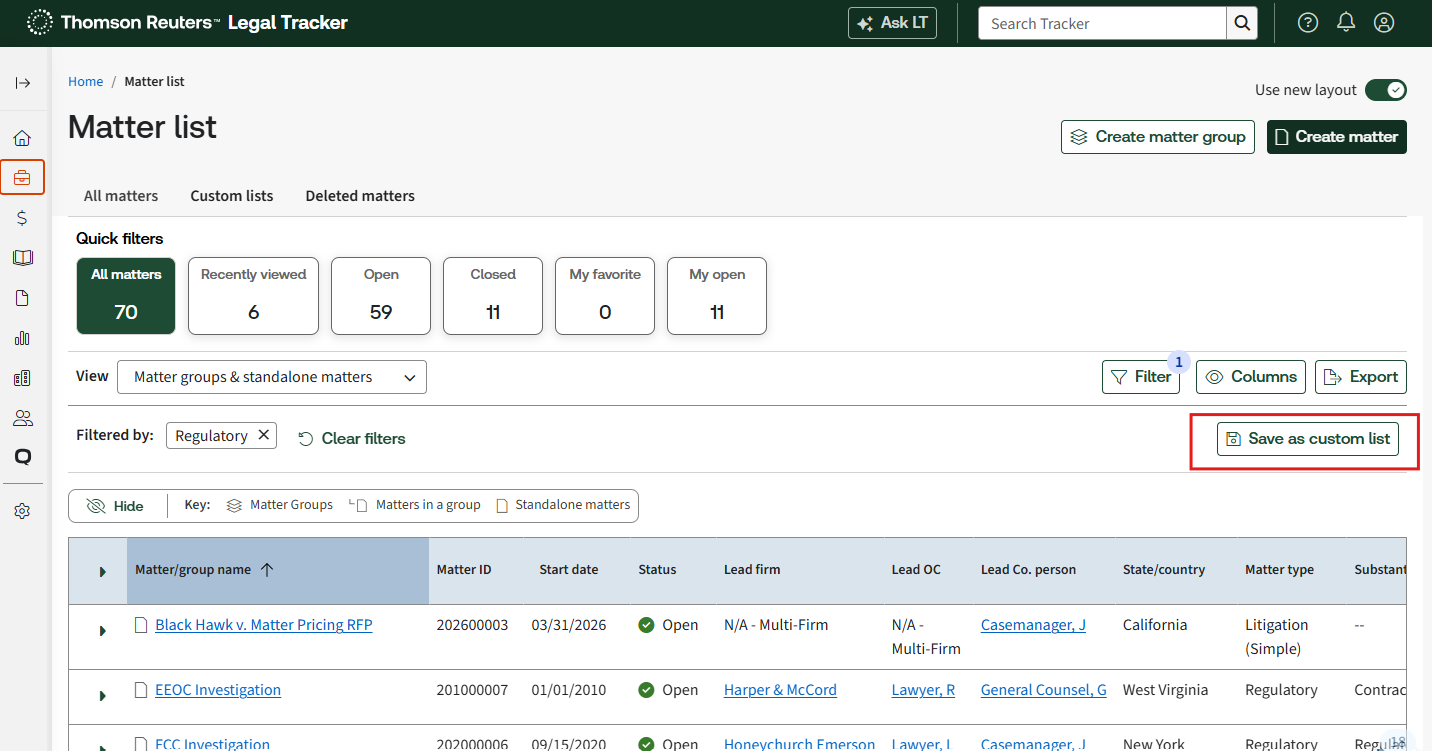
This button appears only after at least one filter has been applied.
In the
Custom lists
tab, you can view all saved custom lists. You can also customize a list by changing which fields appear in the grid and drawer.Add or remove the filters to update the results. You can save these changes to the existing custom list or save them as a new one.
Deleted Matters
The
Deleted Matters
tab displays deleted matters you previously had access to.You can't open the deleted matter itself. This tab provides a record of:
- the matter name,
- the date it was deleted, and
- the user who deleted it.