
Timekeeper hour violations audit
When timekeepers submit hours for legal matters, their daily total hours can exceed pre-defined limits. Legal Tracker offers a crucial audit that flags when a timekeeper has exceeded the permitted hours in a day, whether within a single invoice or, with expanded capabilities, across multiple invoices. This helps ensure billing accuracy and robust cost control.
Audit settings
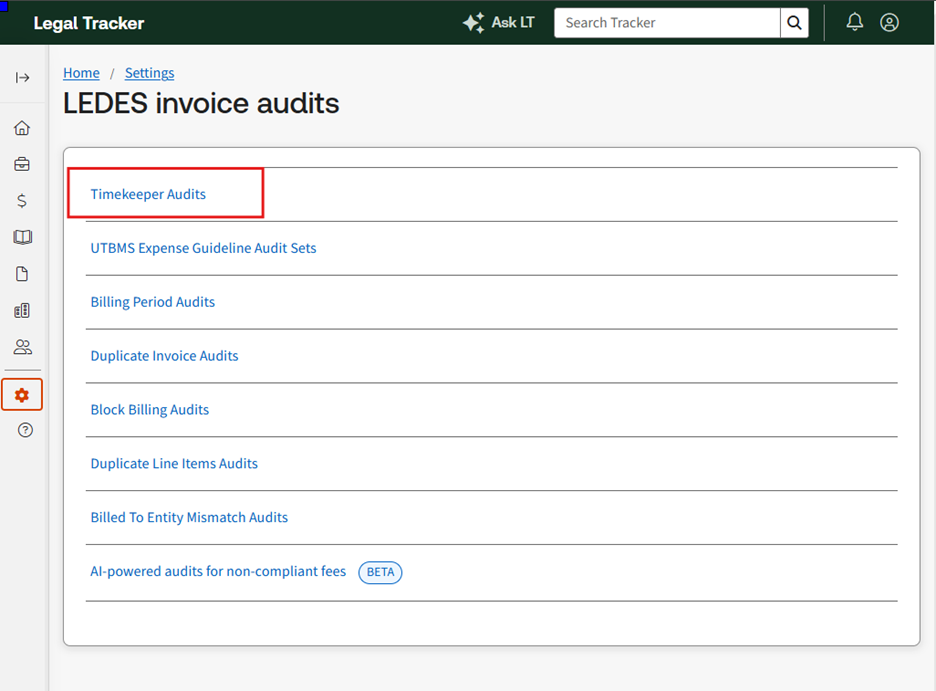
To configure this audit, go to the
Settings
page, select LEDES invoice audits
, then choose Timekeeper audits
.
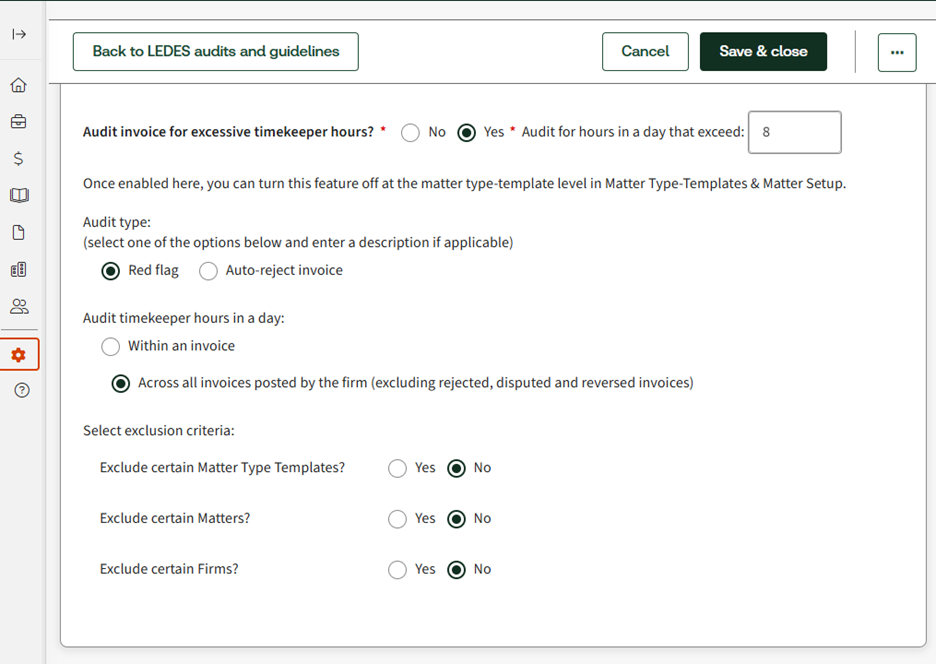
Within this section, you'll be prompted with the question,
Audit invoice for excessive timekeeper hours
? Select
Yes
to turn on the audit and configure the following parameters:- Audit for hours in a day that exceed:Enter a numeric value (for example, 8.0, 10.5), not exceeding 23.0. The system stores values with 1 decimal place.
- Audit type:
- Red flagis the default setting.
- IfAuto-reject invoiceis selected, a description field will appear, prompting you to enter the reason for auto-rejection.
- Audit timekeepers hours in a day:This setting determines the scope of the audit:
- You can select toonly audit the invoice analyzed, which reflects the previous single-invoice behavior.
- Alternatively, you can selectAcross all invoices posted by the firmto sum the hours from all previous firm invoices and the current invoice, excluding any invoices marked as rejected, disputed, or reversed.
- Select exclusion criteria:Customize the audit by excluding specific matter types, individual matters, or vendors as needed.
Invoice page
Auto-rejection
When
Auto-reject invoice
is configured and a timekeeper exceeds the daily hour threshold (based on the Audit timekeepers hours in a day
setting), the invoice will be automatically rejected. The rejection will include the description provided during the setup process, consistent with existing auto-rejection functionalities.Red flag
If the red flag audit type is selected and a timekeeper's total daily hours are exceeded, you will clearly see a red flag notification within the
Issues
section of the invoice.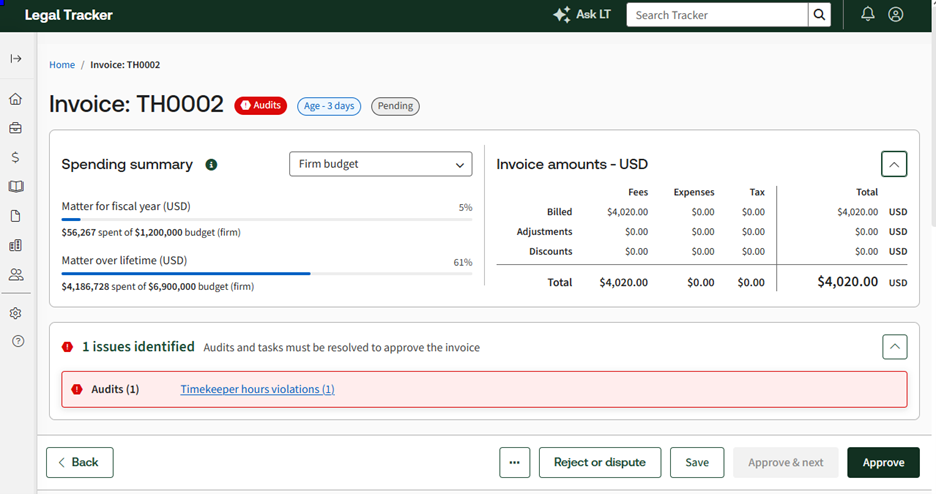
By selecting the red flag, you will be taken to the details section. In this section, you can see the number of hours permitted, the
Total hrs billed
(cumulative hours), and Current hrs
(hours on the current invoice) for that day.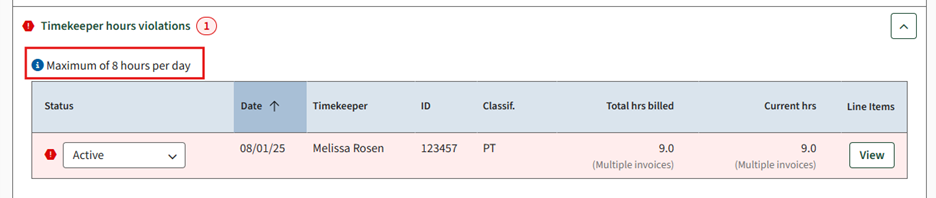
To understand the violation in more detail, select
View
. This will display a pop-up window showing the number of hours billed by the timekeeper and, if you have selected the Across all invoices posted by the firm
option, the breakdown across different invoices where this time was billed. This provides a transparent overview of how the total excessive hours were accumulated.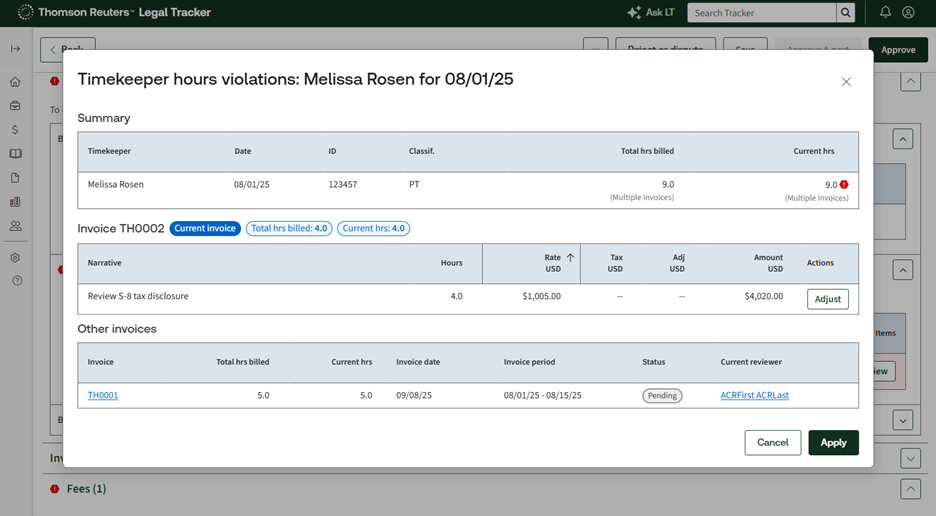
To resolve the red flag, select
Adjust
on the invoice page. By selecting Fee – excessive time
as the reason for adjustment, the audit violation will be cleared for this specific invoice.note
If the audit is configured as a red flag, it must be cleared to proceed with the invoice approval process.
Exclusions for cross-invoice audit
- Invoices in theProcessingstate won’t be displayed, and their hours will be excluded from all audit calculations.
- If an approver has access to a new invoice that triggers an audit, and that audit incorporates data from a previously posted invoice they can't view due to access restrictions, the following applies:
- The audit on the accessible new invoice will still accurately reflect the cumulative hours, including data from the inaccessible invoice.
- The approver will be able to view the new invoice and its associated audit.
- However, they’ll be prevented from opening or viewing any invoices for which they don’t have the necessary access permissions.