
Firm invoices using LEDES converter
The AI-powered PDF to LEDES converter uses Generative AI to extract data from PDFs and other non-LEDES invoice files and convert them into the structured LEDES format. This makes the invoice review process more efficient and improves billing transparency.
The invoice posting experience doesn’t change dramatically for firms. You post PDF invoices following a simplified version of the existing
Other file upload
option. However, you need to review the converted invoice to ensure its accuracy before it is sent to the company and routed for approval.Process overview
Converting a non-LEDES invoice into LEDES, PDF or other supported format, adds 1 additional step to the invoice posting process:
- Post the PDF or non-LEDES invoice using theOther file uploadoption.
- The invoice is routed for processing and data extraction. This averages 3 minutes, but it could take up to 60 minutes for very large invoices.
- During this time, the invoice status isOn hold.
- You receive an email notification when the conversion is complete.
- Review the converted invoice - an additional step.
- Ensure the invoice data was extracted correctly and that the total amounts match the original invoice file.
- SelectPost & closeto send the invoice for approval.
Invoice posting
Companies identify which firms or firm offices are required to participate in the PDF to LEDES invoice conversion process.
If your firm or firm office is participating, you post invoices using the
Other file upload
option. When you select this option, you're notified that the invoice will be converted to LEDES and will be on hold until the conversion is confirmed.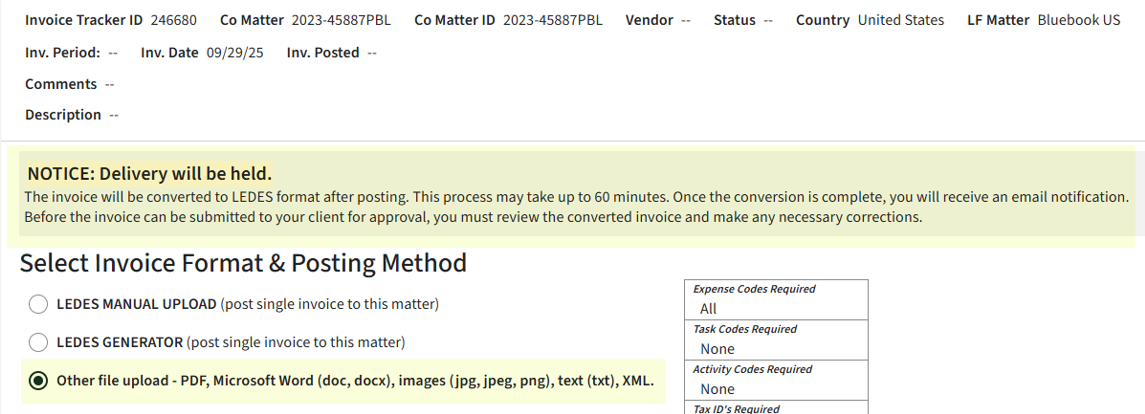
The information required during posting is minimal: invoice number, invoice currency, and the invoice file.
The following file types are supported for conversion: PDF, Word, image, text, and XML. Files of other types won’t be accepted.
After selecting
Post & close
in the invoice posting window, you are taken to the Post invoices
page, which displays the following message:STATUS: Delivery on hold
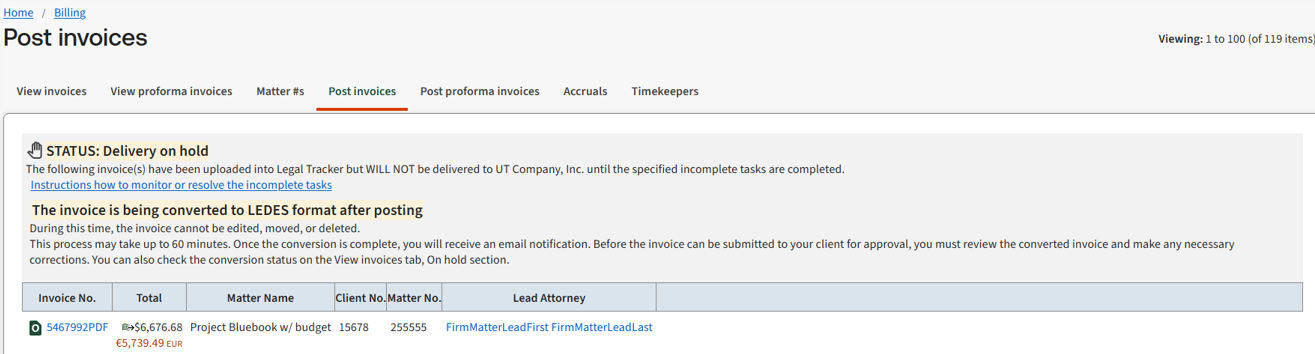
The
View invoices
page displays all invoices currently undergoing conversion, as well as those ready for review, grouped together in the Invoices on hold
section.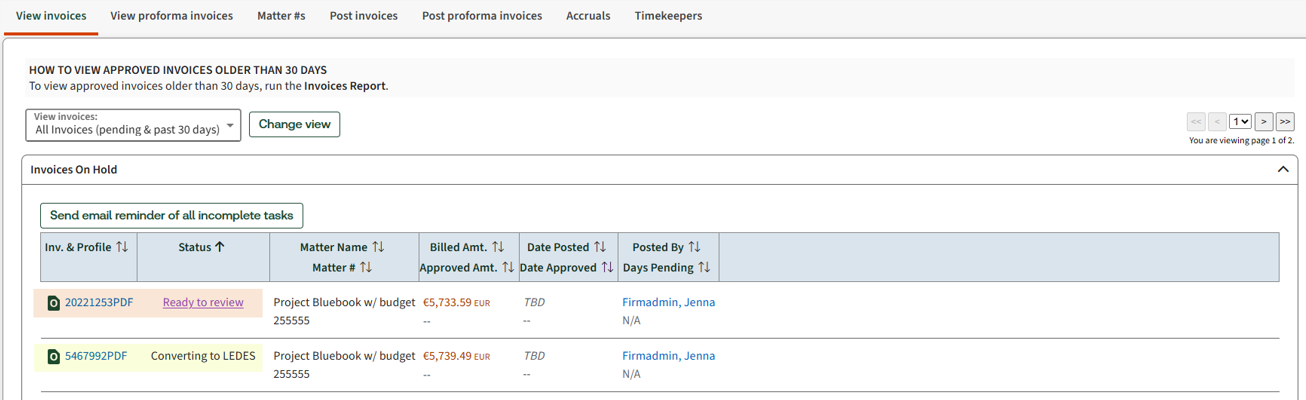
Invoice details
When you access the invoice details page while the invoice is being processed, the
On hold
section indicates that the conversion to LEDES is in progress.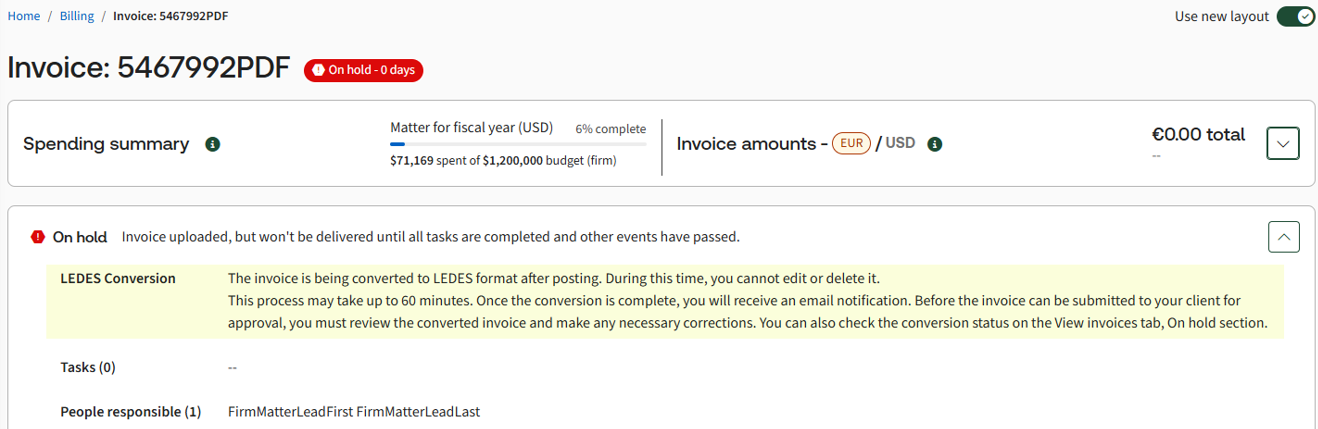
When you access the invoice details page of a converted invoice, the
Review LEDES invoice
button is available in the On hold
section and in the invoice toolbar.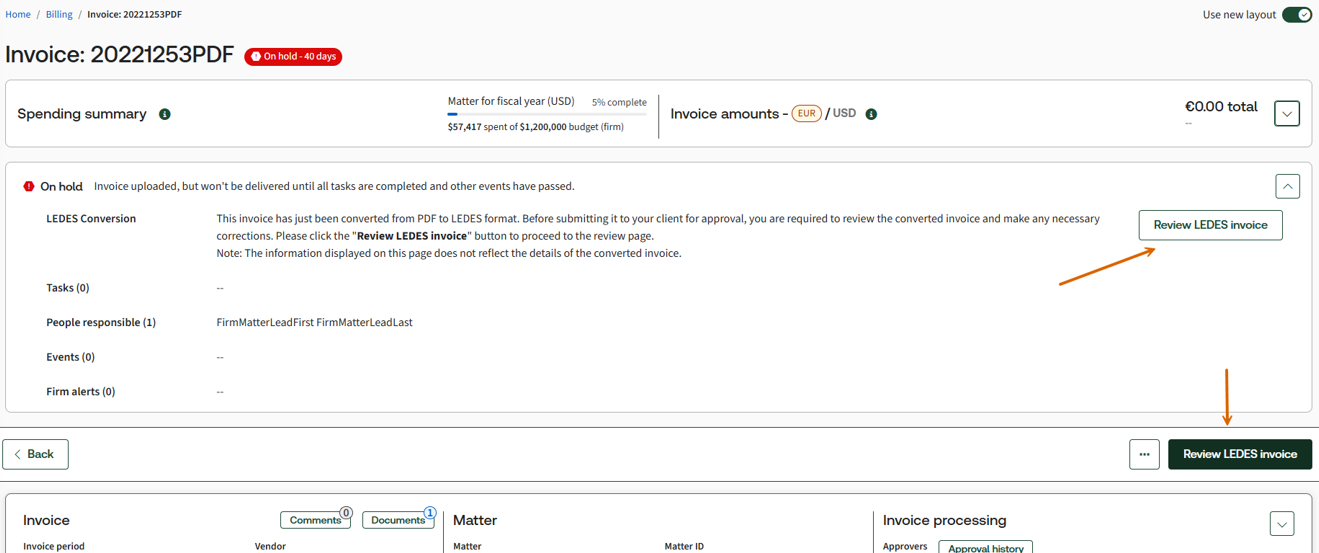
Notifications
When the conversion is complete, you receive an email notification that the invoice is
Ready for review
.The email contains a link to the
View invoices
page, where invoices ready for review are listed in the On hold
section. The Ready for review
link appears in the Status
column for each invoice that is ready for review.Conversion failures
The conversion to LEDES may fail if your invoice file is missing essential information, can't be read, or there's a temporary system outage (extremely rare).
The company has 2 options for what happens if an invoice fails conversion:
- Accept the invoice as non-LEDES
- Reject the invoice for correction
Accept the invoice as non-LEDES
When the PDF invoice is posted for conversion, very little invoice information is included. If the conversion fails, you can enter the correct totals before the invoice can be delivered to the company.
- In the rare scenario when the conversion fails, the submitter receives an email notification of the failure, which includes a link to the invoice.
- Select 1 of the following methods to enter the totals:
- On the invoice details page, go to theOn holdnotification and selectEnter invoice totals.
- Go to or and selectRequires reviewto enter the invoice totals.
- Review the invoice, then selectSave & closeto post it.
- The invoice is delivered with the correct totals as a regular non-LEDES invoice.
Reject the invoice for correction
- If a critical error occurs during LEDES conversion, the invoice is immediately rejected back to the submitter.
- They're notified by email with a direct link to the invoice.
- Once the invoice file is corrected, the submitter can resubmit it usingReposton the invoice page.
- This triggers a new conversion attempt.
Related Content
-
Review the converted invoices
Format: Article
-
Format your invoice files
Format:
Article