
Monitoring Your Posted Invoices
Once an invoice is submitted, you can track its approval status.
Required role | Any user with a system role of Firm Administrator or Firm User + Billing can see all invoices across all matters. Firm users with a system role of Firm Office Administrator may be able to view all invoices for the firm, or only invoices for their office, depending on how the Firm Administrator configured their permissions. If you do not have billing rights, you can see the invoices only for the matters in which you are a matter participant. Billing clerks can only view invoices from
View invoices
on the Recent invoices page.To track the progress of a pending invoice:
- SelectBillingin the left navigation.
- If it is not already selected, select theView invoicestab.
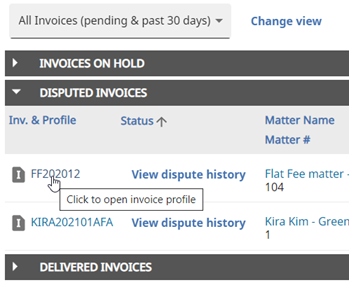
- You can use the dropdown to limit your view to only pending invoices, invoices that were approved in the past 30 days, or invoices that were rejected in the past 180 days. Select an option and selectChange view.
- You can use the collapsible sections to find information for other types of invoices, such as invoices that were disputed. In the applicable section, click the invoice number in theInv. & Profilecolumn to open the invoice to show information such as approval history and tax information.
To track the progress of a pending invoice from within a matter:
Required role | Matter participants
- SelectMatters > Matter Listin the left navigation.
- Select the matter name for the applicable matter.
- SelectInvoices.
Tracking Invoice Payments
Your clients have the option to upload invoice payment information into Tracker, but are not required to do so. Although you will not be notified when an invoice is paid, you can check the status of the invoice by viewing the invoice profile. Payment information, including the check or wire number, appears in the header area.