
Add new (empty) datasets
An empty dataset creates a new dataset to enter new information that is not already in the application.
To add an empty dataset:
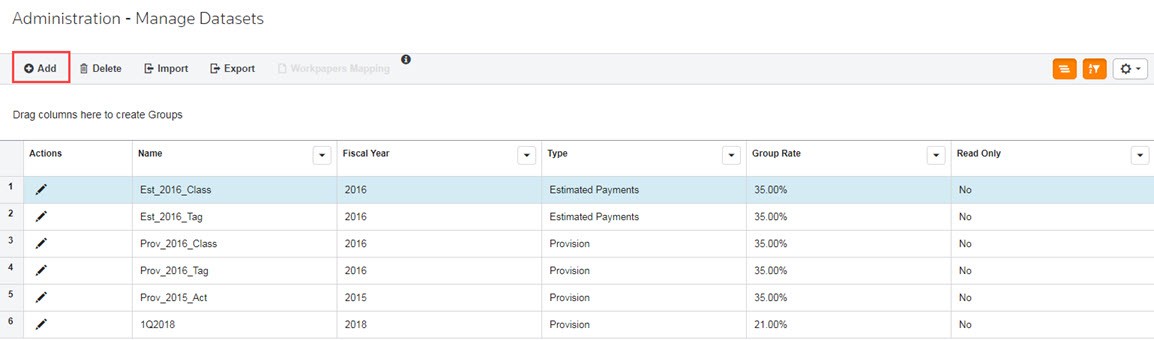
- In Administration, selectManage Datasets > Datasets.
- SelectAddto add a dataset.
 The Add New Dataset wizard appears.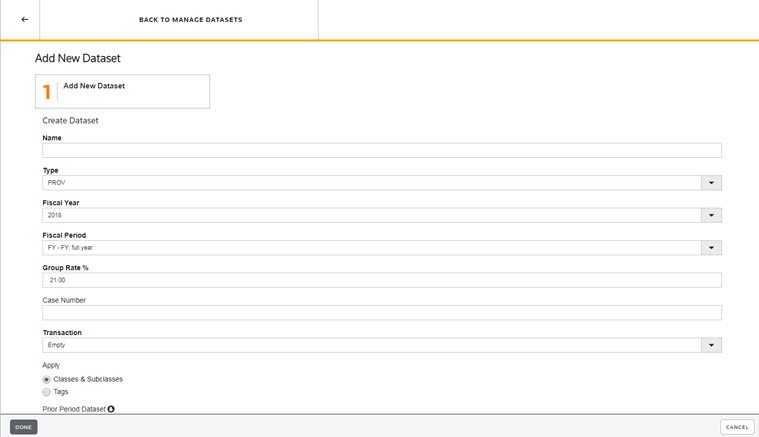
- Type aName.
- The Dataset Name is user-defined and can be any combination of alpha-numeric characters, including spaces, up to 60 characters.
- You can edit the Dataset Name.
- The dataset name appears in My Datasets, Review & Edit and report headers.
- Select the dataset Type:PROV.
- PROV- Provision Dataset: Create Provision datasets to calculate the tax provision.
- Select aFiscal Yearfrom the list. By default, the current year appears in the Fiscal Year field. You can type a year or select a year from the drop-down list.
- Select aFiscal Period. For example, you can select FY - FY: full year. The Fiscal Period defines whether the data in a dataset represents a month, several months, a quarter, or a year. You can type a year or select a year from the drop-down list.
- Select a Group Rate Unit (optional). The Group Rate Unit automatically activates and is added to the new Dataset.
- Type aGroup Rate %. The Effective Tax Rate report uses the group rate as the statutory rate to which the provision reconciles.noteIf a Group Rate Unit is selected, the Group Rate % automatically populates with the corresponding current tax rate of the Group Rate Unit country.
- If required by your administrator, enter a Case #. This is an optional field primarily for exporting data to compliance software.
- SelectEmptyfor the dataset Transaction.
- SelectYes, if the dataset is a Read Only dataset. Otherwise, the default isNoand you can enter information into the dataset.
- SelectDone.