
Copy datasets
When copying dataset, you can include the following items in the copied dataset: Subconsolidations, Attachments, Workpapers, Security Access, Data Source History, and Selected Components.
note
To exclude data entries from the source dataset during the copy process, select the subclass assigned to the specific class (up to 5). Also, you can select all classes in Class/Subclasses in Administration, within the System, Manage Configuration folder for data entry.
A copied dataset creates a new dataset with information already in the application.
To copy a dataset:
- In Administration >Manage Datasets>Datasets.
- ClickAddto add a dataset.
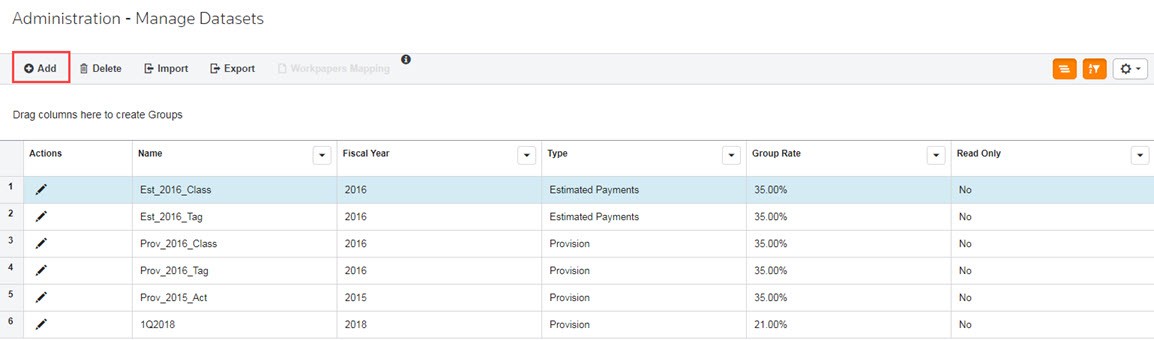 The Add New Dataset wizard appears.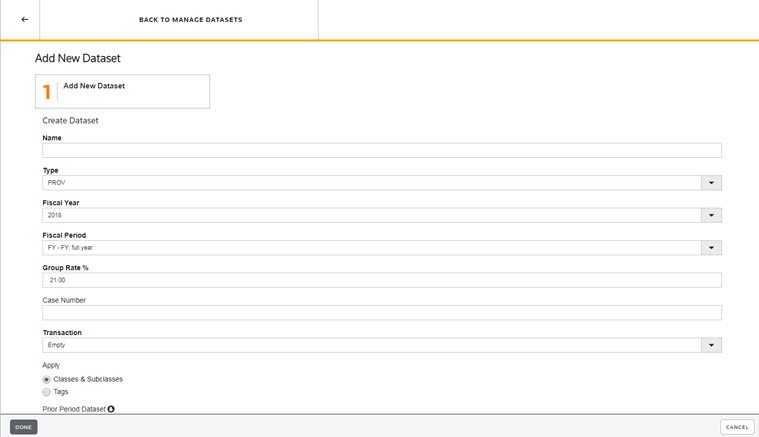
- Type aName.
- The Dataset Name is user-defined and can be any combination of alpha-numeric characters, including spaces, up to 60 characters.
- You can edit the Dataset Name.
- The dataset name appears in My Datasets, Review & Edit and report headers.
- Select the dataset Type:PROV.
- PROV- Provision Dataset: Create Provision datasets to calculate the tax provision.
- Select aFiscal Year. By default, the current year appears in the Fiscal Year field. You can type a year or select a year from the drop-down list.
- Select aFiscal Period. For example, you can select FY - FY: full year. The Fiscal Period defines whether the data in a dataset represents a month, several months, a quarter, or a year. You can type a year or select a year from the drop-down list.
- Type aGroup Rate %. The Effective Tax Rate report uses the group rate as the statutory rate to which the provision reconciles.
- If required by your administrator, type theCase #.
- ChooseCombinefor the dataset Transaction.
- SelectCopyfor the dataset transaction.
- Select a dataset in theSource Datasetdrop-down list.
- Select a dataset in thePrior Period Datasetdrop-down list. This is the default dataset used for unit comparison for reporting. The selected value will be the default value for the comparison dataset in the Unit Comparison Report within Reporting.
- SelectYes, if the dataset is aRead Onlydataset. Otherwise, the default isNoand information can be entered into the dataset.
- SelectNext. Step 2 of the wizard appears.
- Choose the components in theInclude from Source Datasetscreen that you want to include in the rolled over dataset. You can quickly include all components by choosingSelect All Components.noteThe list of components include: Sub-Consolidations, Attachments, Workpapers, Security Access, Data Source History, and Selected Components.
- If you choseNo - Selected Components, clickDone. If you choseYes - Selected Components, clickNextand continue to step 17.
- In theSelected Componentsscreen, select the components from theBeg Bal,Activity,Deferred,Bal SheetandExpenselists.
- Selecting a header name selects all components in that column. For example, selectBeg Baland all components are selected.
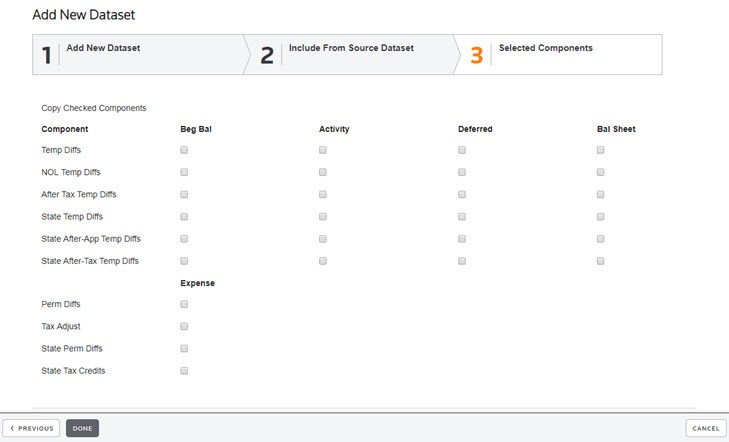
- ClickDone.