
Autoupdate Configuration
Use the
Scheduled Autoupdate Configuration
screen to enable automatic updates on a predetermined schedule.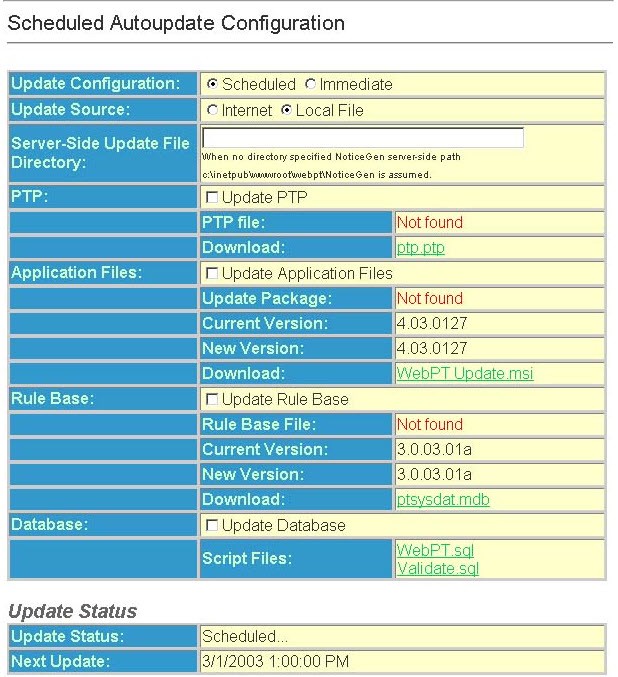
- Select the option for updates:
- Scheduled- This option enables WebPT to be updated automatically on a predetermined schedule.
- Immediate- This option enables the administrator to update WebPT immediately without scheduling.noteIf you are configuring your Auto Update to run on a schedule ODEN recommends setting the schedule to run on a weekly basis. It is also recommended to schedule an Auto Update to run during non-business hours.
- Select the appropriateUpdate Source.
- Internet- This option downloads and runs the update from the ODEN update web server located on the internet.
- Local File- This option specifies the location of the update file on a local or network drive.
- Enter a path for theServer Side Update File Directoryif it is different than the default file location. This field is used only when choosing theLocal Fileoption, and specifies the location of the update file relative to the web server.
- In thePTPsection, select theUpdate PTPoption to update the current customer information, including all carrier information.
- PTP filecontains the location of the updated customer information file. This can be either internet or the local filename depending on the update source specified.
- Downloadoption saves the file to your machine. (ptp.ptp)
- In theApplication Filessection, select theUpdate Application Filesoption to update the current application files which include all web pages, and any other files required to run the Web-based PT application.
- Update Packagecontains the location of the update package. This can be either internet or the local filename depending on the update source specified.
- Current Versiondisplays the version information currently installed on the local web server.
- New Versiondisplays the new version of application files available from the ODEN update web server. If the webserver does not have access to the internet, "Not Found" will be displayed.
- Downloadoption is a link to manually download the most current WebPT update package. (webpt update.msi)
- In theRule Basesection, select theUpdate Rule Baseoption to allow for the rule base information only to be updated.
- Rule Base Filecontains the location of the rule base update file. This can be either internet or the local filename depending on the update source specified.
- Current Versiondisplays the rule base version currently installed on the local web server.
- New Versiondisplays the new version of rule base information available from the ODEN update web server. If the webserver does not have access to the internet, "Not Found" will be displayed.
- Downloadoption is a link to manually download the most current rules database (ptsysdat.mdb).
- In theDatabasesection, select theUpdate Databaseoption allows the update package to update the database structure, if needed. If this option is not checked, the database must be updated prior to updating the rulebase or application.
- Script filesis a link to manually download the latest db scripts.
- In theUpdate Statussection,
- Update Statusdisplays the status of the update.
- Next Updatedisplays the date of the next update.
Autoupdate Schedule Type
The
Autoupdate Schedule Type
section of the System Settings
page contains the following fields:Not Scheduled
- No schedule exists for autoupdate. Autoupdate runs only if scheduling is enabled or by an immediate update.Run Once On
- This field displays the date specified for the autoupdate to run.Run Monthly On
- This field displays the day of the month specified for the autoupdate to run.Run Every(Day of Week)
- This field displays the day of the week specified for the autoupdate to run.Run On(Day of Month)
- This field displays the day of each month specified for the autoupdate to run.Run At (Time)
- This field displays the time specified for the autoupdate to run.