Batch Printing - Printing Notices
Now that you have made all your selections you can print the notices.
- SelectSave Preferenceson the side menu if you will use these selections often. This saves your selections in thePreference Library. The next time you need to produce the same batch print you can access it from thePreference Library.
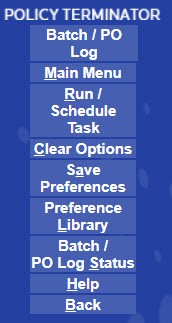
- From the side menu bar, selectRun/Schedule Task.
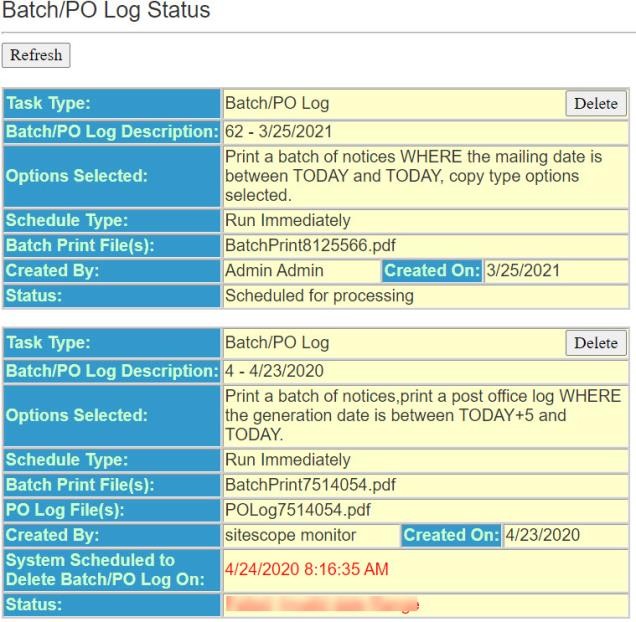
- Policy Terminator builds a Batch Print in a pdf format containing all the selected notices. If the Batch Print File(s) field does not turn green and allow you to open the pdf file, select theBatch/PO Log Statusbutton on the side menu or click theRefresh Buttonat the top of the page.