
Free Form Attachment
This page appears when you select the
Attach Free Form
option is selected from the Mail and Termination Date
page.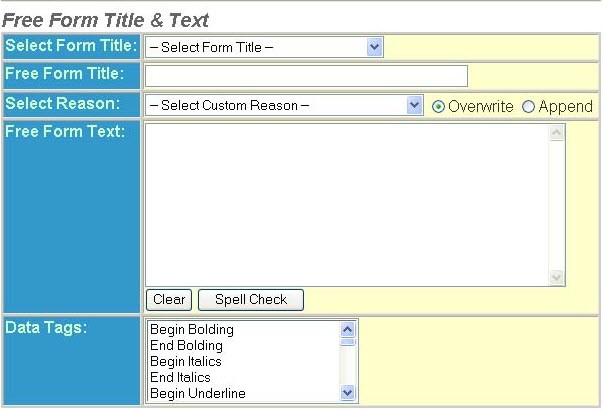
- Select aForm Titlefrom the drop-down list.
- Select aFree Form Titlefrom the drop-down list or scroll down to the desired entry and press theTabkey. This field appears only if free form titles have been added to your system.noteThe System Administrator or any user with Data Setup-Free Form rights can add to the list ofFree Form Titlesor edit them. Go toUtilities > Free Form Titlemaintenance page to add or edit the list.
- EnterFree Form Text. This is the body text of the free form.
- SelectData Tagsfor formatting instructions such as bolding, italics, or text such as the producer name or phone number from the policy information page to the notice text. You can also dynamically insert pieces of data from the policy record into the notice text. While editing the notice text, Data Tags appear in braces ({}). At generation time they are translated into associated data or formatting changes on the notice. You can enter Data Tags directly into the text box or alternatively select them from theData Tagslist. Selection from the list adds the appropriate Data Tag to the end of the text.