
Creating a Notice
- On the side menu, selectCreate Notice.
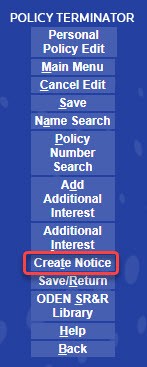 The Policy Terminator runs a validation to ensure that all the required information is provided to produce a notice.
 - On the side menu, select theNotice Type.
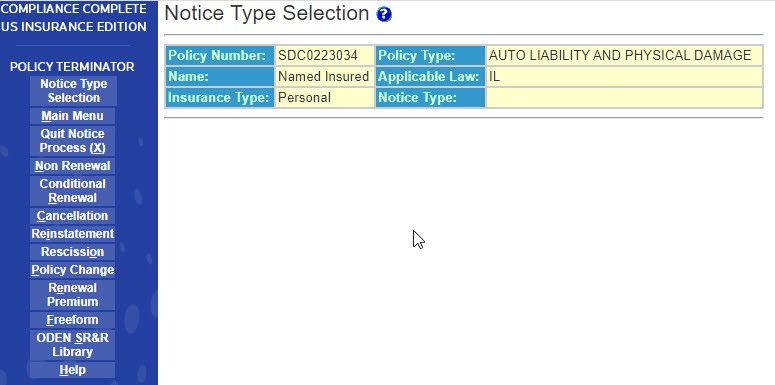
- SelectCancellationfor this example. Policy Terminator again validates the information and theBasic Notice Informationscreen appears.
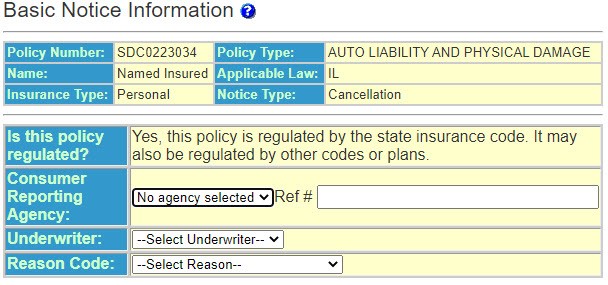
At the top of every screen you will always see the “vital statistics” of the policy; Policy Number, Policy Type, Named Insured, Applicable Law, Insurance Type (Personal or Commercial) and Notice Type.
See "Basic Notice Information" for more detail about the following:
- Is this policy regulated? - For information only. On the side menu, selectODEN SRR Libraryto review the rules and regulations governing this policy.) This field displays the regulated status of the policy. This is pre-filled by ODEN and cannot be modified.
- Consumer Reporting Agency – These agencies are added inUtilities. Per Federal Law, if you are taking action based on information from an outside source, you must tell the consumer.
- Select theAgencyfrom the drop-down list, if applicable.
- Enter aReferencenumber if provided by the Agency
- Underwriter – If Underwriter names are loaded inUtilitiesselect one.
- Reason Code – In general, every state hasNonpayment of PremiumandNone of the Above Apply. Depending on the state, these may be the only reason codes to choose from or you may have several more. Select the reason code that applies to the circumstances. If the exact reason code isn’t listed, selectNone of the Above Apply.
- On the side menu selectContinue.
- If applicable, thePop-Up Questionsscreen appears.Depending on the state and policy type, pop-up questions may be necessary. In some circumstances you may not have any or you might have several. Answer the pop-up questions appropriately.
- On the side menu selectContinue. TheReason Detailsscreen appears.