
New Policy - Additional Interests
Use this screen to add
Additional Interests
when adding a new policy.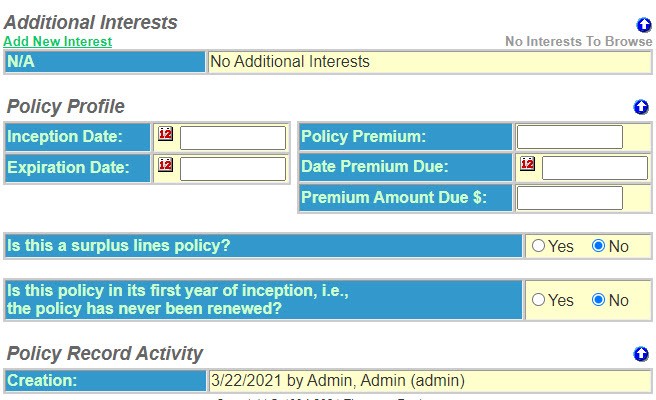
- SelectAdd New Interestif applicable.
- You will get a messageAdding an Additional Interest requires saving policy information.” Select OK to save the policy information.
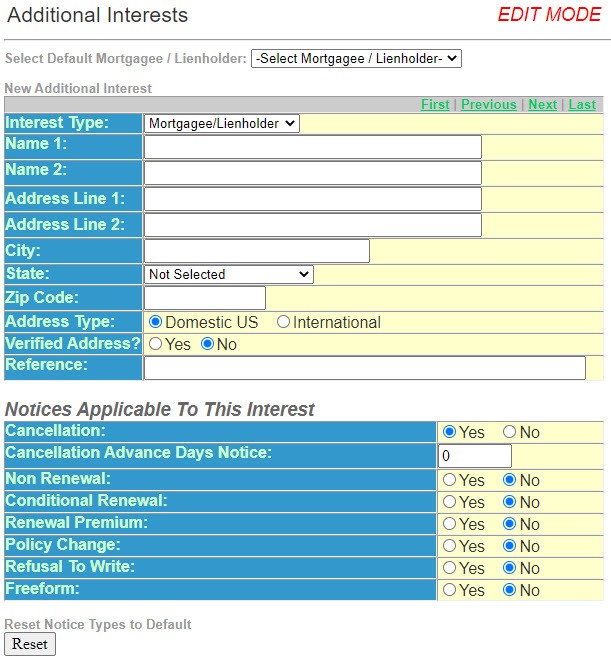
- Select Default Mortgagees/Lienholder - If Mortgagees/Lienholders have been added in Utilities, you can select one from the drop-down list. If no Mortgagees/Lienholders have been added, this option does not appear.
- Interest Type – Select if this is an Additional Insured, Certificate Holder, Mortgagee/Lienholder or Other party of interest. For our example select Mortgagee/Lienholder from the drop down list.
- Name 1 – The first line of the name of the Mortgagee/Lienholder.
- Name 2 – The second line of the name of the Mortgagee/Lienholder, if applicable.
- Address Line 1 – The first line of the Mortgagee/Lienholder address.
- Address Line 2 – The second line of the Mortgagee/Lienholder address, if applicable.
- City – The City in the Mortgagee/Lienholder address.
- State – The State in the Mortgagee/Lienholder address.
- Zip Code - The Zip Code in the Mortgagee/Lienholder address.
- Address Type – Select domestic or international.
- Reference – An optional field. Could be used for a Loan number, project number or vehicle identification.
- Enter theNotices Applicable to this Interestinformation:
- Cancellation – Notice type - defaulted to Yes
- Cancellation Advance Days Notice – Leaving this blank will give the Mortgagee/Lienholder the same number of days as the Named Insured. If you want the Mortgagee/Lienholder to get a different number of days notice, complete with the desired number of days.
- Non Renewal - Notice type – defaulted toNo. If you wish the Mortgagee/Lienholder to get a copy of this notice you must selectYes.
- Conditional Renewal - Notice type – defaults toNo. If you wish the Mortgagee/Lienholder to get a copy of this notice you must selectYes.
- Renewal Premium - Notice type – defaults toNo. If you wish the Mortgagee/Lienholder to get a copy of this notice you must selectYes.
- Policy Change - Notice type – defaults toNo. If you wish the Mortgagee/Lienholder to get a copy of this notice you must selectYes.
- Refusal to Write - Notice type – defaults toNo. If you wish the Mortgagee/Lienholder to get a copy of this notice you must selectYes.
- Freeform - Notice type – defaults toNo. If you wish the Mortgagee/Lienholder to get a copy of this notice you must selectYes.
- Complete thePolicy Profileinformation.
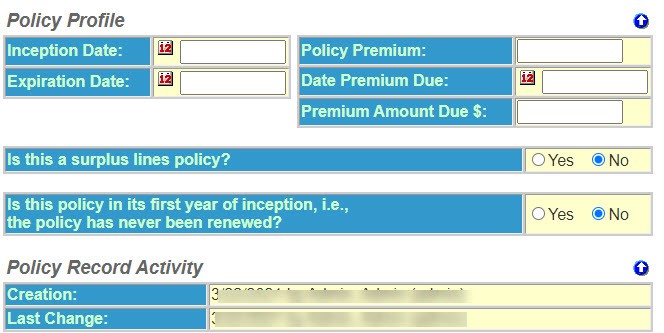 These questions may or may not be required depending on the state, the policy type and the reason for the actions. If the information is required Policy Terminator will not let yo u create the notice until the information is supplied.
- Inception Date – The date the coverage on the policy was put into force.
- Expiration Date – The date that coverage under the policy will cease.
- Policy Premium – The annual premium of the policy.
- Date Premium Due – The date the premium was due. Use this field if you are canceling for Nonpayment of Premium.
- Premium Amount Due – The amount of the premium that was due. Use this field if you are canceling for Nonpayment of Premium.
- Compliance Questions – Additional questions that must be answered in order to produce a compliant notice. All questions default to “no” but you will need to change the default depending on the specifics of your policy.
- Complete thePolicy Record Activity. This section records the activity on this policy record.
- Creation – When the policy record was created and by what user.
- Last Change – The last time the policy record was changed and by whom.
Once you have completed the necessary policy information you can create a notice.