
Notice History
The
Notice History
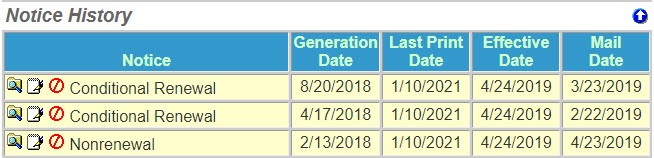
section of the Policy Information
page displays a list of previously generated notices.The list contains the notice type, generation date, last print date, effective date, and the mail date. The notice history is only visible in Read Only Mode
.note
The
View Historical Notice
option is listed under the Notice History
section of the Policy Information
page. To view a previous notice select the magnifying folder icon next to the Notice. This allows you to view the notice history detail in Read Only Mode
.
Adding/Viewing Notes
The
View Notes
option is listed under the Notice History
section of the Policy Information
page. To view notes, select the Notepad
icon. To add notes, select the
Edit Mode
menu option, enter notes then click Save/Return
. When you add notes to notice history, the notepad icon changes to have lines.Voiding a Notice
The
Void Notice
option is listed under the Notice History
section of the Policy Information
page.To void a notice select the
Void
toggle next to the Notice. This adds a strikethrough on the notice. To reverse the void, select the Void
icon a second time. We recommend that you add a note explaining why you voided a notice.