
Reports - Filter
A filter expression is a way to limit the records that are included in a report by specifying criteria.
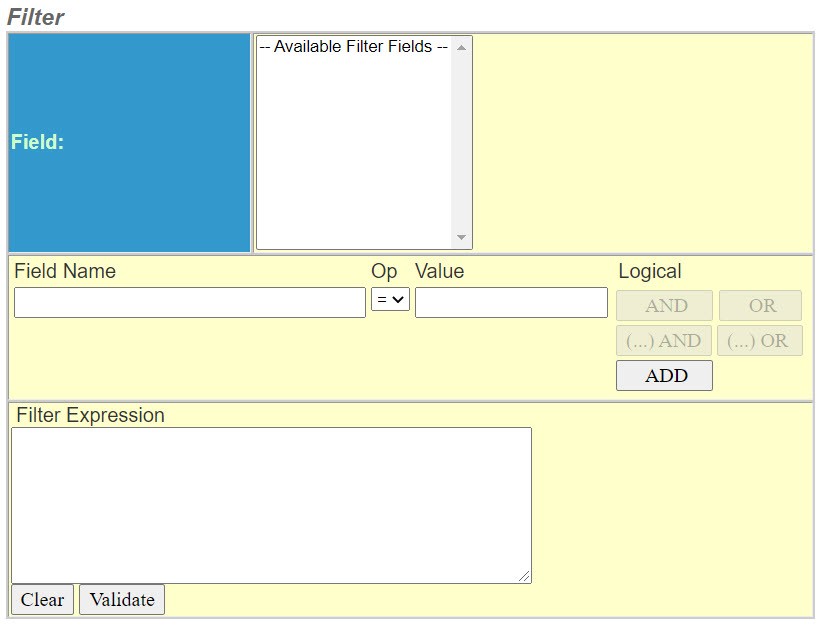
The
Filter
section of Reports
contains the following fields:- Select the Fields from the list of all of the fields available to use in the filter. This selection appends it to theField Namebelow.
- The Field Name is populated when you select the items above.
- Select the appropriate Operator from the drop-down list. Operators are typically used to compare the values of a field to some fixed specified value. Some operators in the list require special instructions:OperatorDescription=equal to<>not equal>greater than>=greater than or equal to<less than<=less than or equal toINDetermines if a given value matches any value of a subquery or a list.NOT INThe given value does not match any value of a subquery or a list.LIKEDetermines whether or not a given character string matches a specified pattern.NOT LIKEA given character string does not match a specified pattern.The "LIKE" operator is similar to the equals operator except that it allows the right hand value to contain the wildcard "%". For example, the filter text:PolicyApplicableState LIKE "O%"matches policies whose applicable law state is OH, OK or OR.The "IN" operator allows one to specify a list of comma separated values enclosed in parenthesis. For example, the filter text:PolicyApplicableState IN ("OH","OK","OR")matches policies whose applicable law state is OH, OK or OR.The "NOT IN" operator allows one to specify a list of comma separated values enclosed in parenthesis that should specifically be excluded, For example, the filter text:PolicyApplicableState NOT IN ("OH","OK","OR")matches policies whose applicable law state is anything except OH, OK or OR.
- Select theValuethat applies. The values are user supplied criteria and in some cases the system provides a list of values for you to select.
- Select the appropriate Logical operator for your criteria. The Logical provides the simple Boolean operators AND and OR. If nothing is in the filter expression the only valid button isAdd. See Details below:OperatorDetailsANDAdds another field name to the filter expression to be considered. The system will poll the database for records that match both criteria.ORAdds another field name to the filter expression to be considered. The system will poll the database for records that match either criteria.(...) ANDAdds a string(See AND)(...) ORAdds a string(See OR)ADDAdds the first field to the filter expression.noteThe (...)AND or (...)OR buttons when selected will apply parenthesis around the entire existing filter expression and append the new criteria to the end of the expression.
- TheFilter Expressiondisplays the actual SQL where clause.
- SelectClearto remove the entire filter expression.
- SelectValidateto verify the syntatical correctness of the filter expression.
- Go to Sorting for the next step of reports.