
Reports - Report Status
Use the Report Status to see details about the generated report.
The
Report Status
menu options consist of the following tasks: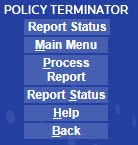
Menu Item | Description |
|---|---|
Main Menu | Select to return to the Main Menu |
Process Report | Takes you to the Define a Report screen. |
Report Status | Displays the status of both processed and scheduled reports. |
Help | Opens the online help topics for import. |
Back | Returns you to the previous screen. |
Reports take a few minutes to process once you select
Begin Processing
. To update the status, on the side menu, select
Report Status
. If the report file is complete the file name displays in green in the Report Files
field.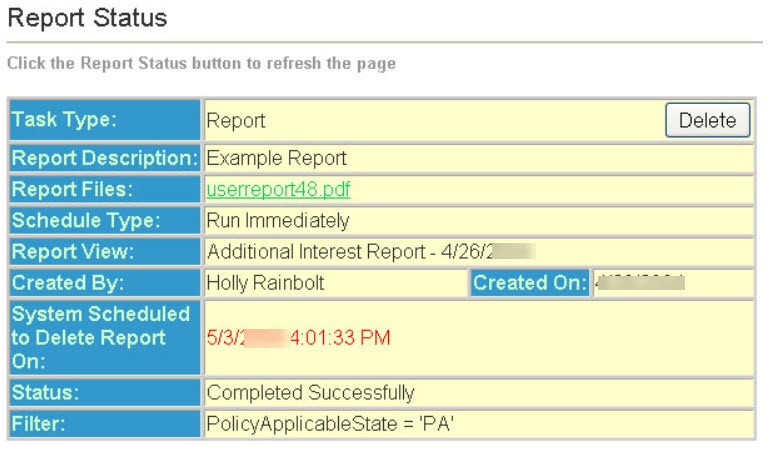
Task Type - The type of task that is being processed.
Report Description - The user defined report name.
Report Files - The name of the report file. Once the generation of the report is complete, the file name appears in green. To view the report, select the file name to open the report in Adobe Acrobat.
Schedule Type - The type of schedule specified for the report to run.
Report View - The report template you selected.
Created By - The name of the individual who generated the report.
Created On - The date the report file was generated.
System Scheduled to Delete Report On - The date and time the report file will be purged.
Status - The status of the report. (For example, Completed Successfully or Failed)
Filter - The filter expression that was used.