
Adding a Branch
Add company branch locations to create a pick list of company branches. Branch information is required in order to create a notice.
- On the Main Menu, selectUtilities > Data Setup > General Policy Setup.
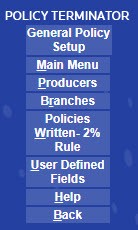
- SelectBranches.

- SelectAdd New.
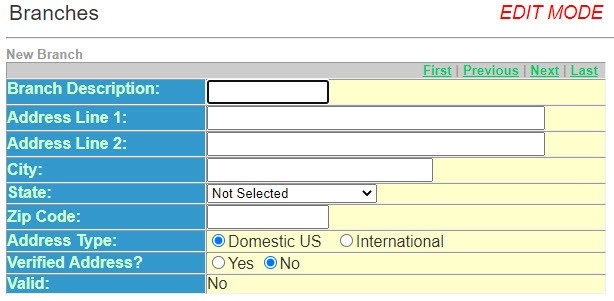 The address on this page is the address that prints beneath the name of the insurance carrier at the top of a notice. Generally, this is the address of the issuing office or the office the insured would contact for more information.
 - Enter theBranch Description. An 8 character code identifying a particular branch. This description allows you to select a branch from a pick list.
- Enter theAddress Line 1. The first line of the branch address.
- Enter theAddress Line 2. The second line of the branch address, if applicable.
- Enter theCity. The city in the branch address.
- Enter theState. The state in the branch address.
- Enter theZip Code. The zip code in the branch address.
- Select theAddress Typefrom the optionsDomesticorInternational.
- Valid – IndicatesYesorNo. This will change to Yes once you save the information and
- Policy Terminator determines that all the required information is included.
- On the side menu, selectSave/Return.