
Creating User-Defined Fields
User-Defined Fields (UDF) are additional fields that you can add and then use to track information not captured in the existing Policy Terminator program. Once you create these labels, a new field will appear on the
Policy Information
page and you can enter data into them. You can set them up in two ways:
- You can use them to filter data in the batch/p.o. log; policy locate or reports.
- You can use them to insert data not captured by the policy terminator that you may want to appear on the notice. This could include the VIN, the name of a program or a property description.
- On the Main Menu, selectUtilities > Security > Group Options.Once you create the User-Defined Field inGroup Options, they will appear at the bottom of thePolicy Informationscreen and you can enter the appropriate information.
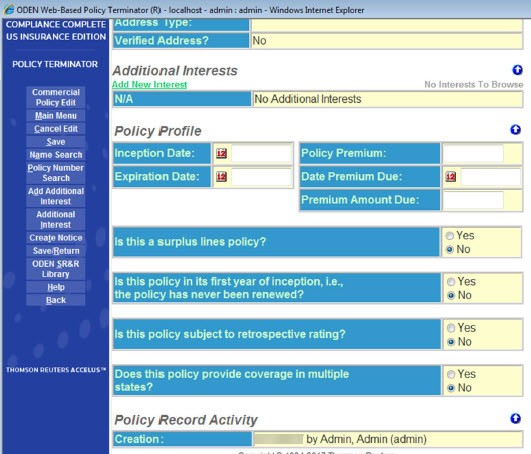
Examples:
User-Defined Field 1 Label:
Program
. When the operator is entering data he/she will have the opportunity to enter the name of a specific program. (i.e. Hardware Stores, Oil Lease Operators, Recreational Vehicles.) User-Defined Field 2 Label:
Department
. If information about the specific department issuing the notice is entered, Management will be able to produce reports based on what terminations are coming out of what department.How to Create User-Defined Fields
- On the Main Menu, selectUtilities > Data Setup > General Policy Setup.
- SelectUser-Defined Fields.
- On the side menu, selectEdit.
- Create new labels or view existing ones.