
Loading Facsimile Signatures
Add facsimile signatures to create a pick list of electronic signatures of persons authorized to sign notices. You must scan and save facsimile signatures as *.JPG files before adding the signature to Policy Terminator. Make sure you scan just the signature. Too much white space around the signature prevents it from loading.
- From the Main Menu, selectUtilities > Data Setup > General Notice Setup.
- On the side menu, selectFacsimile Signatures.
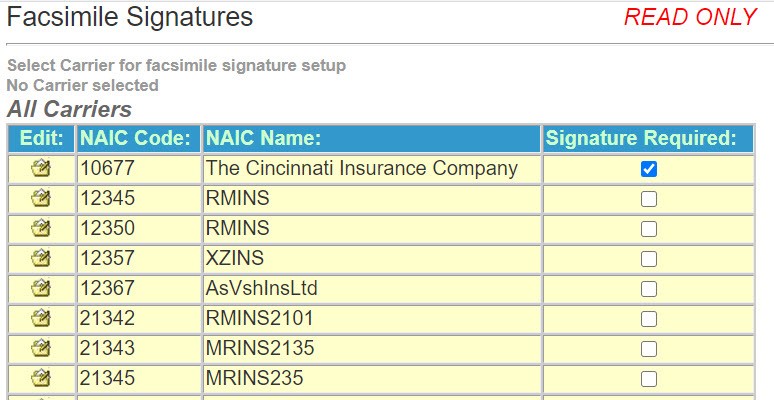
- A list of the insurance carriers for which you have contracted to produce notices will be listed.
- Select theEditIcon for the carrier to which your signature applies.
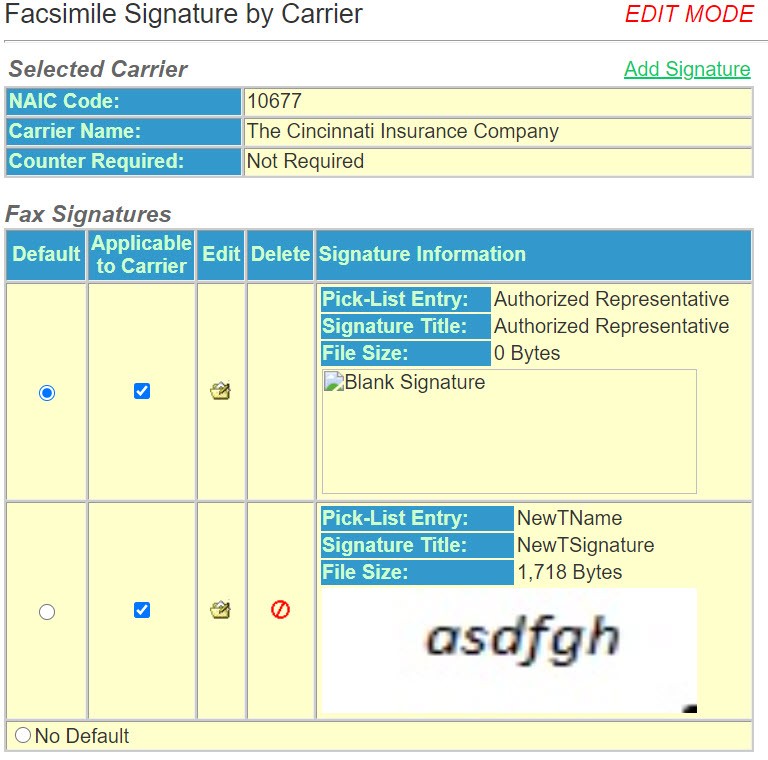
- This is a list of current signatures, if any.
- On the side menu, selectAdd Signature.
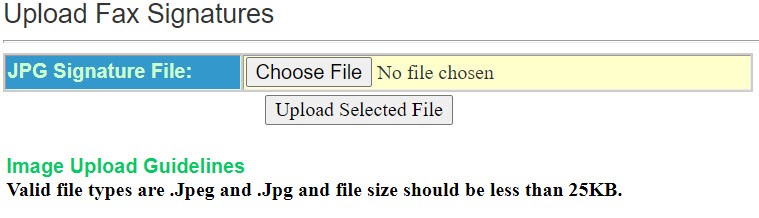
- Enter the file location and name or selectBrowseto find the .jpg file you have created.
- Upload the selected file.
- On the side menu, selectSave/Return
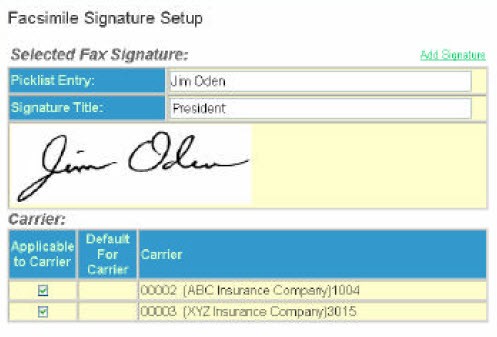
- Enter thePick List Entry. The name that will appear in a pick list when the operator is producing a notice.
- Enter aSignature Title. The title of the person whose signature will be printed on the notice.
- Select theApplicable to Carrier(s). Select those carriers to which the signature applies.
- On the side menu, selectSave.
- Once you save the signature, you can select if it should default to one or more carriers.
- On the side menu, selectSave/Return.
You will see the signature in the Facsimile Signature table.