Periodic updates to content
Due to Tax law updates, content within Calendar is regularly updated. Because of this, sometimes due dates that you’ve already scheduled will change.
Due date recalculation
When a scheduled due date has been recalculated, you will be alerted of the change on the
Schedule Due Dates
tab. In the Status column, the status will read “Due date recalculated”, and by hovering over the “I” icon, you can review why the date was recalculated.To clear the recalculation flag, go to the
Schedule Due Dates
area and select the flagged obligation. Once you select the obligation, select:Content Updates > Clear Recalculation Flag

After you clear the recalculation flag, the obligation status will change back to
scheduled
.
Obligation changes
When a scheduled obligation changes, you will be notified in the
Schedule Due Dates
area by the status “Obligation change”.Hover over the
I
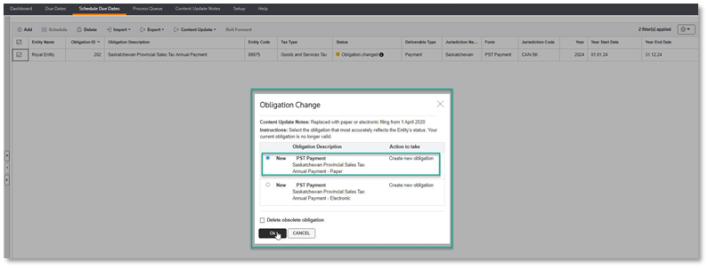
icon to review notes on the update. This example has more that one potential replacement available for the obligation.
To replace the out-of-date obligation, begin by selecting the flagged obligation then select
Obligation Change
.
You will be prompted to select the new obligation you would like to schedule. To do this, you will want to:
- Review the obligation descriptions
- Choose the obligation that is most appropriate for your entity
- Checkdelete obsolete obligationif you want to remove the old obligation.
- SelectOKto add the new obligation
note
This process will schedule a new obligation based on your selection. If you select delete, the selected existing record will be deleted. If your due dates are already being worked on, check to see if you want to transfer information from the old due dates prior to deleting.
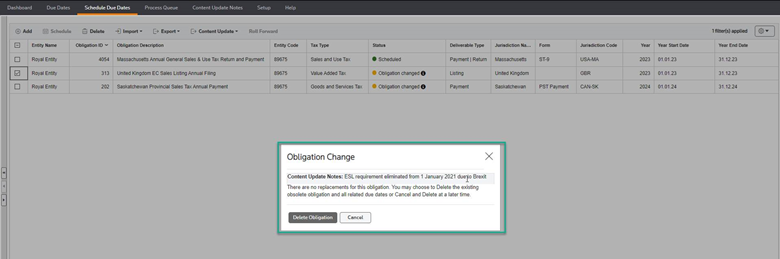
In some instances, obligations will become obsolete with no replacements. You will be noted of this change in the
Schedule Due Dates
area by the note “Obligation changed”. In this example, by hovering over the “I” icon, the notes reveal that the replacement for this obligation has been eliminated.
Because there is no replacement, you can choose to delete the obsolete obligation, or keep it as is. To do this, select the flagged obligation, select
Content Update > Obligation Change
and delete the obligation if desired.