
Entities in ONESOURCE DataFlow
ONESOURCE DataFlow uses common components available on the ONESOURCE Platform. Detailed instructions can be found in Administration Help and Support.
Think of an Entity as part of a DataFlow request. The Entities section is where you manage all your entities across ONESOURCE products. You can make changes and associate different ONESOURCE products to new and existing entities.
Jurisdictions
Thomson Reuters provides a list of geographic locations called Jurisdictions, which contain over 40,000 entries. You can filter Jurisdictions by product and then further filter and sort them using filter options.
To open the Jurisdictions screen, select
Reference Data
, then Jurisdictions
.Each Jurisdiction, like Entities, can be associated with one or more products. Only the jurisdictions linked to DataFlow will be visible in DataFlow. You can use alternate names for a Jurisdiction to meet business needs. If an alternate name is created, only that name will be visible.
Tax types
Domains, also known as Tax Types, give you a list of different tax and business areas curated by Thomson Reuters. They're available for all ONESOURCE products.
Select
Reference Data
, then Domains
to view the screen.You can link each domain (tax type) to one or more products like with Entities and Jurisdictions. Once you do that, the list will show up in DataFlow. You can also create alternate names for Tax Types to fit your business needs. If you set up an alternate name, that's the name that will appear in DataFlow.
User administration
User permissions
User permissions are managed in ONESOURCE Administration. You can create regular users or data providers. You can create permissions to add or modify a specific user or group of users.
Product permissions
An Administrator uses
Product Permissions
to assign permissions for each user for the products they are licensed to use.For regular users, go to
Company Info
, then View
and checkmark Accounts
, Entities
, Groups
, and Users
. If you're a Data Provider user, you can skip this step.Make sure that users have the
View
permission checkbox selected for Groups
so they can see the list of groups in the Assigned To
fields.
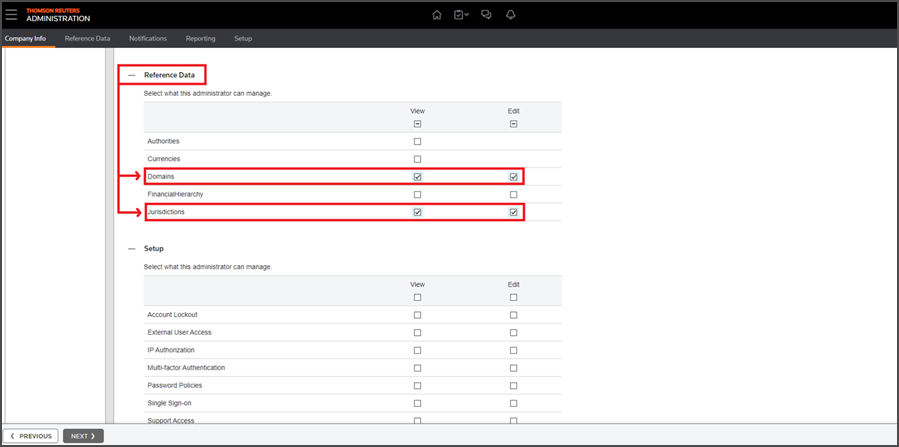
For regular users and Data Provider users, select
View
and Edit
in the Reference Data section for Domains
and Jurisdictions
. This lets users view the list of tax . If Data Hub is configured, checkmark Financial Hierarchy
.
Related Content
-
Administrator types
Format: Article,
3 min read
Article,
3 min read
-
Modify product permissions and assignments
Format:
Article,
1 min read