
Add an entity
To add an entity:
- Sign in toONESOURCE Administration, then selectCompany Info,Entities.
- SelectAdd, then enter the information on theNew Entitywindow.noteONESOURCE DataFlow uses the entity code as the name if you don't enter a specific one.
- Enter the version date to indicate when the entity's attributes become effective.
- SelectNextto go to theAttributes by Applicationtab.
- SelectManage Appsto associate an entity with DataFlow.
- Switch the association for ONESOURCE DataFlow on theManage Applicationswindow. This changes the entity status toAssociation in progress.
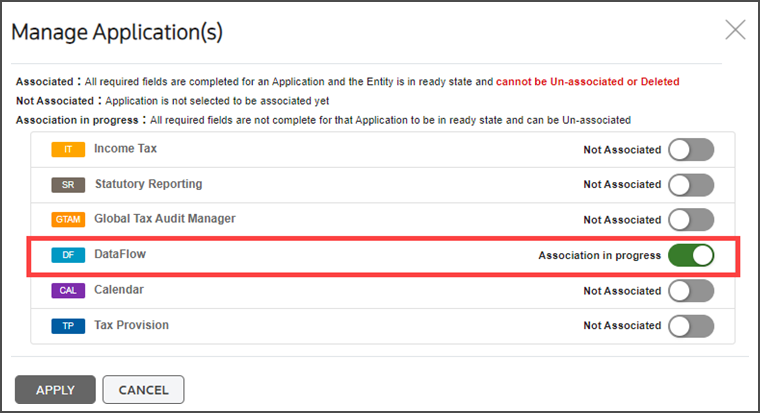
- SelectApply.
- Enter the remaining details in theAttributes By ApplicationorAttributes By Categorytabs, then selectSave.
- SelectUpdate the current version, then selectOKAY.noteYou can make changes to existing entities and apply them to the current version or create a new version of the existing entity.
- Find the entity now associated with ONESOURCE DataFlow on theEntitiesscreen.
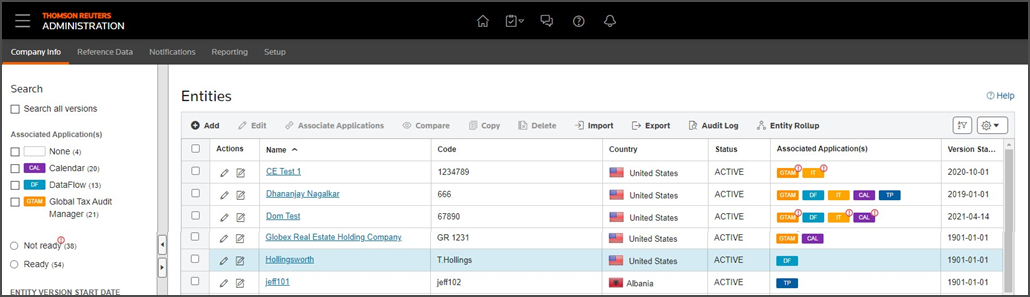 noteOnly associated entities will be visible in DataFlow. Other entities created for use in other products or for planning purposes will be filtered out. For more detailed information on setting up Entities, refer to Administration Help and Support.