
Create groups
Administrators can create groups to give multiple users the same set of data and access permissions. You can use these groups to assign requests and notifications in ONESOURCE DataFlow. The permissions and notifications will automatically apply to all users within those groups.
You can update the scope of the group for products and permissions at any time. Users in the group inherit all products and permissions assigned to that group. This includes any products and permissions individually assigned to those users.
To create a group:
- SelectCompany Info, thenGroups.
- SelectAdd.
- Select products and product-specific permissions for the group.
- SelectNext.
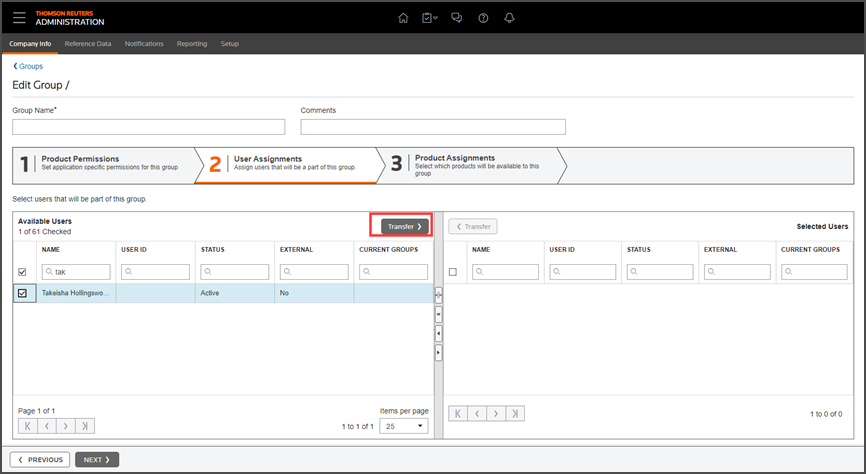
- Search for a user in the Available Users section.
- Select the user checkbox, then selectTransferto move the user to the Select users section.
- SelectNext.
- Go to the ONESOURCE Workflow Manager section on theProduct Assignmentstab.
- Select theDataFlowcheckbox for regular users in the group.
- Select theData Providercheckbox for data provider users in the group.
- SelectDonewhen you're finished.noteYou can assign groups usingEdit Assignmentsin DataFlow. This includes Requests, DataFlow Template completion email notifications, Status Template Permission, and Action Management error notifications.We recommend creating a group to manage status templates. This approach limits Request change transitions and transfers to specific user groups with review and oversight responsibilities, rather than assigning many individual users.