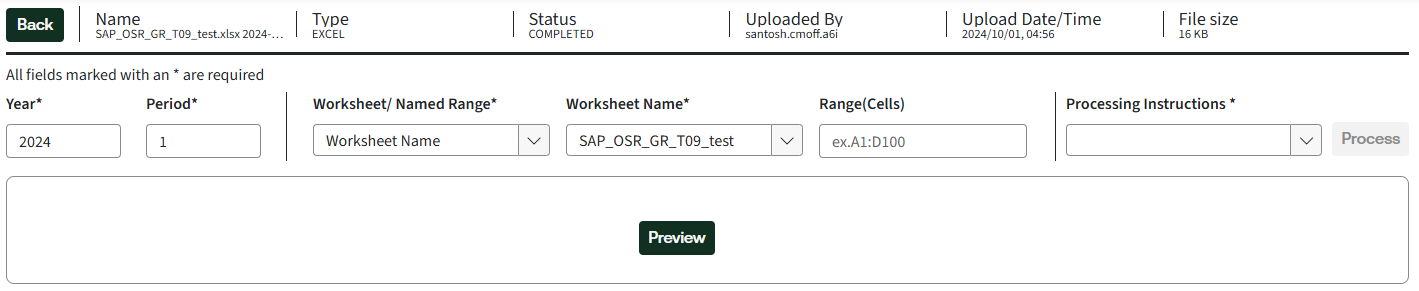
Process file screen
This Process File screen in the Data Queue shows the details of your file and where you process it.
The
Process File
screen shows the 1st 10 rows of your file. You can edit Year
, Period
, and Delimiter
(or Excel options). You can also select how to process the file with the Processing Instructions
. - Sign in to ONESOURCE General Ledger Manager, then selectData Queue.
- Select a file name to go to theProcess Filescreen.
- View your file's name, type, status, and other information.
note
Delimited files show the 1st 10 rows automatically. Select
Preview
to view Excel files.Delimited files
General Ledger Manager defaults the
Delimiter
to COMMA (,)
. Select a different delimiter from the dropdown to change how GLM reads your file. The screen updates automatically based on your selection. GLM remembers your delimiter choice for future uploads.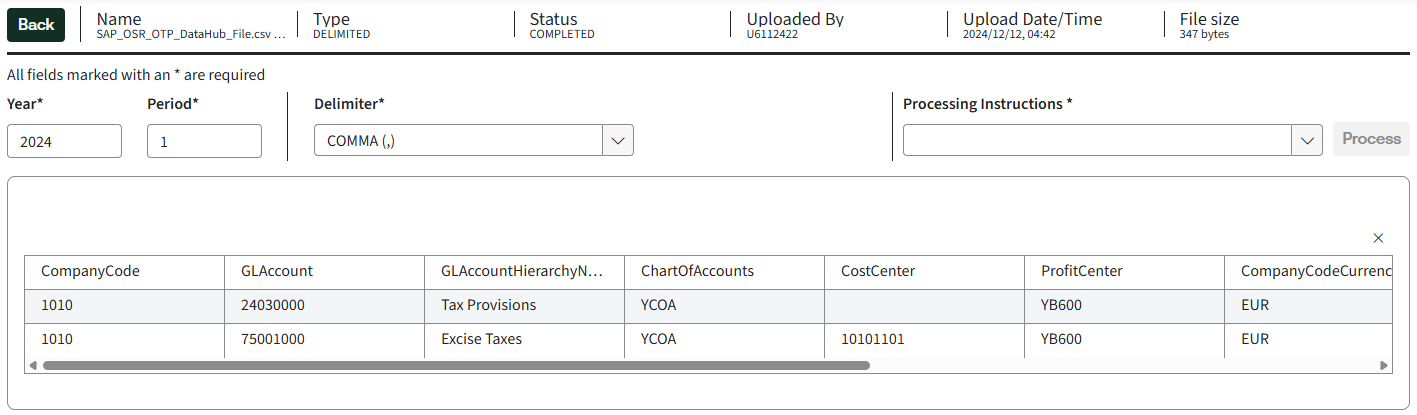
Excel files
GLM defaults the
Worksheet/Name Range
to Worksheet Name
. Use the dropdown to select different worksheets or named ranges. Enter the cell range containing your data, then select Preview
to show the 1st 10 rows based on your selections.