
Add a file to the data queue
Use the
Data Queue
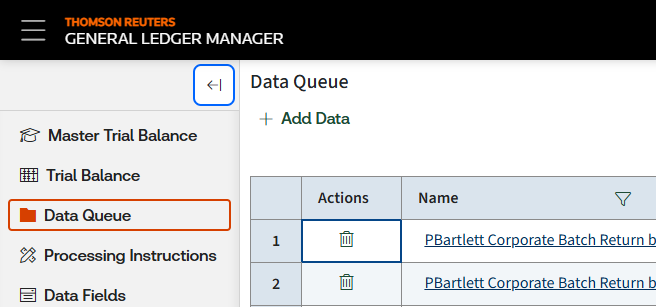
screen to add files.- Sign in to ONESOURCE General Ledger Manager, then selectData Queue.
- SelectAdd data.
- Drag and drop a file or selectChoose File, then enter theYear,Period, andName.
- SelectSaveorSave & Processing.
- Save:Saves the file for later processing and returns to theData Queuescreen.
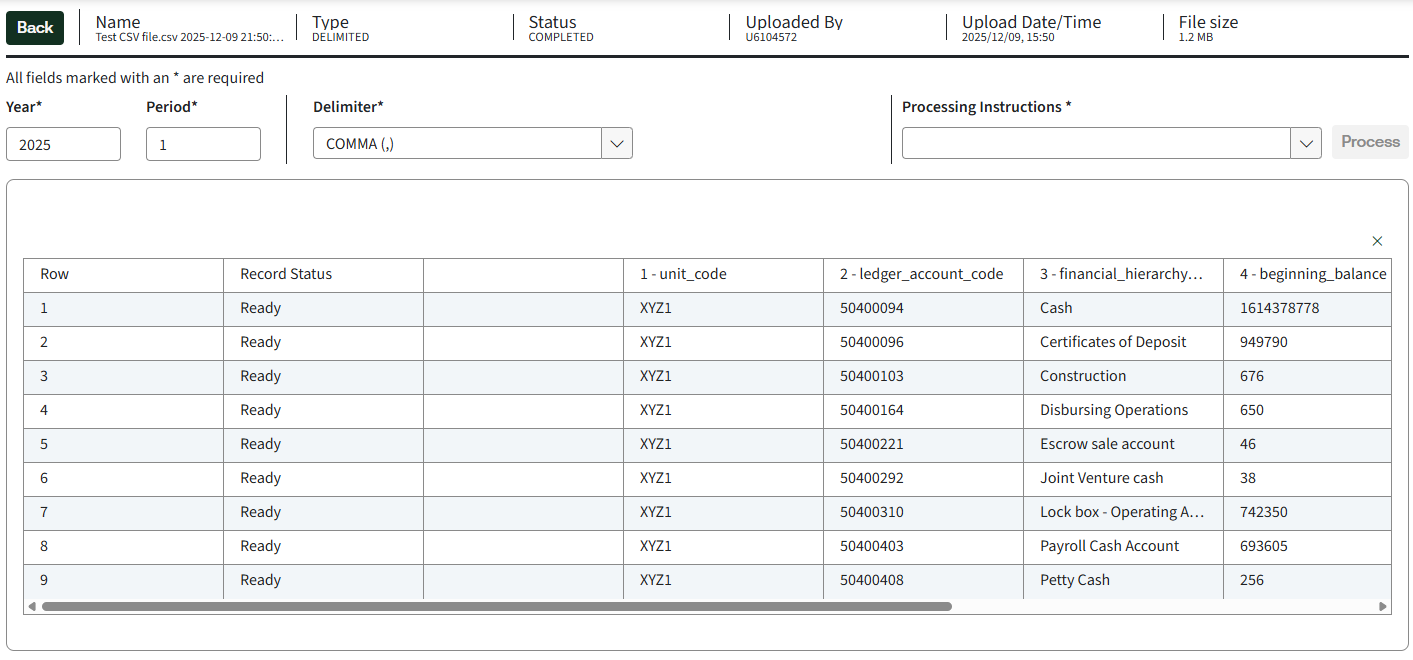
- Save & Process:Saves and processes the file immediately. If the status isCompletedorUploading, you're redirected to theProcess Filescreen. If status isAwaitingorFailed, you return to theData Queuescreen.
 note
note- YearandPeriodare labels only, and not used for validation.
- Supported file types include.csv,.txt,.xlsx, and.xlsb.
- You can upload only 1 file at a time.
- TheNamedefaults to your file name with date and timestamp. You can then edit the name.