
How to add and manage systems in In Out?
In order for In Out to allow the communication of ONESOURCE™ Global Trade products with other systems, the data from these systems must be registered in In Out.
Adding a system
- Access the menuRegistration > Systems.
- Click
 Add.
Add. - According to the definitions, complete the fields on theCreate Systems to Usescreen:
 * Required fields
- ID*: Alphanumeric system identification code.
- Example: IS
- Description*: brief definition of the system that will be used.
- Example: Import
- Oracle User:User name of the system database to be used.
- Example: TRISNEXTUSER1
- Macro Key Replacement: Macro that replaces theOracle User.
- Example: #IMPORT_USER#
- Password:Oracle Userpassword to access the database.
- Macro Key Repl.: Macro that replacesPassword.
- Example: #IMPORT_PASS#
- Procedure: Set of commands that are executed in the database with the function of validating data imports, regardless of how the interface is processed (automatic or manual).
- Procedure Update: Set of commands that are executed in the database each time a user modifies the content of an interface line manually (via theData Import Errorsscreen). Thus, whenever a user changes the line of an interface, the update procedures of all registered systems are executed, generating a record with the line ID, table name and user ID that made the change.
- ClickSave.
Editing a system's data
- Access the menuRegistration > Systems.
- On theFilter Systems to Usescreen, click theEdit
 button for the systemwhose data you want to change.
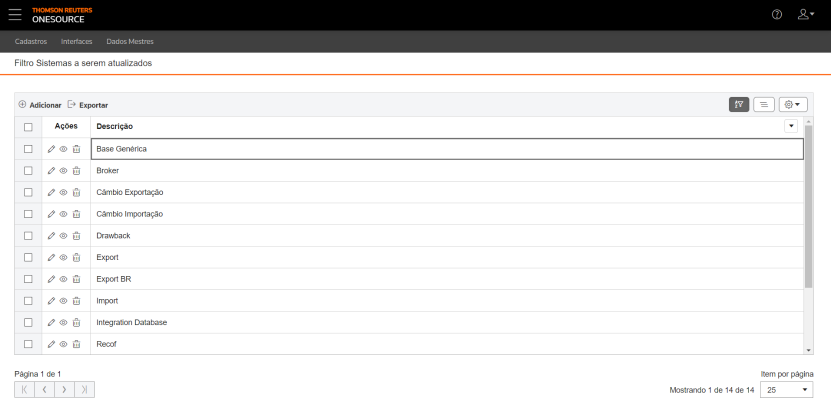 To view or delete a system record, click theView
 and Delete
 buttons, respectively. In case of deletion, all data import and export references related to this system will also be deleted.
 - On the edit screen, make the necessary changes.
- ClickSave.
Exporting a system description
- Access the menuRegistration > Systems.
- On theFilter Systems to Usescreen, select the systems whosedescriptionsyou want to export.
 To export data from all rows in the table, this marking is not required.
 - Click
 Export.
 - An Excel file will be generated with thedescriptionsof the desired systems, for example:

 Article