
How to configure the file compressor in In Out?
For space optimization and archiving purposes, In Out can also compress system files, but for this to work, the paths that will be used by the compressor need to be configured in this feature. There is no need to establish a manual trigger to start the process, as it is automatically triggered by the Compact Log routine, which is called by the In Out service itself. In addition, the execution of this routine can be customized according to the user’s need via the
scheduling parameters
.Adding a compressor setting
- Access the menuInterfaces > Compressor Settings.
- ClickAdd
 .
. - According to the definitions, complete the fields on theCompressor Configuration tab:
 * Required fields
- Path*:Access path to archive or delete.
- Archive or Delete:Compressor action option.
- Number of reference days*:Number of reference days for the compressor to archive or delete.
- File prefix:If Archive option is checked, you must indicate a prefix for generating the compressed file (ZIP).
- ClickSave.
Changing a compressor setting
- Access the menuInterfaces > Compressor Settings.
- In the table, click theEdit
 button of the path whose information you want to update.To delete a record, click theDeletebutton.
- In the edit tab, change the requiredinformation.
- ClickSave.Table data can be organized using theHide Filters
 Show Grouperand
 Show/Hide Columns
 buttons.
Exporting compressor settings
- Access the menuInterfaces > Compressor Settings.
- In the table, check the paths whose settings you want to export.To export data from all rows in the table, this marking is not required.Table data can be organized using theHide Filters, Show Grouper,and Show/Hide Columnsbuttons.
- ClickExport

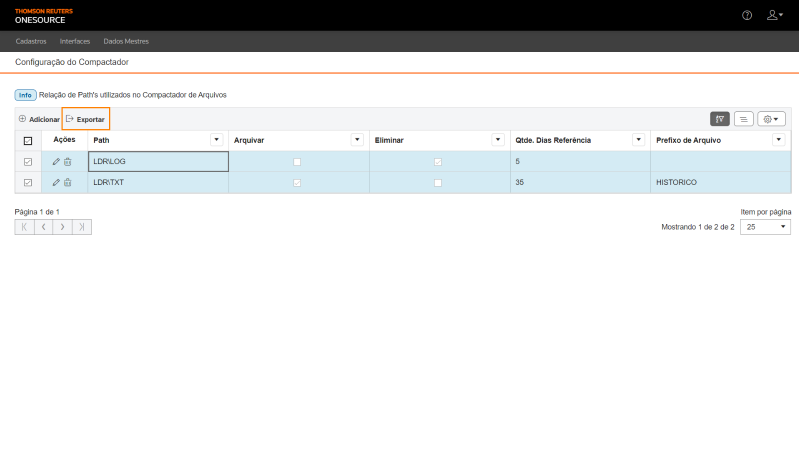
An Excel file will be generated with the path settings marked, for example: