
Entry Header
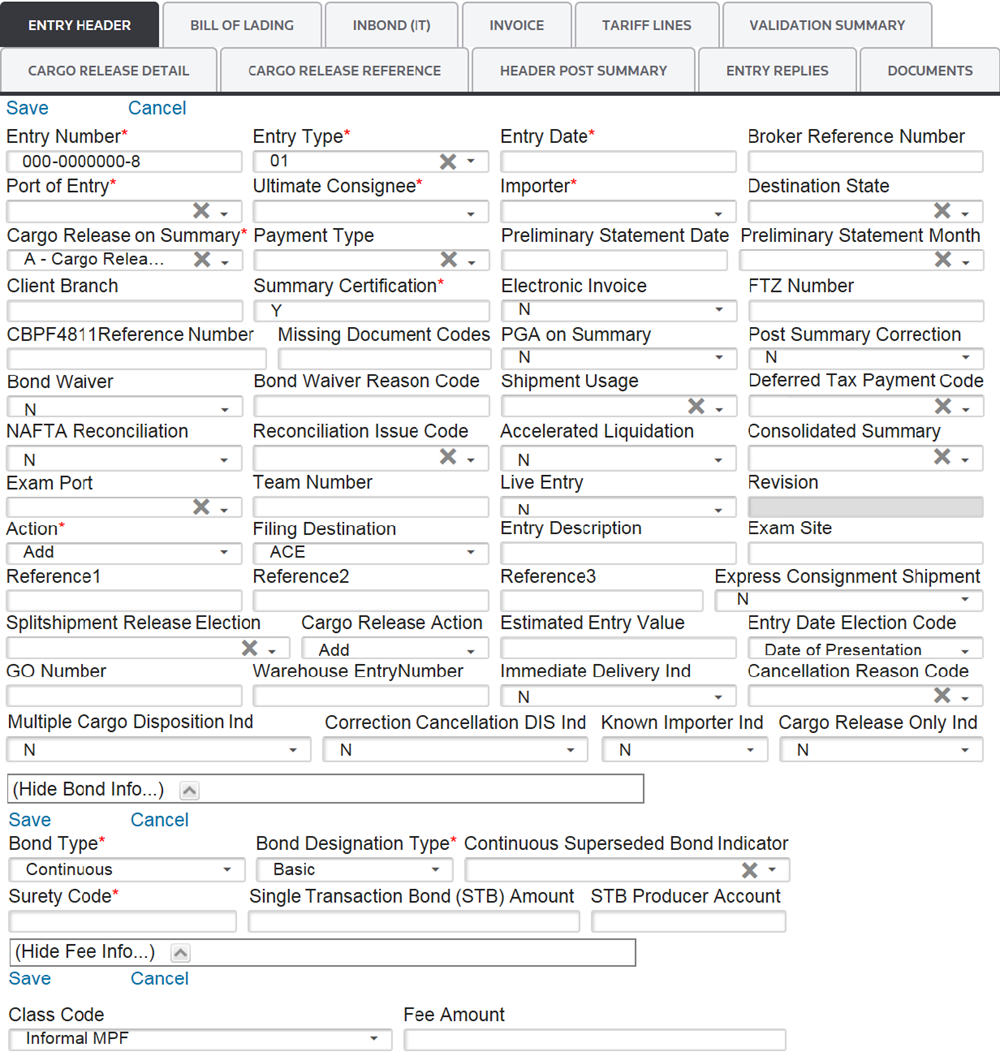
When editing an existing CF7501 or creating a new CF7501, the Entry Header tab is the first to display on the screen. Several links are located at the top left corner of this section.
To complete the information under the “
Entry Header
” tab, you must enter the information in the fields specified in the following "Entry Header (Data Entry Fields)" table. Required fields are indicated with a red asterisk (*) on the application screen.
Entry Header (Data Entry Fields) | Description |
|---|---|
Entry Number | A unique identifying number assigned to the entry by the filer. The Entry Number should be entered as follows: “[FILER CODE]-[SEVEN DIGIT NUMBER]-[CHECK DIGIT]” (Example: XXX-XXXXXXX-X) |
Entry Type | The type of entry being submitted.
|
Entry Date | The date the entry is being filed. |
Broker Reference Number | This field is optional, but can be utilized by the filer to help tie an entry to a shipment. If used, each Broker Reference Number must be unique for the entry. |
Port of Entry | The port where the entry is being filed. The port must be listed in the “Port of Unlading” Maintenance table. |
Ultimate Consignee | Select the Ultimate Consignee. The ultimate consignee must be set up in the “Company Partners” Maintenance table as a consignee. |
Importer | Select the Importer of Record Number. Identify the US party or other entity (individual or firm) liable for payment of all duties and meeting all statutory and regulatory requirements incurred as a result of importation. The importer of record must be set up as an importer in the “Company Partners” Maintenance table. |
Destination State | Select the state where goods are being entered. |
Cargo Release On Summary | The certification that the CBP3461 and CBP7501 are being submitted together. When a release is sent as certified from summary, it is accepted by CBP. CBP creates a record of the entry in the release system and a summary in their summary system. Once changes are made to the entry/entry summary, those changes have to be done individually within their respected systems. Because of this, the Cargo Release on Summary field must be set to “N” any time after the entry is initially accepted. This separates the cargo release from the summary and allows you to make changes to Bill of Lading information and Transit Cargo Release with a “U” cargo release action code. Options for this field are:
|
Payment Type | A code that specifies the intended payment method for the Entry Summary. Choose one of the following payment types. This is how the entry is batched for payment:
|
Preliminary Statement Date | The date the statement is generated. The statement must be paid within 10 business days of the entry date. |
Preliminary Statement Month | This field only applies if the “Payment Type” field is listed as 6, 7, or 8. The Preliminary Statement Month must always be the next month after the entry date. |
Client Branch | Allows for the separation of statements with the same filer code. If this feature needs to be utilized, setup must be coordinated with the ABI Representative. |
Summary Certification | Summary Certification is always defaulted to “Y” (Yes). |
Electronic Invoice | This field is no longer used in ACE. |
FTZ Number | An FTZ Number is only required for “06” entry types. For all other entry types, this field can be left blank. |
CBPF4811 Reference Number | The US party or other entity (individual or firm) to whom refunds, bills, or notices of extension of suspension of liquidation are to be sent (if other than the Importer of Record). When present, the Designated Notify (4811) Number must be formatted in one of the following ways. N is for numeric, b is for space, s is alphanumeric and cannot be space. YY is the calendar year for when the number was assigned.
|
Missing Document Codes | Missing Document Codes must be entered when one or more associated documents are not available at the time of Entry Summary filing and is CONDITIONAL for an Entry Summary header grouping. If this field is blank, there are no missing documents. If a document is missing, use the applicable Missing Document Code listed below:
|
PGA on Summary | Indicates that the Participating Government Agency (PGA) data will be reported associated to the Entry Summary. |
Post Summary Correction | This field is for ACE entries only.
|
Bond Waiver | An indication that the bond has been waived in accordance with C.R. 142.4(c) or another regulation. Reasons a bond can be waived are very limited.
|
Bond Waiver Reason Code | If the Bond Waiver field is “N”, leave this field blank. If the Bond Waiver field is “Y”, use the applicable code from the list shown below:
|
Shipment Usage | Shipment Usage is only required for Entry Type “11”. It is an indication that the articles referenced in the summary are for personal use or designed as a commercial sample.
Shipment Usage can be “Blank”, “Personal”, or “Commercial Sample”. |
Deferred Tax Payment Code | An indication that an arrangement has been made with CBP’s National Finance Center (NFC) to defer payment of Internal Revenue (IR) tax to be assessed on this Entry Summary (if any) to a periodic basis.
|
NAFTA Reconciliation | An indication that certain issues (value, classification, etc.) are to be subject to a future “reconciliation” under the North American Free Trade Agreement (NAFTA).
This can be marked as “Y” (Yes) or “N” (No). |
Reconciliation Issue Code |
|
Accelerated Liquidation | An indication that the filer/importer is requesting that CBP accelerate the liquidation for the Post Summary Correction
|
Consolidated Summary | An indication that the Entry Summary accounts for (i.e. “consolidates”) the cargo referenced in more than one Cargo Release (entry) transaction. Statuses include:
|
Exam Port | For a remotely-filed Entry Summary, this field is the code of the US Port where cargo examination is set to take place. |
Team Number | Your assigned Entry Team number. If entered, the Team Number will appear on the 7501 Entry Form. |
Live Entry | Live Entry is an indication that both Entry Summary and Entry are filed at the time of entry. This is required for the importation of quota class merchandise.
Unless filing an “02” entry type, enter “N”. |
Revision | Each time the entry is submitted/accepted by CBP, the revision number indicates the latest version number of the entry summary (when the transaction is accepted).
The first three positions indicate the “major” revision number. The last two positions indicate the “minor” revision number. |
Action |
|
Filing Destination | All entries should be filed under ACE. |
Entry Description | This field is utilized to give an overall description of the entry. It is transmitted to CBP. |
Exam Site | Designates where the merchandise is to be examined. |
Reference (1, 2, 3) | A user field to help organize searches for entries. This field is not transmitted to CBP. |
Express Consignment Shipment | Choose “Y” in cases where the entry processing is to take place in an established express consignment CBP sub-port of the locale’s standard Port of Entry. |
Split Shipment Release Election | Valid Split Shipment Release Election Codes are:
|
Cargo Release Action | Valid Cargo Release Actions are:
|
Estimated Entry Value | The estimated total dutiable value of the goods reported on the entry. |
Entry Date Election Code | A code representing the source of the Elected Entry Date. Valid codes are:
|
GO Number | If the cargo has been placed in General Order, this is the General Order Number. |
Warehouse Entry Number | The originating warehouse entry number that the merchandise is coming from. The listed originating entry must be Type 21 or 22. |
Immediate Delivery Ind | If you are requesting to use Immediate Delivery Procedures (19 CRF 142.21), enter “Y”. If this field is reported as “Y”, either “P” or “A” must be reported in the Entry Date Election Code field.
This field is not related to special procedures for Split Shipments (19 CRF 142.21(g)). Do not use this field if the sole purpose is to take advantage of the special split shipment procedures. |
Cancellation Reason Code | Valid Cancellation request reason codes are:
|
Multiple Cargo Disposition Ind | Indicates that multiple cargo dispositions exist in addition to the reason code provided for the entry in the cancellation request. |
Correction Cancellation DIS Ind | Indicates a Document Image System (DIS) submission has been made in support of the correction or cancellation request. |
Known Importer Ind | Through the BKIP, licensed Customs brokers would alert CBP that the importer on an entry is known to the Customs broker and that the Customs broker has advised the importer of their compliance responsibilities.
Automated Commercial Environment (ACE) functionality for the transmission of the BKIP indicator has been deployed, thus allowing licensed Customs brokers the ability to transmit a Known Importer indicator when filing an entry on behalf of a Known Importer client. |
Cargo Release Only Ind | Indicates that the entry being transmitted contains only Cargo Release information and that the summary data will be transmitted separately. |
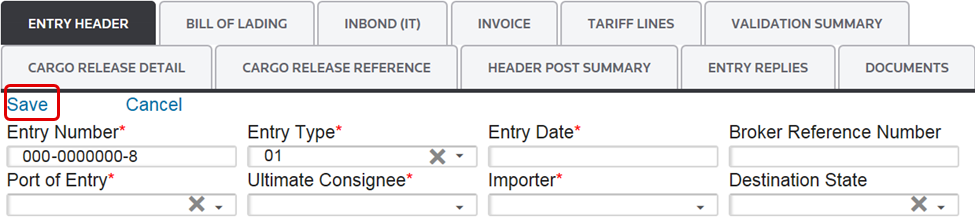
After all data in the fields listed above have been filled out, click
Save
.
Next, move to the
Entity Information
or Bond Information
section of the screen.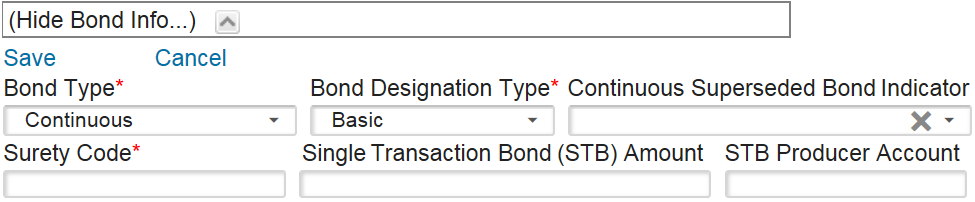
Entity Information
If ACE has been activated, you will see the
Entity Information
section of the Entry Header
tab just beneath the form section. This section is used for associating entity information at the header level of the Cargo Release. Any entities associated to the entry in this section will apply to all line items on the entry. 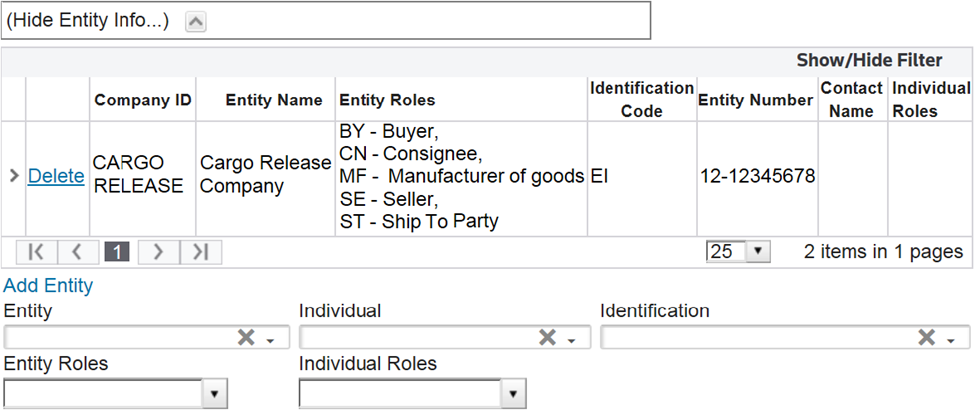
Adding an Entity
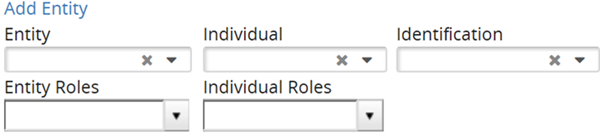
To add an entity, use the “Entity” drop-down menu to choose an entity. Use the
Entity Roles
drop-down menu to select which entity role codes should be applied to the entity.You may then apply any individual information and roles that may be associated to the entity being reported, should that individual information be required.
Viewing Entity Details
To view the entity details associated with a CompanyID, click on the expansion arrow next to the
Delete
button. 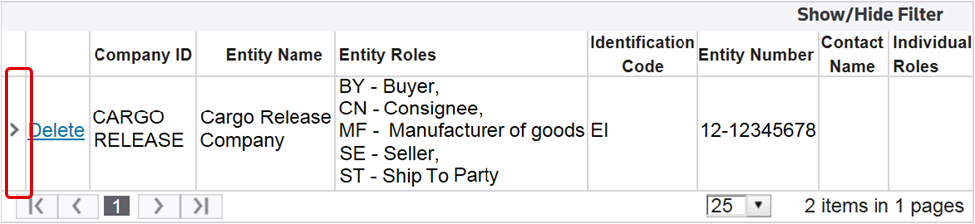
The CompanyID details will then become visible.
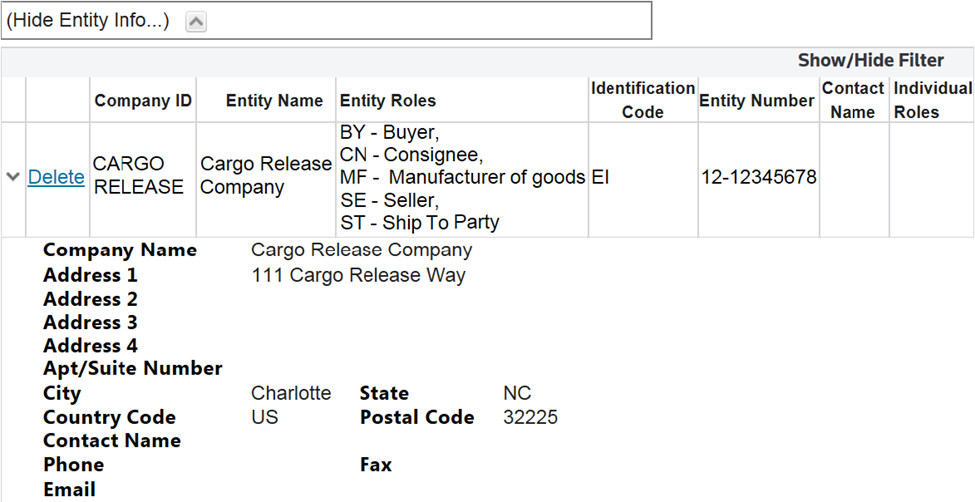
For more information about managing entity data, refer to the ACE Company Partners User Guide.
If entity identification numbers are available for the selected entity, you will then also have the option to associate an ID number to the Cargo Release.
Per CBP requirements, the below entity role codes are required for the ACE Cargo Release. After the data in these fields has been filled out, you can proceed to the “Bond Information” section of the screen.
Entity Role Codes Required for ACE Cargo Release | Meaning |
|---|---|
IM | Importer (including an EIN Number) |
BY | Buyer (including an EIN Number) |
CN | Consignee (including an EIN Number) |
MF | Manufacturer |
SE | Seller |
Bond Information
The
Bond Information
section of the Entry Header
tab displays additional data regarding the bond type, surety code, and other bond information. 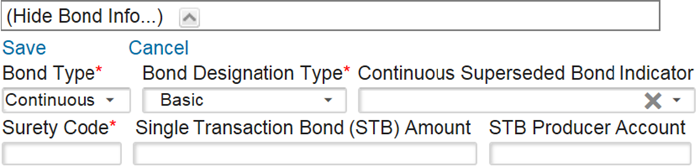
Several links are located at the top left corner of the
Bond Information
section. Some of these may not appear, depending on user permission levels.Links | Description |
|---|---|
Save | Saves any data added or changed since the screen was last saved in “Edit” mode. |
Cancel | Discards any changes to the screen since the last save. Returns screen to “Read Only” mode. |
Edit | Changes screen to “Edit” mode so additions or changes can be made. |
Add New | Add new bond information. |
Delete | Delete bond information input. |
In order to complete this section, you must fill out the information in the fields in the following table. Note that required fields are marked by an asterisk (*) on the application screen:
Bond Information (Data Entry Fields) | Description |
|---|---|
Bond Type | An indication of the type of bond coverage required for the payment of duties and taxes, when required.
|
Bond Designation Type |
|
Continuous Superceded Bond Indicator | An indication that the continuous bond cited here supercedes the bond presented at the time of entry.
|
Surety Code | Identification of the Surety company that has underwritten the bond. |
Single Transaction Bond (STB) Amount | The STB coverage amount in whole US dollars (USD). If this is not needed, leave this field blank. |
STP Producer Account | The Entry Filer’s identification number assigned by the Surety company of the STB. |
After you complete the data in these fields, click
Save
. After all changes are saved, proceed to the “Fee Information” section of the screen.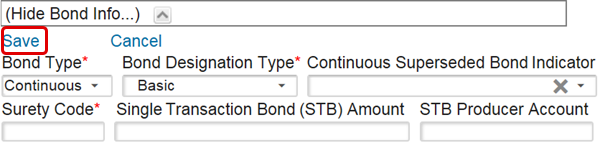
Fee Information
The
Fee Information
section of the Entry Header
tab displays additional data regarding the class code and other fee information. Unlike some of the other sections, this section can be omitted if no additional fees are needed for the entry. It is optional, not required. 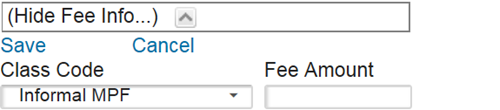
Two links are located at the top left corner of the fee information section.
Links | Description |
|---|---|
Save | Save any data added or changed since the screen was last saved in “Edit” mode. |
Cancel | Discards any changes to the screen since the last save. Returns screen to “Read Only” mode. |
In order to complete this section, you must fill out the information in the fields below. Required fields are marked by an asterisk (*) on the application screen:
Fees (Data Entry Fields) | Description |
|---|---|
Class Code | The CBP accounting classification code representing a specific fee type applicable for the summary as a whole. This code will be one of the below:
|
Fee Amount | The applicable fee amount in US Dollars (USD) and cents that corresponds to Accounting Class Code (1). |
After the data in these fields has been filled out, click
Save
. This concludes data entry for the Entry Header section of the Entry 7501.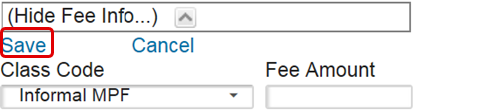
Next, proceed to the
Bill of Lading
tab.Bill of Lading
The
Bill of Lading
tab displays additional data regarding the specified Bill of Lading.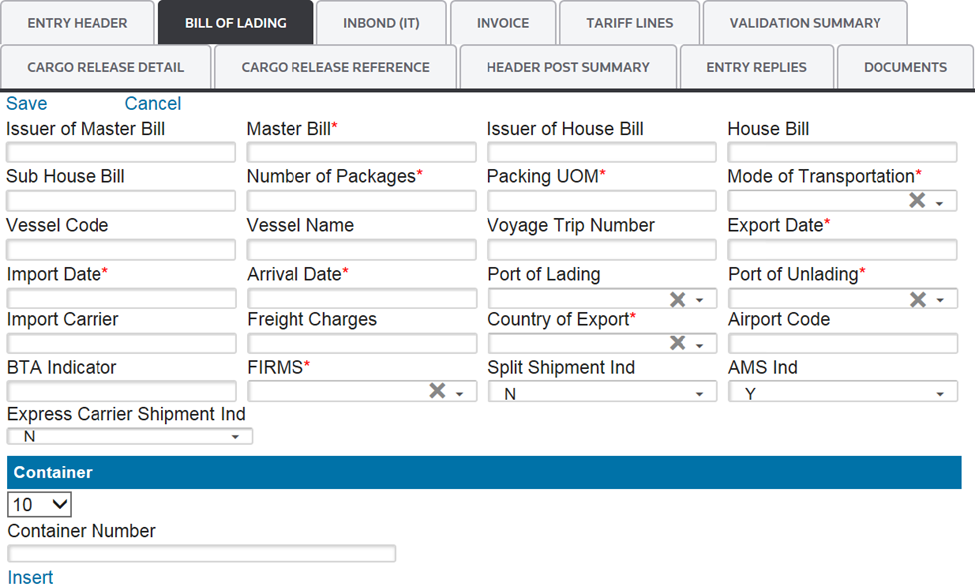
Several links are located at the top left corner of the
Bill of Lading
tab. Some of these may not appear, depending on user permission levels.Links | Description |
|---|---|
Save | Saves any data added or changed since the screen was last saved in “Edit” mode. |
Cancel | Discards any changes to the screen since the last save. Returns screen to “Read Only” mode. |
Edit | Changes screen to “Edit” mode so additions/changes can be made. |
Add New | Adds a new Bill of Lading to the entry. |
Delete | Deletes the selected Bill of Lading. |
In order to complete this section, you must fill out the information in the fields below. Required fields will be marked by an asterisk (*) on the screen:
Bill of Lading (Data Entry Fields) | Description |
|---|---|
Issuer of Master Bill | Reference to a Transportation Master Waybill, Ocean Bill of Lading, Pro-Bill, Rail Bill, or Air Waybill. This must be a known, four-character SCAC. Note: The Issuer may or may not be the operating conveyance carrier. |
Master Bill | The remaining characters in the Master Bill of Lading. |
Issuer of House Bill | Reference to a Transportation House Waybill, Ocean Bill of Lading, Pro-Bill, Rail Bill, or Air Waybill. This is always required when the House Bill Number is reported for a vessel and should be a known, four-character SCAC. |
House Bill | The remaining characters in the House Bill of Lading. |
Sub House Bill | The lowest-level bill number. This field is not used at this current time, but is intended for future use. |
Number of Packages | Manifest Quantity (Exterior Packaging Level) |
Packing UOM | Manifest Quantity Unit of Measure |
Mode of Transportation | One of the following two-digit codes must be entered for Mode of Transportation:
|
Vessel Code | The Lloyd’s code identifier of the importing vessel. Not required/not reported. |
Vessel Name |
|
Voyage Trip Number | The carrier’s identification of the trip/manifest. |
Export Date | The date that the exporting vessel departed the last port in the exporting country. |
Import Date |
|
Arrival Date | The date the merchandise arrived (or is expected to arrive) at the District/Port of Entry. |
Port of Lading | The code for the foreign port where the merchandise was laden onto the importing vessel. For more information, see “Schedule K: Classification of Foreign Ports by Geographic Trade Area and Country.” The port must be listed in the “Port of Unlading” Maintenance table. |
Port of Unlading | The code for the US port where the merchandise was unladen from the importing conveyance. The port must be listed in the “Port of Unlading” Maintenance table. |
Import Carrier | The identification of the entity responsible for transporting the merchandise from the foreign Port of Lading to the first US Port of Unlading.
|
Consignee | The US party or other entity (individual or firm) on whose account the merchandise is shipped. |
Freight Charges | The aggregate cost (excluding duty) of freight, insurance, and other costs incurred, reported in whole US dollars (USD). Note: If this field is used, the freight will be prorated by weight for all HTS items associated with the Bill of Lading. |
Country of Export | The country from which the article was shipped to the US having last been a part of the commerce of that country. Use the two-character ISO Country Code. The country must be listed in the “Country” maintenance table. |
Airport Code |
|
BTA FDA Ind | This field is used to determine if the cargo is subject to the Bioterrorism Act. The default is “N” (No), but “Y” (yes) can be selected as applicable. |
FIRMS | A Facilities Information and Resources Management Systems (FIRMS) code representing the location of the goods. |
Split Shipment Ind | Used to indicate that the ACE Cargo Release (SE) is associated with a split shipment, which is a factor in adjudicating the Cancellation Request. |
AMS Ind | The default value for this field is “Y”. If the Bill of Lading will not be manifested via EDI with a CBP automated manifest system, change to “N”. See below for a list of specific instances where “N” should be selected:
|
Express Carrier Shipment Ind | Used to indicate an Express Carrier Tracking Number (air only) is being reported. |
Bill of Lading: Container
After you save the form portion of the
Bill of Lading
tab, proceed to the Container
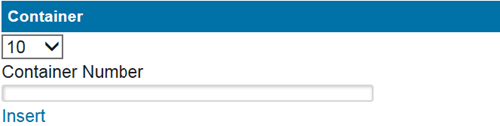
section of the screen. This section is located below the form and is not required. You may use this section to attach a container/equipment number associated to a Bill of Lading.To add a container/equipment number, enter the container/equipment number in the
Container Number
field and click Insert
. After the data has been entered in the two fields below, click Save
.After you click
Save
or if the Container section is not applicable for the entry, proceed to the next tab. If the Port of Arrival and Port of Entry are different, go to Inbond (IT)
.If the Port of Arrival and Port of Entry are the same, go to
Invoice
.
Related Content
-
AMS Query
Format: Article,
1 min read
Article,
1 min read
-
Entry Summary (Entry 7501)
Format:
Article,
1 min read
-
Entry Summary (Entry 7501)
Format:
Article,
1 min read