
Document Retention
Attaching Documents to a Product Record
To associate a document with a product record.
- ClickDocument Retentionto open a pop-up containing data for the selected product record (displayed in the Identifier field).
 Supporting documents can then be uploaded and associated to the record.
 - Confirm that the Form Type isProduct.
- SelectDoc Access Typeas eitherPublicorPrivateas applicable.Doc Access TypeMeaningPublicOnly users with access to the Edit Classification screen can see this document.PrivateOnly users with specific permission to view the attached document can see this document.
- Confirm aDocument Typefrom the drop-down (Commercial Invoice, Certificate of Origin, SDS, etc.).
- Use theBrowsebutton to search the local hard drive for the document to be uploaded.
- Once all fields are completed (including the required Memo section), associate the document with the product by clickingAttach Document.

The attached document appears with its information in the grid at the bottom of the screen. You can now either exit out of the screen or navigate back to the selected product record by selecting
X
at the top right.
The number of documents associated with each product is listed at the top of the product record on the Edit Classification screen.
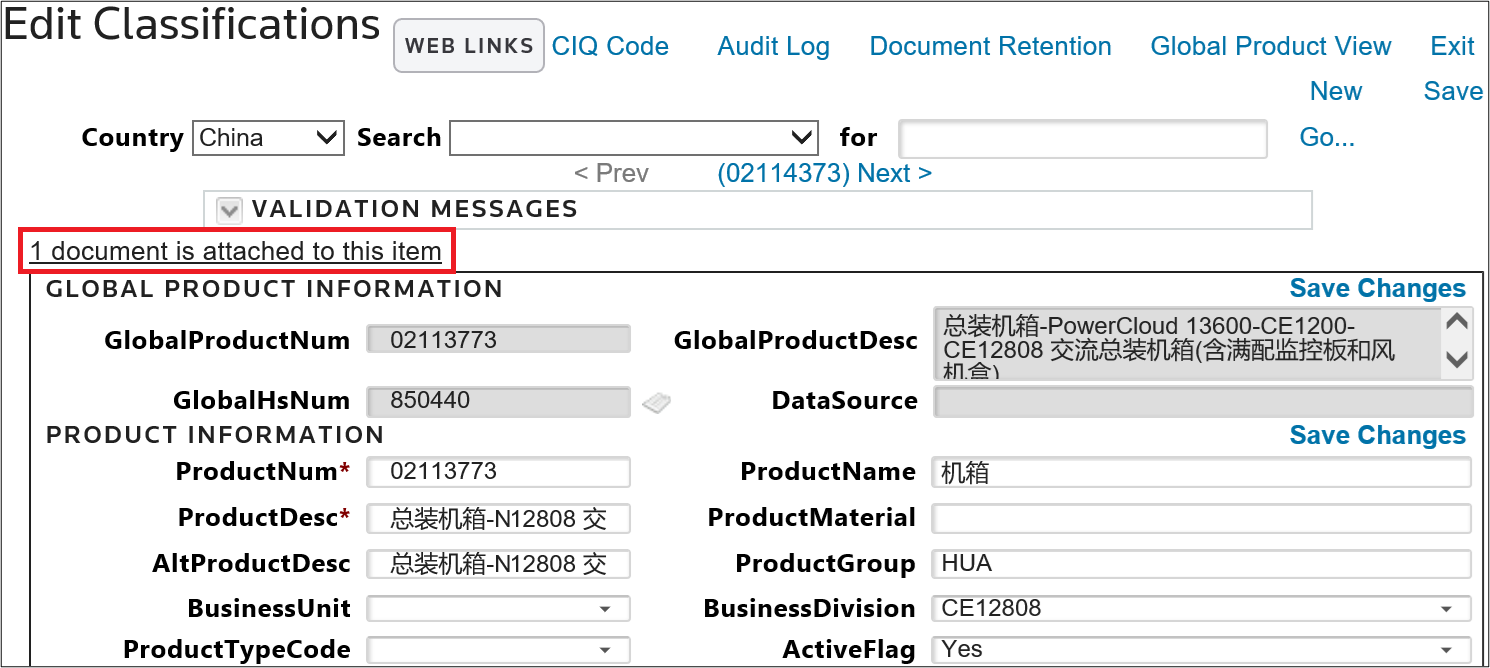
Clicking the documents link will redirect you to the bottom of the screen: where the associated documents are listed.

Related Content
-
Edit Classification
Format: Article