
Product Copy
The
Product Copy
functionality is used for copying existing products. Once a copy is created, you are prompted to assign a unique identifier to the copy, assign the product copy to the appropriate country profile(s), determine set records (if applicable), and assign facility ownership (if applicable).To access this tool, choose
Classification Lookup
from the main menu. This will open the Classification Lookup
screen.
In the
Classification Lookup
grid, identify the product to be copied and click its corresponding Edit
link on the far left.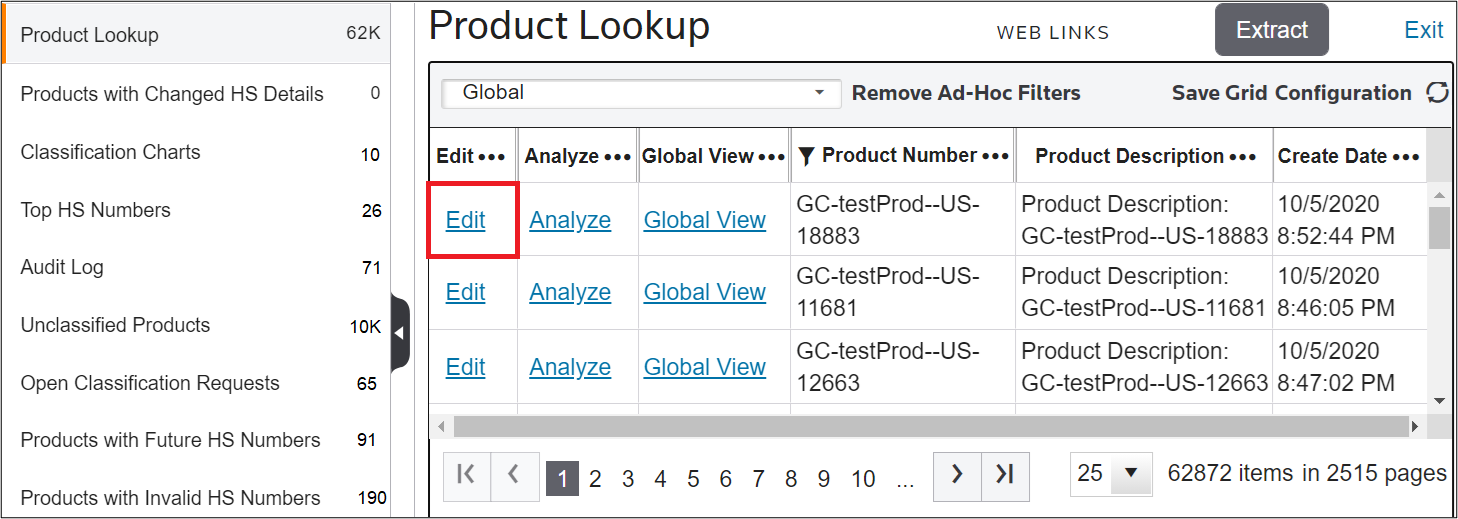
Clicking
Edit
will open the Edit Classification
screen. Click Copy
.
After clicking
Copy
, the first of four potential tabs will appear. Each tab is covered in more detail in the sections listed below.Define Unique Record
Define Unique Record
is used to assign a unique identifier to the product copy. Since required fields vary from client to client, the example screenshot shown below may have different required fields than the client user’s version. If the system has been configured with the Unique Key
functionality, the existing product’s unique record number will be pre-populated within the “ProductNum” field.Make any necessary changes and then click
Next
.
Determine Countries
Determine Countries
is used to select and associate countries to copied products. If the system has been configured with the Unique Key
functionality, the existing product’s selected countries will be pre-selected.For a country to be available for selection, the original product must have a record associated with that country. For example, if
Product 123
only has a Global record and a United States
record, you cannot create a copy of Product 123
and associate it with Brazil
.Select all appropriate countries for the copied product, and then click
Next
.
Determine Set Records
Determine Set Records
only appears if the copied product belongs to a set. If the copied product does not belong to a set, this tab will not appear.To copy set records from all selected country profiles, check
Confirm copy set records?
To copy the product without the set records, uncheck
Confirm copy set records?

Determine Facility Records
important
Determine Facility Records
only appears for users with Facility Ownership set up in their system. If Facility Ownership was not set up in the system, this tab will not appear. If the product being copied has one or more associated facilities, the Confirm copy facility records?
checkbox will be selected by default. To associate facility records to the copied product.
- CheckConfirm.
- Navigate to the grid and select the facilities to match to the copied product.
- Once all the required facilities are selected, clickFinish. This will save the product copy.
Related Content
-
Edit Classification
Format: Article