
Meet CoCounsel: Your AI assistant in ONESOURCE™ Global Trade
tip
To view the images in higher resolution, right-click the image and select
Open image in new tab
.Developed with the most advanced artificial intelligence, CoCounsel is your new chatbot within the ONESOURCE™ Global Trade platform. It’s designed to assist you with answers, guidance, and support just a click away, so you can stay focused and productive.
What CoCounsel can do
CoCounsel is here to help you work smarter and solve problems faster. Here’s what it can do for you:
- Instant answers to your questions: CoCounsel searches Help and Support resources for questions about ONESOURCE™ Global Trade products and features, returning clear responses in seconds.
- Direct access to documentation: Every answer comes with precise links to reference documents. These links open in a new tab, so you never lose your place.
- Seamless ongoing conversations: Access your chat history from the side menu, pick up where you left off, or start a new chat. Each session is automatically named for easy reference, and you can export or rename your transcripts anytime.
- Always available: CoCounsel is ready to help you 24/7, so support is there whenever you need it.
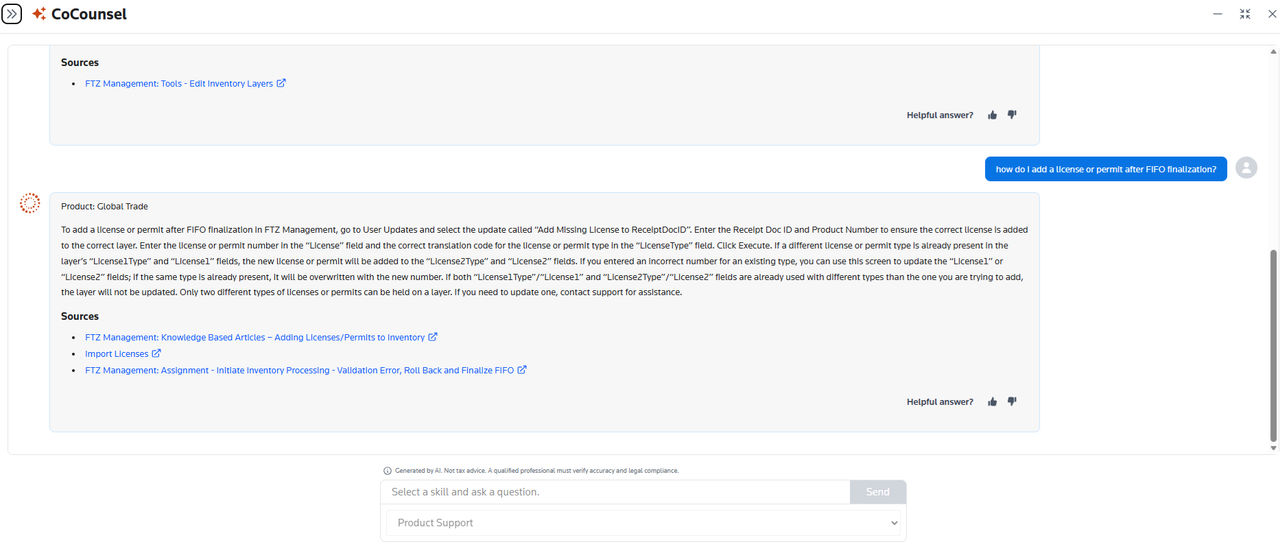
How to use CoCounsel
- Click thesparkle iconat the top of your ONESOURCE™ Global Trade screen to open the chat.
- Under “Select Skill”, chooseProduct Support, or leave it blank — it will be applied automatically when you send your message.
- Type your question and selectSend.
- Receive instant answers, complete with helpful links and clear explanations.
Tips for getting the most out of CoCounsel
To maximize the benefits of CoCounsel, it’s important to keep some good practices in mind.
- Be direct and concise: Objective questions yield objective answers.
- Add essential details: Mention product names, modules, or specific screen references for surgical accuracy.
- One topic per question: Focus on a single subject at a time for unparalleled precision.
- Get straight to the point: Avoid additional information that doesn't contribute to the question.
What if you need human assistance?
Or if CoCounsel can’t find the reference materials? In both cases, the bridge to specialized support is shorter and more efficient than you imagine.
- Create tickets directly from the chat: No more opening new windows and forms. Initiate a support request without leaving your CoCounsel conversation by selectingCreate Support Ticket.
- Pre-filled form: CoCounsel already fills most fields in the support form, even providing an intelligent description of the problem based on your interaction.
- Total control: You have the freedom to review and edit any field before submitting.
- Transparent tracking: After submission, you'll receive a link with the case number to track the status of your request in real time.
Providing feedback
CoCounsel is always learning and evolving, so let us know how CoCounsel did. After each answer:
- You'll see a feedback prompt at the bottom of the response.
- Select thumbs up if the answer was helpful, or thumbs down if it wasn't.
- When you select thumbs up or down, an optional comment box will be displayed. Leave a comment especially if:
- The answer was incorrect or incomplete
- The response didn't address your questiontipThe comment box also includes an option to download the transcript of CoCounsel's answer.
- SelectSubmit Feedback.
Learn more about CoCounsel
Watch this video to discover more about CoCounsel and how it can benefit you.