
Tariff Analyzer
The
Tariff Analyzer
screen can be used to compare duty rates across multiple destination countries, origin countries, and HS Numbers. This tool assists companies with making strategic sourcing decisions. This screen can be opened by choosing Tariff Analyzer
from the Analyzer
menu.
SELECTING DESTINATION COUNTRY CRITERIA
- Enter the appropriate search criteria on theTariff Analyzerscreen. The first selection is the destination country (also called import country).Multiple countries can be selected by typing a Country Code or Country Name, or by selecting a country from theSelect Destination Countrydrop-down. Unless a subscription to core Global Content applies, the drop-down will only include the countries included in the user’s active subscription.
- Choose a country from the drop-down.

Additional countries can be added by entering them in the
Select Destination Country
textbox.To remove a selected destination country, click
X
to the left of the Country Name.
SELECTING ORIGIN COUNTRY CRITERIA
After a destination country is selected, one or more origin countries must be selected. The
Select Origin Country
drop-down works similarly to the Select Destination Country
drop-down.Enter a Country Code or Country Name; or select a country from the drop-down. Unless a subscription to Core Global Content applies, the drop-down will only include the countries included in the user’s active subscription. Additional countries can be added after a country has already been entered.

To remove a previously selected origin country, click
X
.
SELECTING HS NUMBER CRITERIA
After a
Destination Country
and Origin Country
are selected, an HS Number must be selected. Use the Select HS Number
drop-down to choose a fully qualified HS Number or use the type-ahead feature to enter a 6-digit global HS Number.
If a 6-digit global HS Number (subheading) is entered, the screen will display all HS Numbers under that subheading that apply for the selected destination(s) entered by the user. Fully qualified numbers will have selection boxes next to them. You can select up to 6 fully qualified HS Numbers for which they would like to compare duty rates.
Since some countries have numerous tariffs that apply to different trade partners, you can choose which tariff they would like to see by looking at the tariff name that appears in front of the HS Number and the number description. Every suggested HS Number has a
View Global Tariff Detail
hyperlink to its right. Clicking this link opens the Global Tariff Detail
screen for that number for the specified country tariff in a separate window.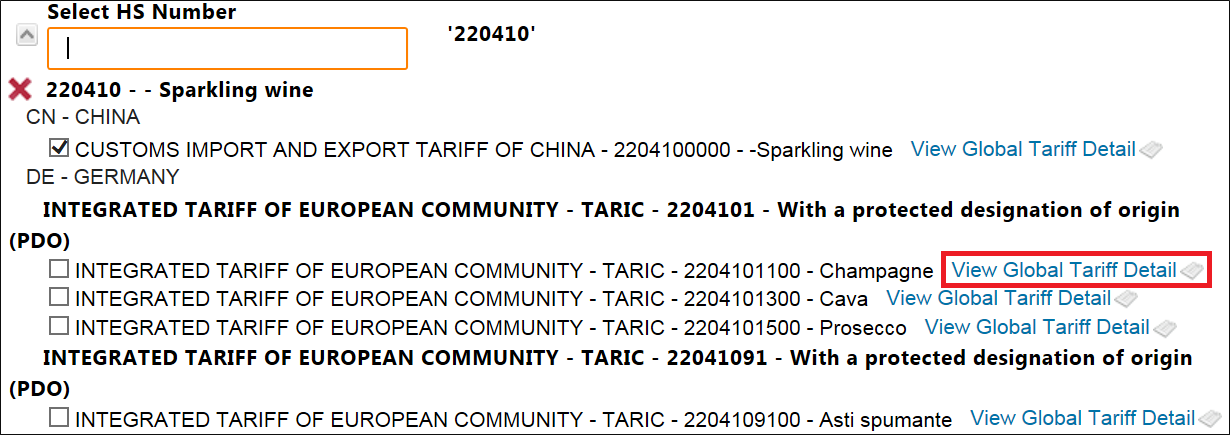
PERFORMING SEARCH BY DESCRIPTION
A keyword can be used instead of a subheading number for a search. The system will use HS Quick Search Keywords to suggest related subheading level HS Numbers. If the suggested subheadings are not the ones that you would like to use, then the
Advanced Search
option can be selected to access the more detailed search window.
To change advanced search criteria, click
Show Advanced options
.
Default searches are performed on the following criteria:
- HS Number
- HS Description
- Chapter Notes
- Binding Rulings
- Keywords (including Inflectional Forms)
- ADD/CVD

Example (below): The guided description search looks for “mango” across all the chapters of the US HTS, or anywhere the global keyword “mango” exists.
If there is more than one chapter that has HS Numbers with “mango” in the description, the screen indicates the specific chapters and the number of fully qualified matches that have the word “mango” in them.
Searches can be conducted by the following criteria by checking the corresponding boxes to the left:
- HS Number
- HS Description
- Chapter Notes
- Binding Rulings
- Keywords
- ADD/CVD

Next, choose a matching type from the
Match Type
drop-down. Options are as listed below.
Once the Advanced Options are set, run the search. Chapters returning a match with the specified criteria will appear in a grid below the search table.
To view references under a chapter, click the chapter’s expansion arrow on the far left.

All the matching headings will then appear below the chapter.
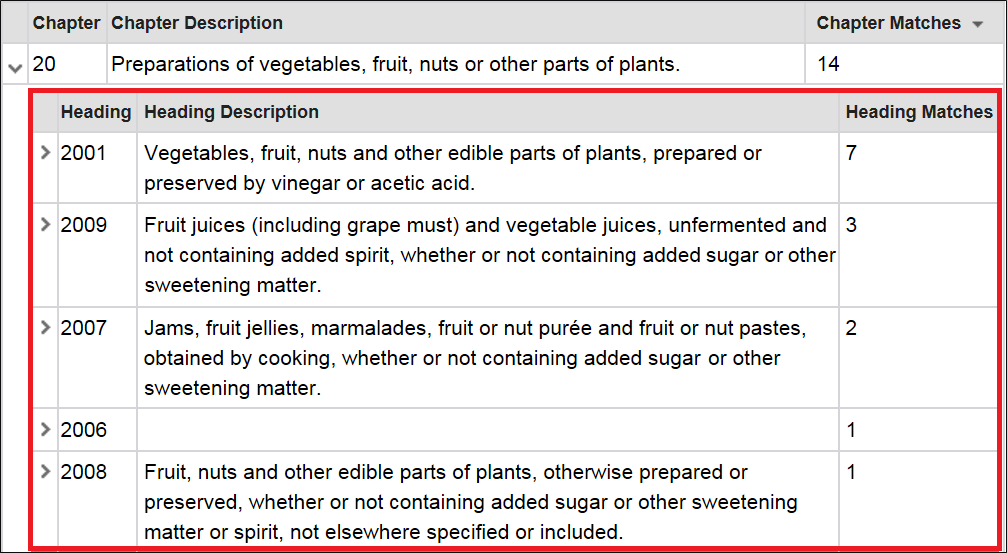
Once a chapter is selected that matches the product, the search window will display the headings with fully qualified HS Numbers beneath matching the specified search terms.
If only one chapter has HS Numbers with the selected search terms, the guided description search will start with heading instead of chapter. The headings will be display like the chapter, where the screen indicates the number of 6-digit HS Number matches for that specific search description.
Navigate through the tariff schedule descriptions until a subheading HS Number matching all search criteria is found. Click the subheading number to preselect the HS for the search.

Similar to the HS Number search, the screen will display a tree breakdown after a subheading for the countries of destination is selected. The search word will appear next to the subheading HS Number and description.

TARIFF ANALYZER GRID FORMAT
Once a Destination Country, Origin Country, and HS Number are specified, click
Search
. This creates an information grid so duty rates can be compared.
Information | Description |
|---|---|
Top Row | The top row of the grid. Displays HS Numbers corresponding to that row. |
Destination Country | Indicates the Destination Country corresponding to the above HS Number. |
Description | Displays the full description (chapter, heading, subheading) for a fully qualified HS Number. |
Main/General Rate | Displays the main/general rate for the Destination Country and HS Number. There can be more than one main/general rate. These rates always display in the grid, no matter which Origin Country is selected. |
(Remaining Rows) | Displays the selected Origin Countries with different duty rate(s) from the main/general rate. This allows you to view potential cost savings available via a trade program. |
When “search by description” is performed, the search word appears in the grid next to the fully qualified HS selected per destination country.

Where applicable, additional, and retaliatory duty rates will also appear in the grid.
To view a duty rate, click on a Duty Rate from the search results.
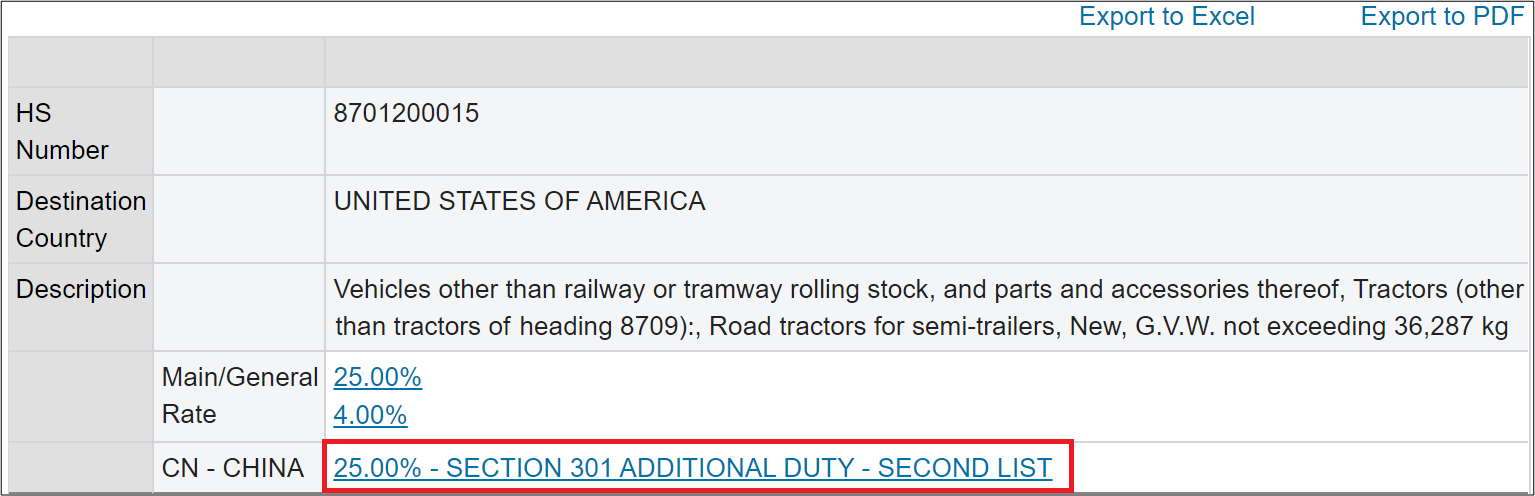
Clicking an individual duty rate will open the “Duty Detail” pop-up from the “Global Tariffs” screen. This pop-up has the following sections as information as applicable or available:
- Duty Detail
- Country of Origin Group Detail
- Tariff Notes
- Future Rates
- Rules of Origin


Related Content
-
Global Trade Content (GTC) Analyzer
Format: Article