
ONESOURCE Global Trade Tools to Help Prepare for WCO Changes
Tariff Changes Manager
The “Tariff Changes Manager” screen can be used to manage yearly (or mid-year) changes to the tariff schedule. This screen can be opened by choosing “Tariff Changes Manager” from the main “Classification” menu. This screen leverages data from ONESOURCE Global Trade Content to show:
- HS Numbers that are set to change or expire
- The number of products within ONESOURCE Global Classification that are currently classified with those HS Numbers

Changes are sorted by Chapter, Heading, and Subheading. These changes can be viewed at a Global (WCO) level or at a more specific country level.
Country | This drop-down lists all country profiles available to the user within ONESOURCE Global Classification. |
Effective Date | This drop-down lists the distinct change dates that exist within ONESOURCE Global Trade Content for the selected country profile. |

Once the Country and Effective Dates are selected in the drop-downs, the grid automatically refreshes to show all applicable impacted HS Numbers within ONESOURCE Global Trade Content. These numbers are displayed in a tree structure by Chapter, Heading, and Subheading. Upon loading originally, the tree is collapsed at the Chapter level for a quick view of impacted Chapters as well as the total number of impacted products per Chapter.

To expand the tree and navigate to a specific Heading, Subheading, or fully-qualified HS Number, click the “+” sign to the left.

To expand/collapse the entire tree, click the “Expand All” or “Collapse All” links at the top of the tariff tree.

If no impacted changes are available for the selected Country/Effective Date combination, the following message will appear on the “Tariff Changes Manager” screen:

Enabling an Impacted HS Number
To enable an impacted HS Number, check the box to the left of the number.

Checking this box will enable all impacted HS Numbers under that box.
Click “OK” to confirm.

Disabling an Impacted HS Number
To disable an impacted HS Number, uncheck the box to the left of the number.

Unchecking this box will disable all impacted HS Numbers under that box.
Click “OK” to confirm.

When a given HS Number has been disabled, the products that are classified with that HS Number will not appear on the “Needs Review” tab on the “Tariff Changes Product Update” screen.
Fully-Qualified Associated Products
If one or more products are classified with a fully qualified tariff number, a “Fully Qualified Associated Product(s)” link will appear in blue when the HS tree is fully expanded for that number.

Clicking on a “Fully Qualified Associated Product(s)” link will open a pop-up version of the “Tariff Changes Product Update” screen with the impacted Country and HS Number pre-selected in the “Needs Review” tab. The “Tariff Changes Product Update” process is described in more detail in the “Tariff Changes Product Update” section of this User Guide.
To close the pop-up and return to the “Tariff Changes Manager” screen, click “X”.

Detail Information
The boxes in the grid show the following detail information about impacted HS Numbers:
Impacted HS | The affected HS Number |
Impacted HS Description | The description of the impacted HS Number |
Number of Associated Products | The total number of products within the selected “Country” profile associated with the impacted HS Number |
View Change Details | If clicked, this link will open the “Tariff Changes Details” pop-up, which contains additional information regarding all changes over the past 6 months to the impacted HS Number. This pop-up also shows possible new HS Numbers when a product’s classification changes. See screenshot below. |
View Tariff Details | If clicked, this link will open the “Tariff Change Details” pop-up, which contains additional information regarding the change to the tariff schedule. |

Accepting an Updated HS Number
To accept the updated HS Number, click “Apply”.

If a selected HS Number has already been staged for changes in the “Tariff Changes Product Update” screen, the following confirmation pop-up will appear.
Click “OK” to proceed or “Cancel” to drop the changes.

Tariff Changes Product Update
The “Tariff Changes Product Update” screen allows users to select a product with an HS Number that is set to change or expire. Once a product is selected, a new HS Number can be applied. This screen can be opened by choosing “Tariff Changes Product Update” from the main “Classification” menu.
The grid in “Tariff Changes Product Update” is populated by all products with an impacted HS Number listed in the “Tariff Changes Manager” screen.

Extract
To create an Excel spreadsheet containing all data from this screen, click “Extract”.
Clicking “Extract” will generate a tabbed spreadsheet with a separate tab for each tab shown on the “Tariff Changes Product Update” screen. The products listed will be filtered to whatever country was selected in the “Country” drop-down.

Needs Review
The “Needs Review” tab displays a complete list of products that:
- Match the “Country” and “Effective Date” criteria specified at the top of the screen
- Have an HS Number change enabled on the “Tariff Update Manager” screen
Users are able to select future HS mappings for each product and stage them together under a future apply date.
Product Number | A unique key set up within ONESOURCE Global Classification. Clients may have other unique keys installed during implementation. |
Current HS | The product’s currently listed HS Number. |
Change Type | The type of change impacting the product. Clicking this link will open the “Tariff Changes Details” pop-up, which contains more information about the change. |
Change Date | The date the affected HS Number change takes effect. |
Future HS | This drop-down contains a list of potential new HS Number choices from which the user can select a replacement number. The user can also type a different number. Note: There is also a “Dismiss” option, which moves the product to the “Dismissed” tab instead of the “Pending” tab. |
In the “Future HS” column, select a suggested number from the drop-down, type a new number, or (if no change in HS Number is desired) select “Dismiss”.

Next, check the box next to the product and click “Apply”.

A pop-up opens, requesting a date be selected for the changes to be implemented.

important
Changes are not automatic. They will still need to be manually applied by the user from the “Pending” tab.
Applying a Future HS Number en Masse
To apply a Future HS Number to products en masse, open the “Needs Review” tab.
Click on the “Current HS” drop-down and choose the Current HS Number. Once the “Current HS” number has been selected, the grid of Product Numbers will be narrowed down to only the products classified with the selected HS Number. In addition, the “Future HS” drop-down will populate with a list of Future HS mappings correlated to the selected Current HS Number.
Select a “Future HS” number to apply to the selected products. Once a “Future HS” number has been selected, select the products to update and click “Apply”. This can be done individually or en masse for up to 500 products at once.

Clicking “Apply” will open a confirmation pop-up, which requests an effective Apply Date for the change. Choose an Apply Date and then click “Apply”.

The selected products will move to the “Pending” tab.

Pending
The “Pending” tab contains staged products waiting for their “Current HS” number to be changed to their “Future HS” number. This tab contains:
- The product’s current HS Number
- The product’s selected Future HS Number
- The product’s specified Apply Date
- The username of the user who staged the change

Removing a Product from the Pending Tab
To remove a product from the “Pending” tab, check the product and click “Undo. This action moves the product back to the “Needs Review” tab.

Applying a Pending Change to a Product
To apply a pending change to a product in Global Classification, check the box next to the product(s) and click “Apply”.

A pop-up will open, requesting confirmation that pending changes are to be applied. Users may apply the change on, before, or after the previously-chosen Apply Date.

If the “Chosen Apply Date” is later than the current date, the following confirmation pop-up will appear:

Once changes are confirmed, a message will appear that the changes were successfully applied. The pending change(s) will disappear from the tab.

Dismissed
The “Dismissed” tab contains all products the user dismissed in the “Needs Review” tab. A user typically dismisses a product when a change to an HS Number does not impact the product.
To return a product to the “Needs Review” tab, check the product’s corresponding box on the far left and then click “Undo”.

Audit Log
The “Audit Log” tab contains all information regarding changes made on this screen. To see the change made to a product, choose a product from the grid and click on its “Product Number” link.
Current HS | The product’s current HS Number |
Old HS | The product’s previous HS Number prior to the governmental change |
New HS | The new HS Number that will be effective by the specified Future Apply Date |
Status | the name of the tab where the update can be found |
Future Apply Date | The date when the update will become effective or a user has chosen to apply an update. |

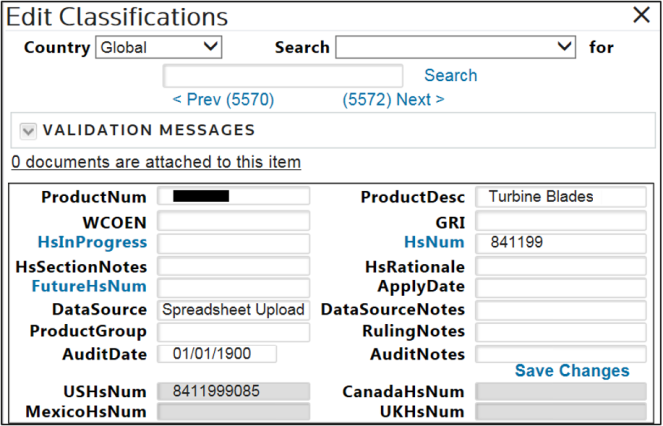
Clicking this link will open a pop-up version of the “Edit Classification” screen with the product pre-selected. The HS Number will update to the new HS that was previously in the “Pending” tab.
Related Content
-
World Customs Organization (WCO) Tariff Updates
Format: Article