
Retrieve archived data
For DPS
To access archived data from a period before the dates displayed as available.
1. In the main screen, select .
DPS Management
2. Select the option
Request Access
on the top of the DPS Management
screen.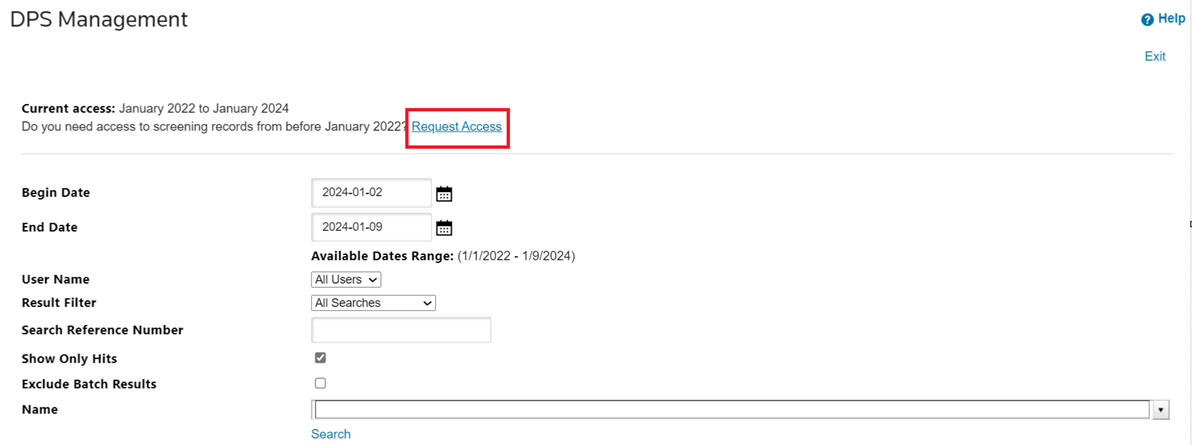
3. Fill out the
Archive Access Request
.- Select the desired period from the dropdown.
- Provide a brief and relevant reason in theReason for request*field.
important
Both steps are mandatory.
4. Select
Request access
on the bottom of the screen.You will receive an email notification as well as on the
DPS Management
screen when the request is approved. You will also be able to view these records in your DPS Management
search results.For Global Classification
- In the Global Classification menu, selectAll Products Changelog.
- Select the optionAccess older recordsat the top of the screen.
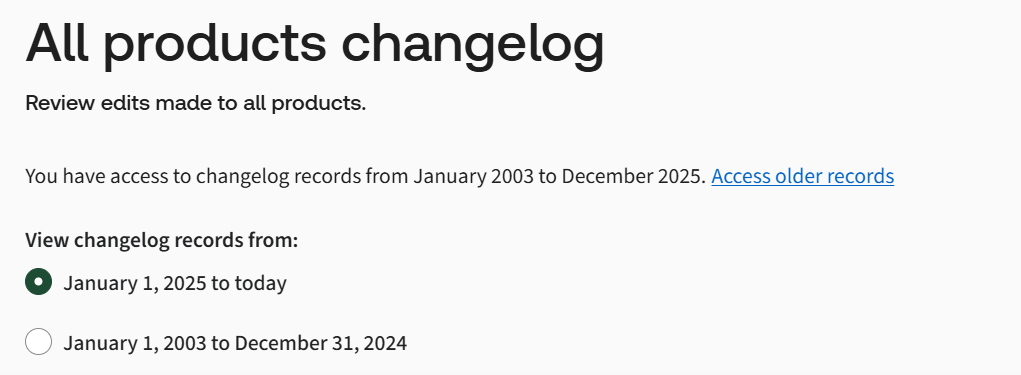
- Fill out theArchive Access Request.
- Choose the desired period from the dropdown.
- Provide a brief and relevant reason in theReason for request*field.
important
Both steps are mandatory.
4. Select
Request access
on the bottom of the screen.On the
Products Changelog
screen, you will receive a notification as well as an email when your request is approved. For FTA
- In the FTA menu, selectFTA Audit Log.
- Select the optionAccess older recordsat the top of the screen.

- Fill out theArchive Access Request.
- Choose the desired period from the dropdown.
- Provide a brief and relevant reason in theReason for request*field.
important
4. Select Both steps are mandatory.
Request access
on the bottom of the screen.
On the
FTA Audit Log
screen, you will receive a notification as well as an email when your request is approved. Related Content
-
Archive Settings (User Data Management)
Format: Article