
Questions
The
Questions
dock contains a list of questions that can be attached to a Decision Tree, answer, or another question.
Adding a Question
To add a question to the questionnaire:
- Click on theQuestionsdock to open the list of available questions.
- From the list of questions, determine which question needs to be added to the questionnaire.
- From this menu, you can drag a specific question to the left side of the editor and move the question to where it needs to go. A question can be attached to a tree, answer, or another question.
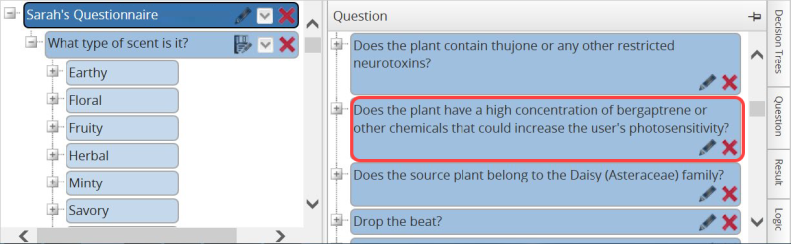
- Click on the question to be added and drag it into the Decision Tree. As the cursor is dragged, the question field will appear so you can see where the question will be dropped.
- Once the cursor is over the desired location, let go of the mouse to release the question.

- If the answer already has an attached question, the following validation error will appear. ClickOKto close the pop-up.

Editing a Question
To edit a question:
- Choose a question from the list to be edited.
- Once a question is determined, click the question’s correspondingEditicon.

- Clicking theEditicon will open theQuestionpop-up, which is covered in more detail in the three sections below (Question, Answer, and Advanced).
- Make any necessary changes, and then clickSave and Close.
In the example below, the typo (duplcated) was corrected (duplicated).

Question
The
Question
section of the Question
pop-up is the first section you should complete.
The
Text
field is what will display as the question.
The
Type
field will be one of the question types listed in the table below:Type field | Description |
|---|---|
Attachment | This question type requires you to attach a document. The text portion of this question should be used to write a command (e.g. Upload a Picture). |
Checkbox | This question type allows for a checkbox type question that supports multiple answers per question. These questions should be planned and discussed during implementation to ensure proper use of one-to-many results. |
Date | This question type captures a date. |
DateTime | This question type captures a date and time. |
Drop-Down | This question type builds branches where the answer leads to a specific result. This way, each answer will lead to a result or another “branch” of questions. |
Numeric | This question type forces the answer to be a numeric value. These types of questions should be worded to receive a numeric answer. |
Predefined | This question type will ask the same question, no matter the result. It will always lead to the same next question. These questions should always be used when the answer to a drop-down question does not change the resulting questions. This will limit the number of branches to be maintained. |
Textbox | This question type is followed by a question or end result. Text entered here is saved as a result. |
Time | This question type captures a time value. |
Message | This question type allows for large text inputs. |

Answer
The
Answer
section of the Question
pop-up will only be available for certain predefined question types, such as dropdown.To add an answer for an applicable Question type:
- Click on theAdd New Answerfield and enter a value for the answer.
- After each value is entered, click the+to add the answer.

- The answer will then appear in theAnswersection of theQuestionpop-up.
In some instances, a client company may want to auto-populate certain questions with consistent data (e.g. system Port Codes). Thomson Reuters staff are capable of writing queries to dynamically populate answers as needed.
Contact your Thomson Reuters Client Delivery Representative for more details.

To modify an existing answer:
- Click on the answer text and make any necessary changes.
- Once the changes are ready to be saved, click theSaveicon to the right.

The display order (of answers) can be set by using the up and down arrow icons on the right side.

To remove an answer:
- Click on the answer to be removed.
- Click the grayXbutton. The selected answer will then be removed.

Advanced
The
Advanced
section of the Question
pop-up provides two other functionalities that can be used on the question.Functionalities | Descriptions |
|---|---|
Group | Groups similar question types that can be referenced in custom Decision Tree setup queries. |
Help Notes | Applies clarifying notes to a question. Help notes are displayed on the right side of a question when accessed through the Viewer/Questionnaire screen. It will appear as a question mark icon. When completing the Questionnaire, you can hover over the question mark icon and view the entered text in the Question Help Notes field. |

Completing the Question Pop-Up
Once all the aforementioned sections in the Question pop-up have been completed, click
Save and Close
at the bottom of the pop-up. The changes made to a modified question will apply to each Decision Tree where the question exists.
Modifications Impacting Other Decision Trees
Some modifications to a question may impact other Decision Trees in a way that is not backwards-compatible (e.g. removing No from a Yes/No question shared by multiple trees).
In these instances, an alert containing all potentially impacted Decision Trees will appear.
In this example, No cannot be removed from this question until this particular question is removed from all four Decision Trees using the question (listed in the Alert).

Deleting a Question
To delete a question:
- Choose a question from the list to be removed.
- Once a question is determined, click the question’s correspondingXon the far right to open theAlertpop-up, requesting confirmation that you wish to delete the question.

To proceed and delete the question, click
OK
.To drop all changes and return to the main screen, click
Cancel
or X
.
If  ), or to add a new question (
 ).
).
OK
is clicked, the question will then be removed from the Questions list. This menu also allows you to edit or delete a question by clicking on the icons (), or to add a new question ().Related Content
-
Decision Tree
Format: Article