
Filtering
After selecting a dock and view, you can use filters to search and quickly locate specific products. Search results can be refined on additional columns, if needed.
To perform a search:
- Choose a column to search by.
- Click the icon to the right of the column name.

- Click the advanced filter icon to open a list of filtering options. Each of these options is explained in more detail in the sections below.

Sorting
Columns can be sorted in ascending (A-Z) or descending (Z-A) order. You also have the ability to clear sorting to return the column to its original order.

Grouping

Clicking
Group By
refreshes the grid. All records sharing the same value for the selected column will be grouped together and can be expanded or collapsed by clicking the arrow button on the far left.In the example below, the grid is grouped by
Product Name
. As a result, all products with a Product Name value of “HANDLEBAR” and “LIGHT, INTERIOR” were grouped together.
Clicking
Ungroup
returns the grid to its original state.Best fit
Some docks may have columns that take up more space than is needed.

The
Best Fit
filtering option shrinks the column width to the best fit for the screen’s parameters.

Column configuration
The
Columns
filtering option makes it possible to show or hide only the columns you need to view. 
Column headers with a checked box will remain visible. Column headers with an unchecked box will be hidden.

Default filters
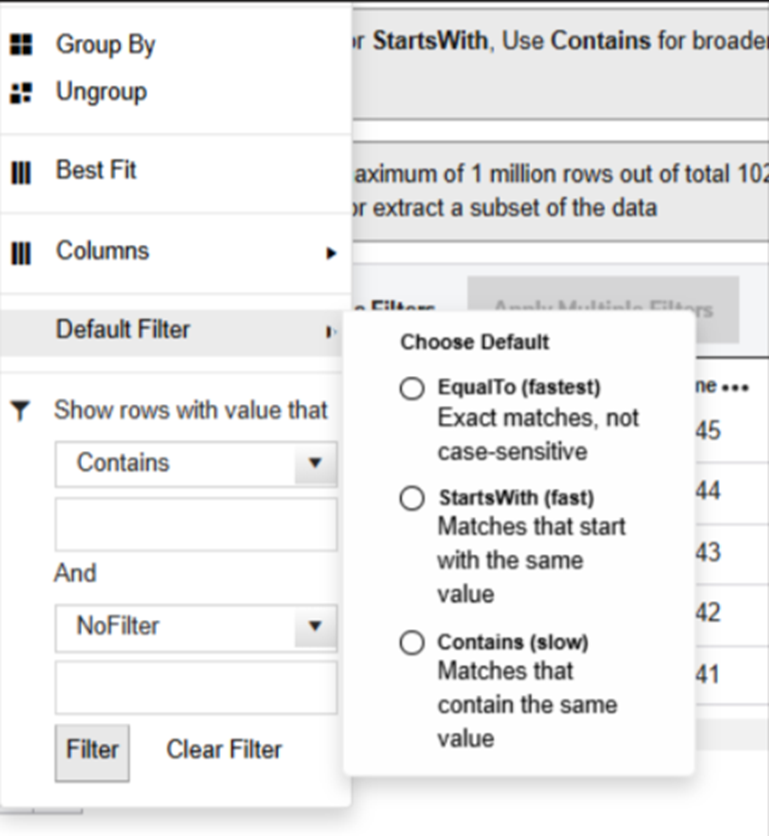
For lookups exceeding 100,000 records, a notification will advise using column filters such as
EqualTo
, StartsWith
, and Contains
to optimize query speed. These filters can save time and improve the responsiveness of the Product Lookup by showing only rows that meet specific criteria.Use the
Default Filter
to save your filter settings for future searches. - Choose one of the three options.
- Complete the filter section.
- SelectFilterto save your settings:
- EqualTo (fastest): Exact matches, not case-sensitive
- StartsWith (fast): Matches that start with the same value
- Contains (slow): Matches that contain the same value
Filtering
Columns can be filtered to show only rows with values that meet specific parameters.
- Choose a column to search by.
- Enter a value to search by.
- Choose a filter option from the provided list. A series of filter options (for example,Contains,DoesNotContain) appears. These options vary depending on the type of column (Alphanumeric, Numeric, Date, etc.). Once the parameters are set, clickFilter.

The grid refreshes to show only rows with values that match the specified filtering criteria.
To clear all filters from a specific column, click
Clear Filter
. 
Related Content
-
Product Lookup
Format: Article