
Conditional Statements
Conditional statements (sometimes called
CASE
statements in SQL) use a series of IF
…THEN
statements to return another value in a column, depending on one or more related column values. To add a conditional statement, perform one of the below methods.Adding a Conditional Statement (Method 1)
On the box. In the Conditionals box, click the expansion arrow on the right.
Report Builder
screen, locate the Conditionals

All available conditional statements will become visible in the
Conditionals
box. Choose a condition to add to the report. Click, drag, and release the condition to the Selected Items
box.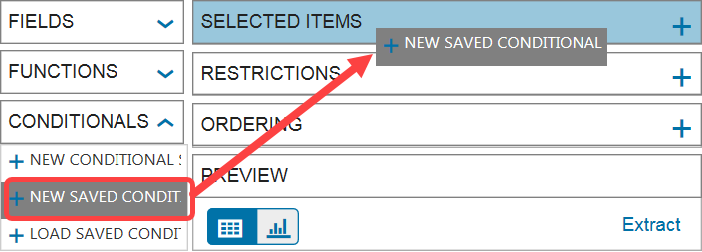
The conditional select pop-up will open. For the next step in the process, please refer to the
Building Conditional Statements
section of this Help.Adding a Conditional Statement (Method 2)
On the
Report Builder
screen, locate the Conditionals
box. In the Conditionals
box, click the expansion arrow on the right.All available conditional statements will become visible in the
Conditionals
box. Choose a condition to add to the report and click its corresponding +
.
The conditional select pop-up will open. For the next step in the process, please refer to the
Building Conditional Statements
section of this Help.Adding a Conditional Statement (Method 3)
On the
Report Builder
screen, locate the Selected Items
box. In the Selected Items
box, click +
on the far right.
Clicking
+
will open a drop-down. In the drop-down, click Add Conditional
.
The conditional select pop-up will open. For the next step in the process, please refer to the
Building Conditional Statements
section of this Help.Adding a Conditional Statement (Method 4)
On the
Report Builder
screen, locate the Conditionals
box. In the Conditionals
box, click the expansion arrow on the right.Click
Load Saved Conditional Select
, and then click the +
on the left.
If any conditional statements have been pre-saved, they will become available in the
Select Conditional
pop-up. Choose a conditional statement and then click Select
.
Building Conditional Statements
If a conditional statement is being added by any method other than loading a saved conditional statement (Method 4), an empty
Conditional
pop-up will open.Like restrictions, conditions require a field, operator, and value. Unlike restrictions, conditions also require a result. The behavior on a condition is that when the value is applied to the field with the operator and the outcome is true, then the result will be the output of the conditional statement.
To add a condition, click
Add Condition
.
Clicking
Add Condition
will open another pop-up in which you can create a conditional statement.
The
Field
, Value
, and Result
fields all have type-ahead capabilities. Type part of the value or field to be entered. A drop-down of matches will appear. Select the correct match.
To select a function, click the
Use Function
button.
Clicking
Use Function
will open the Select Function
pop-up, which contains a list of available functions. Choose a function from the provided list, and then click Select
.
Each function has its own pop-up with its own fields that must be completed in order for the function to be applied to the report. Complete all fields, and then click
Save
.
After all fields have been completed, click
Save
.
If none of the listed conditions are met, then the conditional statement will need a final output. Add this final output in the bottom field, and then click
Save
.
Editing Conditional Statements
To edit a conditional statement, go to the
Selected Items
box and choose a conditional statement to be edited. Once a statement is chosen, click the conditional statement’s corresponding pencil icon.
The
Edit
pop-up will open. Make any necessary changes and save. Additional conditions can also be added at this step.
Removing Conditional Statements
To remove a conditional statement, go to the
Selected Items
box and choose a conditional statement to be removed. Once a statement is chosen, click the conditional statement’s corresponding X
.
The statement will then be removed from the report.
Creating Saved Conditional Statements
To save a conditional statement for future use, perform the below actions.
On the Report Builder screen, locate the
Conditionals
box. In the Conditionals
box, click the expansion arrow on the right.
The list of available conditional statement options will appear. Choose
New Saved Conditional
and then click its corresponding +
.
Build the conditional statement as described in the
Building Conditional Statements
section of this Help. After the conditional statement is built and Save
is clicked, the conditional statement will become available in the Select Conditional
pop-up.To open the saved conditional statement pop-up, return to the Conditionals box and choose
Load Saved Conditional Select
. Next, click the corresponding +
on the far left.
Related Content
-
Report Builder
Format: Article