
Fields
Field values are the basic building blocks of any query. Each field will correspond to the name of a column header within a selected table. To add a field, perform one of the three methods listed below:
Adding a Field (Method 1)
Choose a field from the
Fields
box to include in the report.Once a field is chosen, click and drag the field from the
Fields
box to the Selected Items
box.
The field will now appear in the
Selected Items
section of the screen.
Adding a Field (Method 2)
Choose a field from the
Fields
box to include. Once a field is chosen, click the “+” button.
The field will now appear in the
Selected Items
section of the screen.
Adding a Field (Method 3)
Go to the
Selected Items
box and click the +
on the far right.
A drop-down will appear on the right. From the drop-down, click
Add Field
.
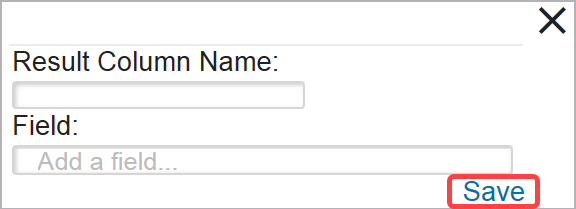
Clicking
Add Field
will open the Add Field
pop-up. Enter a Result Column Name and choose a field from theAdd a field
… textbox. Once these parameters are set, click Save
.
Editing Fields
To edit a field, choose a field from the
Selected Items
box to be edited. Once a field is selected, click the field’s corresponding pencil icon.
The Edit pop-up will open. Make any necessary changes to the field’s Result Column Name and then click
Save
.
The field name will update in the
Selected Items
section.
Removing Fields
To remove a field, choose a field from the
Selected Items
box to be removed. Once a field is selected, click the field’s X
icon.
The field will then be removed from the report.

Related Content
-
Report Builder
Format: Article