
Edit a user account
important
You can only edit a user account if you are an admin level user.
Follow these instructions if you want to edit user information such as name and change a password.
- Select your username.
- SelectUser Settingsto open theUsersscreen.
- To edit an existing user, find them in the list and select theEditbutton associated with their name.

- If you don't see the user in the list, use the search bar to enter their username, email address, first name, or last name.
- SelectSearchto update the list with matching users.
- Make the necessary changes to the information.
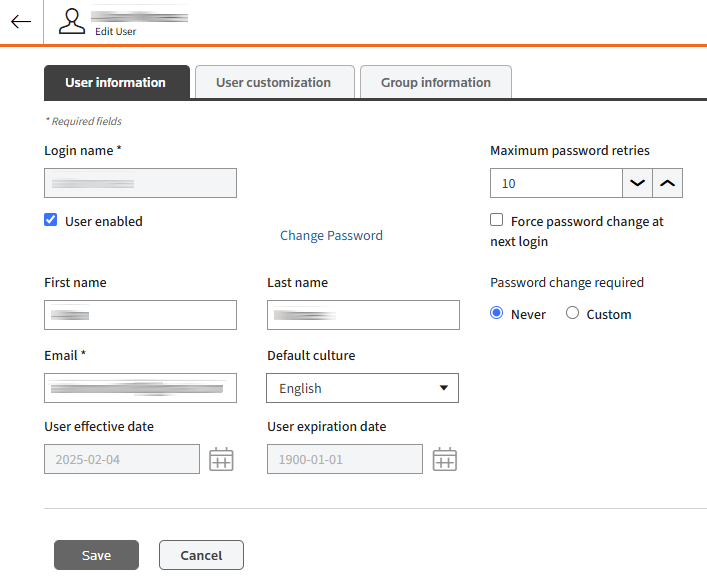 importantTheLogin namefield will appear as a read-only type because you can’t modify it. To create a new aLogin name, deactivate the existing user account and create a new account as described in theAdd a new usersection of this guide.
 - When you finish making changes, selectSave. The changes will apply next time the person logs in.
- If you want to edit a different user, select theback arrowto go back to theUsersscreen.
If you need to make more changes, select the
User Customization
or Group Information
tabs as applicable. You can find more details about these tabs in the User Customization
and Group Information
sections of this guide.
Change your password
- Select theuser menu.
- Go toUser Settingsto open theUsersscreen.
- Choose the user you want to change the password and selectEdit user.
- SelectChange Passwordbutton to open theUser password changepop-up.

- Enter your current password and then enter a new password that follows the specified format.
- When you finish making changes, selectSave.
Related Content
-
User Access and Setup
Format: Article