
Adding a Validation Note
All notes and reason codes attached to a specific entry can be viewed on the
Entry Validation
screen. A validation note can be applied to an individual entry or across multiple entries, lines, or validations.To add a mass note to multiple entries, lines, or validations, select a Validation Type.
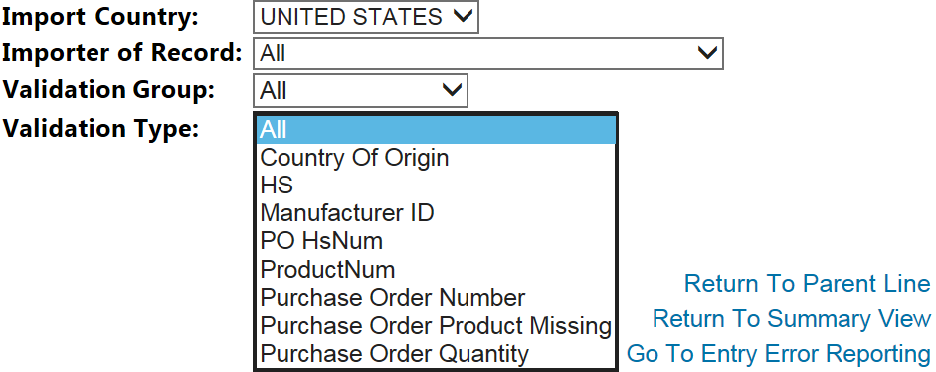
Once a Validation Type has been selected,
Add Validation Note
will appear on the Entry Validation
screen. 
Once this button appears at the top of the screen, choose which entries/lines/validations to attach the note to and check their corresponding boxes on the far left. Once these items have been selected, click
Add Validation Note
. 
Clicking
Add Validation Note
will open the Add Note
pop-up. Enter the note and then click Submit
. 
To view all associated validation errors for an entry, open the
Entry Validation
screen and select a validation from the grid below.
Once an Entry Number (
Entry Num
) is selected, all associated validation errors for the entry will become visible. Each validation error will have a Add Note
link to the left of the Entry Number column, as shown in the screenshot example below. Choose a validation error from the grid and click its corresponding Add Note
link. 
Clicking
View Notes
will open the Add Note
pop-up window, which contains a drop-down box of reason codes. There are also options to add the validation error to the Broker, Internal, and/or External errors report.To add a note, complete all necessary fields and then click
Submit
. 
Related Content
-
Entry Validation
Format: Article