
Selecting an Entry for Correction
To correct an entry, choose an entry to be corrected from the
All Entries
grid and then click its corresponding Select
link.
Clicking
Select
will open the Selected Entry
tab, which contains all corrections data pertaining to the entry selected on the All Entries
tab.The corrections grid will show all lines for that entry, along with the error status for each line:
 | A Validation Type error exists for the listed Validation Group in the entry. |
|---|---|
 | This entry line passed all validations. |

To quickly locate a specific entry, both the
All Entries
and Selected Entry
tabs have advanced filtering capabilities. Filtering is described in more detail in the Using the Advanced Filter Options
section of this help documentation. To view details on a validation error, choose an error to review from the
Selected Entry
tab and click its corresponding expansion arrow on the far left. If the Multi-HS functionality has been configured, the Selected Entry
grid will also contain the Sequence Number
.
Clicking on the expansion arrow will display each validation error, the source/comparison data for the validation, and a text box where the correct value can be entered.
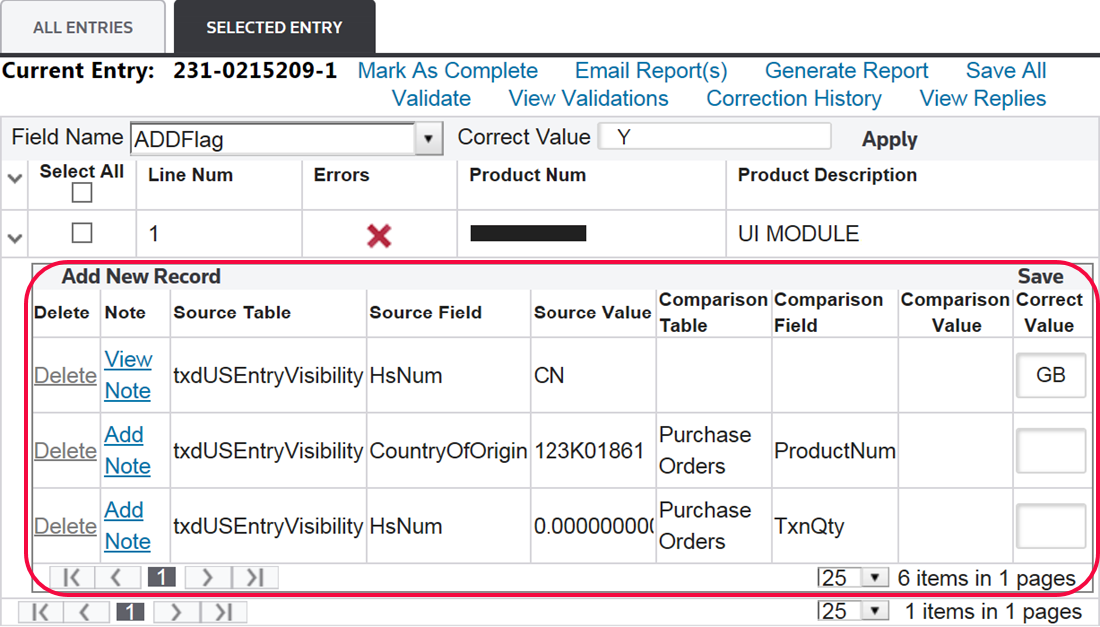
By default, the
Correct Value
textbox will hold the expected or comparison value. The Comparison Value
is what the validation is comparing against. For example, if the HS Number on the entry line is being compared against the HS Number listed for that product in Global Classification, then the HS Number in Global Classification would be listed as the Comparison Value, with Global Classification being the Comparison Source. 
important
Validation errors will not show for fields listed as “invalid”.
Adding a Note to a Validation Line
To add a note to a validation line, choose a line item from the
Note
column and then click Add Note
. 
Once
Add Note
is clicked, the Add/View Note
pop-up will appear on the screen. Make any necessary changes, and then click Submit Note
. To close the pop-up window without saving the note, click the “ X
” at the top right of the pop-up window. 
Viewing or Modifying an Existing Note
To view or modify an existing note; choose a line item from the
Note
column and then click View Note
. 
Once
View Note
is clicked, the Add/View Note
pop-up will appear on the screen. Make any necessary changes, and then click Submit Note
. If no changes need to be made, click the “ X
” at the top right of the pop-up window. 
Related Content
-
Declaration Correction
Format: Article