
Pre-Shipment Advice (PSA) Simplified
This screen is used to create a simplified declaration before you export goods. When authorised for simplification, you can declare your goods using pre-shipment advice (PSA). PSA is referred to as a simplified declaration in the Customs Declaration Service. PSA is a light/skinny declaration for Export.
You can access this screen under the
Daily Processing – OUTBOUND
menu option, as UK CDS Simplified Declaration (Export)
.
The search bar
Find Declaration
is used for locating specific invoices or declarations within the ONESOURCE CDS Export system.Search Filters | Description |
|---|---|
Current | When you select Current and search for a declaration, theFind Declaration drop-down menu will show all declarations up to theCLEARED status. |
Completed | If you choose Completed and search for a declaration, theFind Declaration drop-down menu will display only those declarations that were cancelled or received anEOG orEXT status from Customs. |

Creating a New Declaration
To create a new declaration.
important
You can utilize defaults to pre-fill declarations. These defaults are created and managed in the “UK CDS Declaration default (Export)” screen. Refer to the “UK CDS Declaration default (Export)” section to learn more.
1. Click
New
to open a pop-up.2. Use the
Procedure Group
dropdown to select the corresponding group and click Proceed
to confirm.The procedure group dropdown contains a combination of the Declaration Category, Type of Declaration, Additional Declaration type code and procedure codes. Choose the correct option as per your authorization and requirement.
Refer to the Appendix for the description of declaration categories and type codes.
important
Depending on the selected declaration in the Procedure Group drop-down selection, certain fields will be automatically pre-populated. This feature is designed to streamline the process, saving time, and eliminating the need for redundant data entry.

3. Enter required data. If a field has an asterisk (*), it is a required field and cannot be left blank.
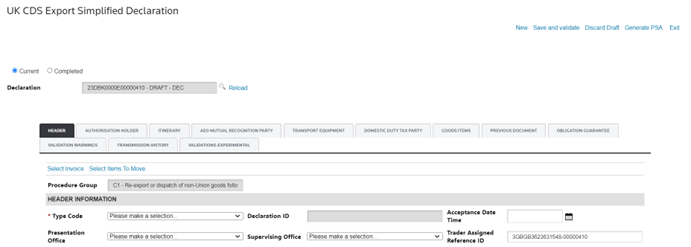
4. Click “Save and validate” to run a validation process to ensure the declaration adheres to Customs rules and regulations. Errors will be displayed in the “Validation Warnings” tab.

The
Location
column will define which tab and field contained the error.The
Warning
column will provide a definition for the error.The
Severity
column will provide whether it is an error or warning.To resolve an error, go to the location listed in the
Validations
tab and make the change to fix what appeared in the Warning
column. Click Save and validate
to revalidate.After all validation errors have been resolved and the declaration is complete, the
Transmit
button becomes available.5. Click
Transmit
to send the complete declaration to Customs.Action Buttons
This section helps you to better understand which actions you can take against a declaration based on its status.
Action | Description |
|---|---|
New | On click of this button new simplified declaration will be create |
Save and Validate | On click of this button the simplified declaration is validate and saved in draft state and all the details which are invalidate for those warning are visible under validation warning tabs |
Transmit | On click of this the simplified declaration is transmitted to custom if all provide details are correct and compliance as per custom transmit will be successful else Transmit fail |
Supplement | On click on this you can provide addition information for the Simplified declaration |
Amendment | Allow you to amendment the simplified Declaration |
INV | Allows you to create an invalidation request for the declaration. |
CDS Report | Allow you to generate CDS report in PDF format contain declaration details |
Generate PSA Report | On click of this the PSA report is generated in PDF format |
Generate PSA
Once your PSA declaration is accepted, you can click “Generate PSA” to download a PDF file containing the declaration data.
Supplement
Once your PSA declaration is accepted, you can add complementary information from your standard CDS declaration to your PSA declaration by clicking
Supplement
, on the top right of the screen.After the PSA is accepted, you have 14 days to send a supplementary declaration.
A supplementary Declaration can be created by clicking in the ‘Supplement’ link at the top.
The system will create a supplementary declaration, linked to the simplified and copy over all existing data.
It would also pull any relevant information from the invoices if it is available in the export system.
Related Content
-
UK Customs Declaration System (CDS)
Format: Article