
Special Processing
The
Special Processing
screen is used for moving transactions from the production table back to the staging table. This screen can be accessed by choosing Special Processing
from the Preparation
menu.
It is important to note that once FIFO is finalised, changes can no longer be processed. If the you open the
Special Processing
screen after FIFO is finalized, the following error will appear:
Special Processing: Back to Staging
To move production transactions back to staging, click
Undo Staging Data Transfer
and then click Execute Process
.
A prompt will appear on the screen, asking the user to confirm (s)he wants to execute the process. Click
Yes
to move all production transactions back to staging.
Special Processing: Moving Staging Transactions to Production
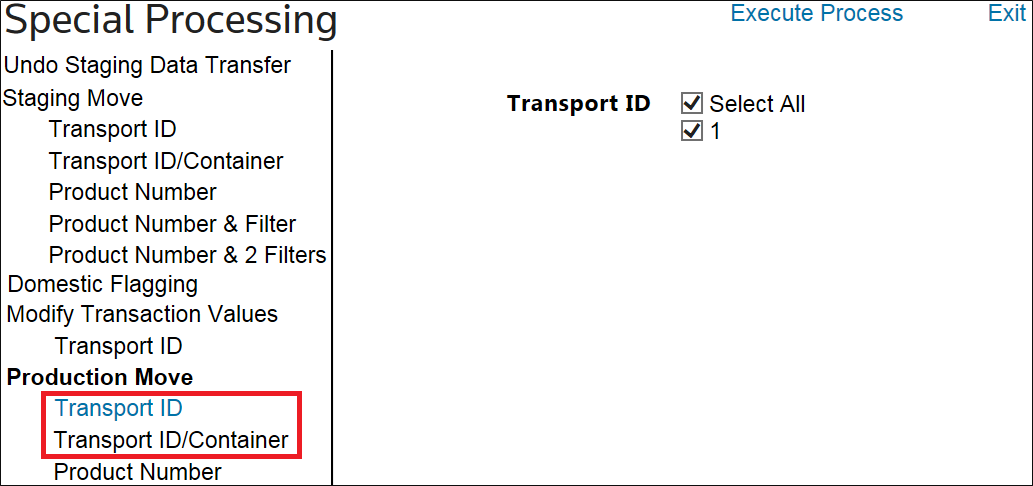
To move staging transactions forward to production, navigate to the
Production Move
heading on the left side of the screen and select one of the below options.To modify the Transport ID, navigate to the
Modify Transport ID
header and select either TransportID
or Transport ID/Container
.
Once on the main pane, the white content area populates with a textbox and checkboxes. To select a Transport ID to modify, check the corresponding box. Enter the new Transport ID into the provided textbox, then click
Execute Process
.
Special Processing: Delete All Matching
To delete all the transactions matching a certain Transport ID, navigate to the
Delete All Matching
header and select either TransportID
or Transport ID/Container
. Once on the main pane, the white content area populates with a textbox and boxes. To select one or more Transport IDs to delete, check the corresponding boxes. Once the Transport ID boxes have been checked, click Execute Process
.
Special Processing: Domestic Flagging
To flag a transaction as domestic, locate and select
Domestic Flagging
on the list to the left. Once on the main pane, the white content area populates with a textbox and boxes. To select one or more Transport IDs to flag as domestic, check the corresponding boxes. Once the Transport ID boxes have been checked, click Execute Process
.Special Processing: Modify Transaction Values
To modify the total charge for a specific transport ID, navigate to the
Modify Transaction Values
header and choose TransportID
. Choose a Transport ID to modify from the drop-down list. Type the new Total Charge into the provided textbox, and then click Execute Process
.