
Command Buttons
These buttons (under the navigation bar) invoke specific actions as described below:
Bottons | Description |
|---|---|
New | Create a new invoice from scratch or a template. |
Save | Save all changes and updates made to an invoice. |
Validate | Cross-check current invoice to determine accuracy of data. |
Save as Template | Create a template from the current invoice for future use. |
Reload | Refill all invoice fields with the most recently stored information. |
Void | Cancel an invoice and change its status to Void . AVoid Reason andVoid Explanation must be entered before the void can take effect. Once a shipment is voided, the Void Reason and Void Explanation are inserted as notes associated to the shipment for permanent retention. When a voided invoice is retrieved, a Once a shipment is voided, the Void Reason and Void Explanation are inserted as notes associated to the shipment for permanent retention. When a voided invoice is retrieved, aReactivate button appears on theExport Management screen. ClickingReactivate removes the void and allows the invoice to be processed or edited as needed. |
Preview Documentation | Create system-generated draft documentation for review. |
Process Shipment | Save changes & updates made to the invoice. The following actions are performed during the Process Shipment stage:
|
Exit | Closes Export Management. |
Process Shipment
To process a shipment, click
Process Shipment
.
The shipment will then be queued for processing and the following message will appear on the screen, showing where the shipment is in the queue

Once an invoice is successfully processed, the
Process Shipment
command button changes to Undo Shipment Processing
.If the Export Management module is configured with AES filing ability, the
AES Transmission
command button appears and is enabled. Further details are covered in the AES Connectivity
User Guide.
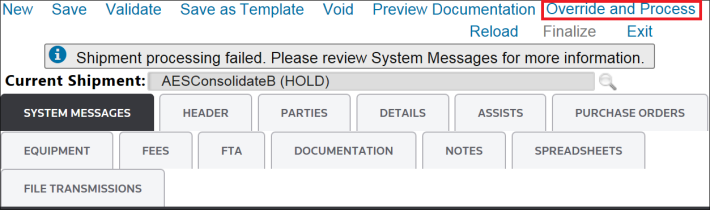
Override and Process
To override a shipment with a hold validation, click
Override and Process
.
A pop-up will display, requesting a note be entered before continuing. Select an
Override Reason
, write a note, and click Submit
to continue.
Note: Overridden messages are permanently stored on the shipment as
HOLD OVERRIDDEN
.
Finalize
Clicking
Finalize
locks down a completed invoice and disables it from any further editing. Before proceeding, the Finalize Shipment
pop-up will open, requesting confirmation of the finalization. Click Submit
to proceed or X
to cancel and close.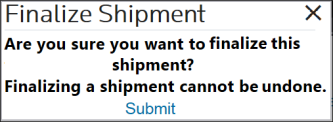
Unfinalize
Clicking
Unfinalize
unlocks a finalized invoice so it can be edited. This feature is configured around security group permissions. For further details and instructions, please contact your system administrator.
In the
Unfinalize Shipment
pop-up, provide an explanation for unfinalizing the shipment. Click Submit
to proceed or X
to cancel and close.
Related Content
-
Export Template, PO, and Invoice Management
Format: Article