
Declaration Discrepancy Management
The
Declaration Discrepancy Management
screen provides a more detailed look at individual declarations at the line level, and also breaking down the review further on individual tabs, including Header, Detail, Parties, Fees and Communication.To access the
Declaration Discrepancy Management
screen for a specific entry, click on the desired declaration number from the Declaration Overview screen (this can be done from the Declarations
tab or from the Work Queue
tab).If the
Validation Group
or Type
dropdowns were being used to filter the grid, those same values will carry over to the Discrepancy Management
page to allow you to look just at certain groups/type of validations.

Each tab is covered in more detail in the below sub-sections.
Button Links
The
Declaration Discrepancy Management
screen has the following buttons at the top right of the screen:Buttons | Description |
|---|---|
Go To Overview | Clicking this button will return you to the Declaration Overview screen. More information about this screen can be found in theDeclaration Overview section of this User Guide. |
Document Retention | Clicking this button will open the Document Retention pop-up. More information about this pop-up can be found in theDocument Retention section of this User Guide. |
Exit | Clicking this button will return you to the default (Home) screen. |

Summary
The
Summary
tab provides overview information about the selected declaration, including:- A configurable set of header-level data
- Any manual validations configured during the implementation process
- The grid of validation errors for the selected declaration
ONESOURCE Export Verification can validate by Group, Type, and Level. Validations in Export Verification have a group/type, but also have a Level.
Shorthand | Meaning |
|---|---|
H | Header |
D | Detail |
P | Party |
F | Fee |
The validation grid provides a snapshot of where discrepancies can be found. The Passed/Failed/Reviewed column quickly identifies the following:
- Levels with at least one failed validation will be indicated by a red “X”
- Levels with clean validations will be indicated by a green “√”
- Declarations where all validations have been reviewed and “marked as reviewed” will be indicated by
 . Validations that have not been reviewed will be indicated by
  .
.
If you click on a link in the
Validation Level
column, you will be redirected to the validation level’s applicable tab. Links will be active for a Validation Level where at least one discrepancy exists.
Clicking on a
Validation Level
link will refresh the screen and take you to the appropriate tab to show the details of the error. The specific data fields having a discrepancy will be highlighted with a red border on the Harmonized Data
and Filer Data
tabs for easy identification.From these screens, you can further review the discrepancies, add/review notes and/or documents in support of actions taken, mark an item as reviewed, and close discrepancies.

Header
The
Header
tab displays all header-level validations, as well as sub-tabs for Harmonized Data and Filer Data. This structure is mimicked on the other tabs of this screen, with a few additions on the others. These tabs can be used to add notes, close discrepancies, and view validation data.When selected, the links on this tab will perform the following actions:
Action | Description |
|---|---|
Mark Selected As Reviewed | When selected, all checked items in the top grid will be marked as Reviewed . |
Close Discrepancies | When selected, all checked items in the top grid will be marked as Closed . |
View Notes | When selected, the Notes pop-up will appear on the screen, showing all existing notes for the selected declaration. You will also have the ability to add additional notes. More information is provided in theNotes section of this chapter of the User Guide. |
Docs | When selected, the Documents pop-up will appear on the screen, showing all existing documents for the selected declaration. More information is provided in theDocuments section of this chapter in the User Guide. |

Detail
The
Detail
tab is similar to the Header
tab, with the addition of an extra grid at the top showing which lines contain validation discrepancies. This tab can be used to specify which line you want to view validations/data for.To view the details of a specific declaration line, choose a line from the top grid and then click its corresponding
Select
link on the far left. Clicking Select
will reload the validation grid and the Harmonized/Filer Data sub-tabs for the selected line.

You can review each respective line for validation errors, add notes and/or documents in support, and once reviewed, mark the item as reviewed so other people can easily identify those items that have already been addressed.
Parties
Similar to the
Detail
tab, the Parties
tab displays all parties for the declaration selected in the top grid, as well as its related validations and data.The main structural difference between the
Detail
tab and the Parties
tab is that the Party
tab includes header party information. These header parties are shown by having Party Header
as their Line Num in the top grid. Otherwise, the Detail
and Parties
tabs are very similar in function.
Fees
The
Fees
tab is essentially the same as the Parties
tab, except that it displays data and validations related to Charges and Fees.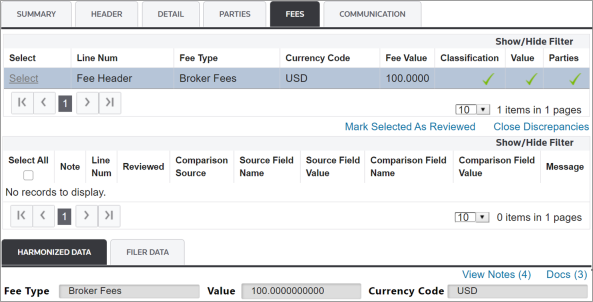
Related Content
-
Declaration Overview
Format: Article