
Declarations
By default, the grid will only display declarations with validation errors.
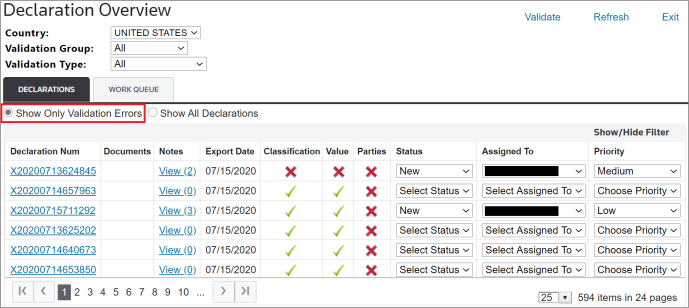
Selecting
Show All Declarations
will display all declarations, regardless of whether they contain any validation errors.
From the
Declaration Management
grid, you can:- View documents and notes for each declaration.
- Change the Status, Assigned To, and Priority using the available drop-downs.
- View the details of a specific declaration.
A note can be required when values are changed. This feature is configurable.
Declaration Number
Clicking a
Declaration Number
link will take you to the Declaration Discrepancy Management
screen with the selected declaration’s information populated on the screen. Any filters selected on the Declaration Overview
screen will carry over to the Declaration Discrepancy Management
screen.This screen is described in more detail in the
Declaration Discrepancy Management
chapter of this User Guide.

Documents
Clicking a
Documents
link will open a Document List
pop-up. This list will contain all documents attached to the declaration.
Clicking on a
PDF
link will open an Adobe PDF version of the generated report.
Notes
Clicking a
Notes
link will open a Notes
pop-up. This list will contain all notes associated with the declaration. A variety of note types are available to assist in categorizing notes to specific error reports.
Summary/Status Note
The
Summary/Status Note
tab contains all notes related to the declaration summary and its status. Additional notes can be added by clicking the Add Note
button.
Clicking the
Add Note
button will open the Add Note
pop-up.- Select a reason from the drop-down.
- Add the note.
- ClickSubmit.

Internal Note
The
Internal Note
tab contains internal notes that will not be visible to external viewers for the selected declaration.
External Note
The
External Note
tab contains external notes that will be visible to external viewers for the selected declaration.
Closed Discrepancy Note
The
Closed Discrepancy Note
tab contains notes regarding closed discrepancies for the selected declaration.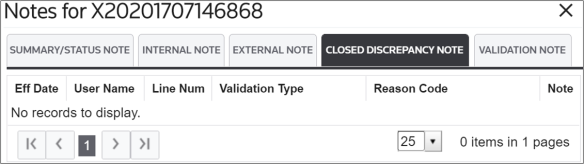
Validation Note
The
Validation Note
tab contains validation notes that for the selected declaration.
Status
The drop-down in the
Status
column can be used to select a status for the declaration, depending on where the declaration is in the review process.
The statuses available in the drop-down are user-defined and can mirror certain steps in the declaration review process. This drop-down can be configured based on security access to limit the number of users who can change a declaration’s status.
In addition, statuses can be set either manually or automatically by the system, depending on performed tasks.

The status drop-down can also make notes mandatory once a status has been changed by you. See below an example of the notes pop-up window that can appear when a status changes. Notes entered when a status changes are captured as part of the audit trail and are available under the
Notes
column on the Declarations
tab.

Assigned To
The drop-down in the
Assigned To
column can be used to assign a specific declaration to a specific individual involved in the declaration review process. This drop-down can be configured based on security access to limit the number of users who can assign declarations to other personnel.
The
Assigned To
drop-down can also make notes mandatory once an assignment is changed.
Notes entered when a status, assignment, or priority change occurs is captured as part of the audit trail. These notes can be viewed by clicking a link in the Notes column on the
Declarations
tab.

Priority
The drop-down in the
Priority
column can be used to assign an urgency-based priority to a declaration.
The
Priority
options available in the drop-down are user-defined and can mirror priority levels in the review of a declaration. This drop-down can be configured based on security access to limit the number of users who can change a declaration’s priority.
The
Priority
drop-down can also make notes mandatory once a priority is changed.
Notes entered when priority changes are captured as part of the audit trail. These notes can be viewed by clicking a link in the
Notes
column on the Declarations
tab.
Related Content
-
Declaration Overview
Format: Article