
Work Queue
The
Work Queue
tab provides the following information:- A grid listing your selected assigned declarations
- The priority level of assigned declarations
- Any documents attached to the assigned declarations
- Any notes associated with the assigned declarations
- Where the declarations presently are in the review process (status)

If the
Assigned
To feature is enabled, declarations can be assigned to other users inside ONESOURCE Export Verification. After these names have been set up, they will become available in the Assigned To
drop-down on the Declarations
tab.
After a declaration is assigned to a user, the declaration will be added to that user’s
Work Queue
sub-tab under the Work Queue
main tab.
It is possible to change statuses in the
Work Queue
tab. Any changes made on the Work Queue
tab will be captured in the audit log and are visible on the Declarations
tab.Work Queue Notes
The
Work Queue
tab also provides access to any notes associated with a declaration.To view notes associated with a declaration, choose a declaration from the
Work Queue
grid and click its corresponding View
link under the Notes
column.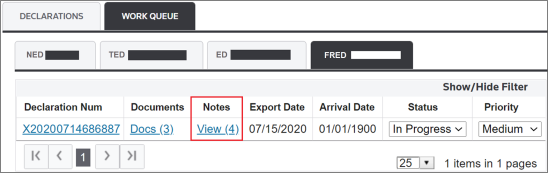
The following information will display as it relates to specific actions taken during the post-declaration review:
Displayed information | Description |
|---|---|
Summary/Status Note | Displays when a status was changed, who changed the status, the reason code, and any notes detailing why the status was changed. |
Internal Note | Displays all internal notes added to a declaration, including when the status was changed, who changed the status, the line number, the validation type, and the reason code. |
External Note | Displays all external notes added to a declaration including when the status was changed, who changed the status, the line number, the validation type, and the reason code. |
Validation Note | Displays all validation notes added to a declaration including when the status was changed, who changed the status, the line number, the validation type, and the reason code. |
Closed Discrepancy Note | Displays all notes added to a declaration when closing a discrepancy, including when the status was changed, who changed the status, the line number, the validation type, and the reason code. |

Work Queue Documents
The
Work Queue
tab also shows supporting documents attached to a declaration.To open an attached document, choose a declaration from the
Work Queue
grid below and click its corresponding Docs
link in the Documents
column.
Clicking a
Docs
link will display attached supporting documents (e.g., Commercial Invoice, Packing List, Letter of Credit, Error Reports, etc.).To open a document, choose a document from the grid and click on its corresponding link (shown in blue) in the
Document
column.
Related Content
-
Declaration Overview
Format: Article