
Actions
Complete Reports
For complete reports, the following actions are available.

Download report
If you click
Download report
, the report is downloaded into your local drive.Clicking on the downloaded report will open the file in Excel with multiple tabs for each of the available reports explained in chapter five of this user guide.
Download user data
If you click
Download user data
, the Excel file that was uploaded by you is downloaded.Share
If you click
Share
, a modal pop-up opens.
You can then share the report with users in the organization by typing their name and selecting the user.


You can share with multiple users by typing the next name.

To remove a user, simply click the
X
.
You can add a note to the message and click
Share
to finish.
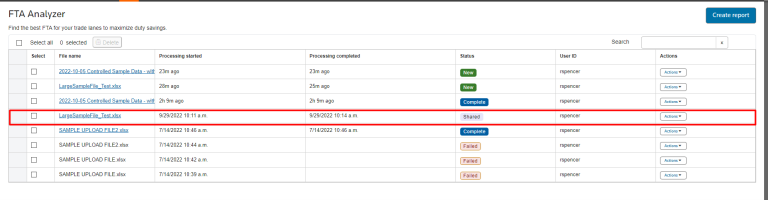
The status is updated to
Shared
.
By clicking
Share
in the Actions
menu again, you can see who they have previously shared the report.
There is also an option to copy the link for the report and paste into an email or messenger app for users to access.


Failed Reports
For failed reports, the following actions are available.

View Error Summary
If you click
View error summary
, the pop-up displays with a summary of why the report failed.
You can click
Download the audited
spreadsheet link to review details. See section below for further information.Download Audited Spreadsheet
If you click
Download audited spreadsheet
, the Excel file downloads.
The excel file will have your data that was uploaded with an additional column with the errors.
Delete
If you click
Delete
, a confirmation message is displayed to confirm the exclusion.
Related Content
-
Free Trade Agreement (FTA) Analyzer
Format: Article