
Products
All products selected by the requestor and included in the solicitation are pre-populated in a grid on the
Products
tab. The products listed in this tab are consistently listed by solicitation.- If a product has not yet been submitted, it will have a status ofNot Submittedand an activeEditlink on the far left of the grid.
- If a product has already been submitted, the status will show asSubmittedorAcceptedand theEditlink will no longer be visible for that line item on the grid.

Additionally, some supplemental fields (e.g. Accumulation Non-Originating Value) may also appear in the grid. This is entirely dependent on which agreement (e.g. USMCA) the certificate is for.

The following information must be completed within the product grid to complete the mandatory sections of the FTA solicitation and/or information requested by the requestor. The information requested on the product grid is specific to the FTA/document type request.
Examples of fields the grid may display include:
Fields | Description |
|---|---|
Qualifying | A product that qualifies under the rules of the solicited FTA. |
Non-Qualifying | A product that does not qualify under the rules of the solicited FTA. |
Invalid/Obsolete | An obsolete supplier product. |
Product Number | The internal product number. |
Description | A description of the product. |
HS Number | The related Harmonized Schedule (HS) number for the product. |
Preference Criteria | This field can be used to be consistent with FTA requirements and is configurable to the client user’s needs. This field has a length of up to three (3) characters. |
Producer | The producer of the product. |
Net Cost | The net cost of the product. |
Country of Origin | Member countries of the agreement will appear at the top of the Country of Origin drop-down. |
Traced Value | This optional field is added by the requestor. |
Supplier Product Number | This optional field is added by the requestor. |
Note (Prints on Cert) | Any note(s) the supplier wants to include on the printed certificate. |
View | View the certificate. |
AccumulationNonOriginatingValue | A supplemental field that may appear in agreements that require accumulation (e.g. CPTPP). In order for this field to appear, it must be configured within the user’s ONESOURCE FTA Management system. |
TableCIndicator | A supplemental field that may appear in agreements that require accumulation (e.g. CPTPP). In order for this field to appear, it must be configured within the user’s ONESOURCE FTA Management system.
For the TableCIndicator field, the supplier will need to indicate “Y” (Yes) or “N” (No). Any value other than “Y” (i.e. “N” or a blank field) will be treated as an “N”. |

The Supplier can provide information for a Solicitation Request using any of the three methods listed below:
- Extract to Spreadsheet
- Multiple Product Update
- Edit Individual Products
Each of these are described in more detail in the subsections below.
Extract to Spreadsheet
The
Extract to Spreadsheet
option is configurable, meaning the Requestor can turn this feature on and off. If the Requestor has disabled the Supplier from importing and exporting spreadsheet data into ONESOURCE FTA Management; this option will not appear on the Supplier Certificate
screen.If
Extract to Spreadsheet
is not an available option, the Supplier must complete the product grid directly from the Supplier Certificate
screen. Steps on how to perform this task are listed in the below sections:- Multiple Product Update
- Edit Individual Products
To extract a list of products in the solicitation to an MS Excel spreadsheet, click
Extract to Spreadsheet
.
Wait for the system to generate the file. Open and save the spreadsheet to the local hard drive. Once the file is saved, the Supplier can work in Microsoft Excel rather than ONESOURCE FTA Management.
The column headers will be prepopulated. From there, complete the required information by populating the columns. All required information must be complete prior to uploading the spreadsheet back into ONESOURCE FTA Management.

To complete the spreadsheet, edit the data in the spreadsheet. Users may delete a row entirely or sort the rows.
important
Do not insert columns or rows, or change any existing data in any cell that originates from the system.
For non-qualifying products, only the HS Number (if not already populated) and the Country of Origin need to be entered. The other data elements can be left blank.
Any products marked as Invalid/Obsolete will not require any further information
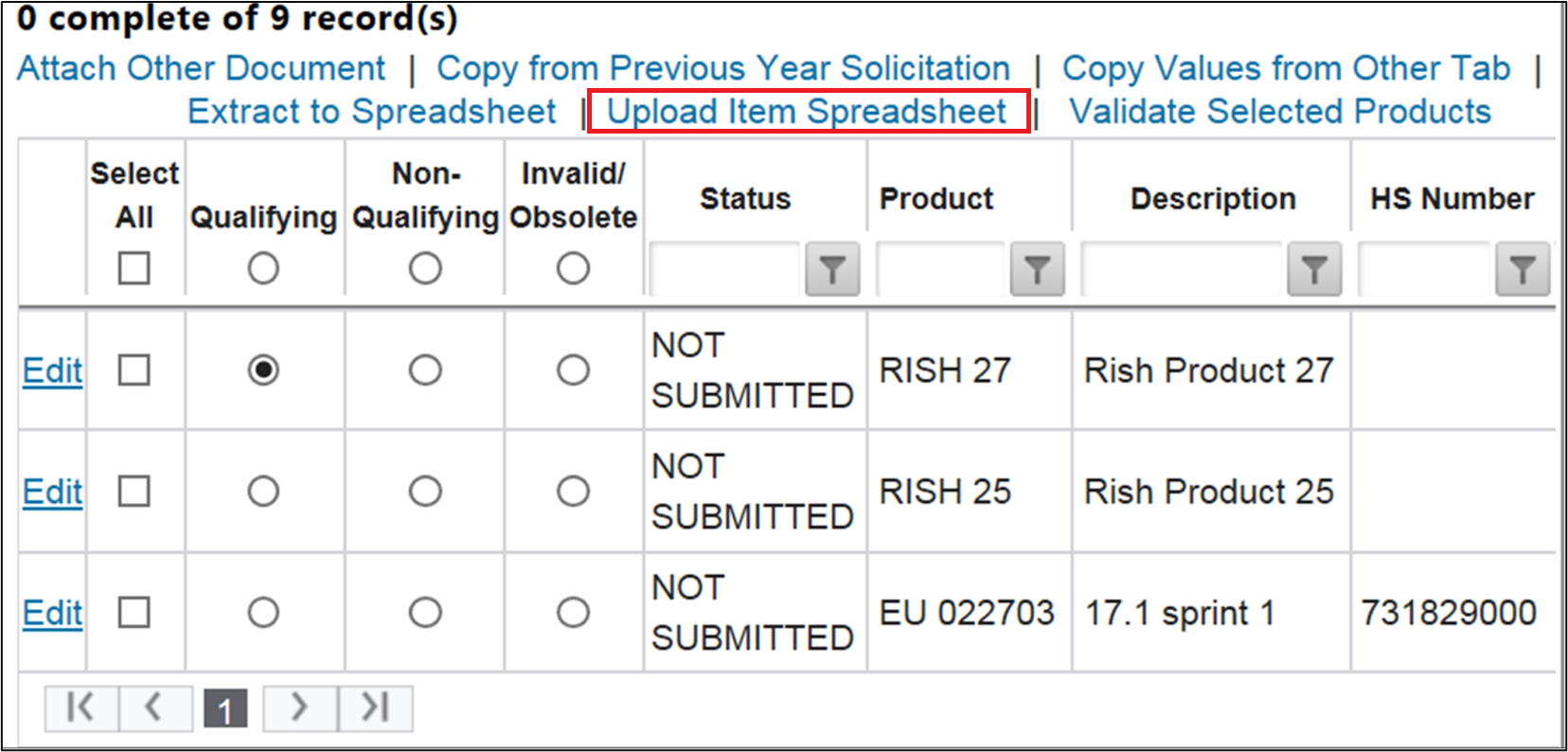
Once the spreadsheet has been completed and saved, it is time to upload the completed spreadsheet. Return to the
Supplier Certificate
screen and click Upload Item Spreadsheet
.
Clicking
Upload Item Spreadsheet
will open the Upload Item Data From Spreadsheet
pop-up. Click on the Browse
… button and select the saved spreadsheet. There is no set rule for what name can be given to the spreadsheet by the Supplier.
Wait for the system to recognize the spreadsheet. Once the system is ready for upload, the pop-up will refresh. Click
Apply spreadsheet values to items
.
Before loading the spreadsheet, the screen will validate the following:
- Net Cost is blank, "NO,” or "NC".
- Preference Criteria is equal to one of the options in the Preference Criteria drop-down
- Country of Origin is not blank
- Producer is equal to one of the options in the Producer drop-down
- The DetailGUID has not been altered
If the file does not load successfully and validation errors are displayed on the screen; the Supplier will need to review the contents of the spreadsheet for accuracy.
If the spreadsheet still cannot be uploaded; the Supplier may need to contact the Requestor to troubleshoot any issues preventing the spreadsheet from being uploaded.
Multiple Product Update
Another method for providing information to an existing Solicitation Request is to use the
Multiple Product Update
grid at the top of the 1. Products
tab. This method is especially useful if multiple products on the solicitation share the same eligibility information.
Review the list of products on the Solicitation Request and determine which ones are to be updated. Check the corresponding box for each product to be updated. Next, mark the selected product(s) as either
Qualifying, Non-Qualifying
, or Invalid/Obsolete
. Once this task has been completed, the Supplier is ready to use Multiple Product Update
.In the
Multiple Product Update
section, complete the data entry fields for the update (e.g. HS Number, Preference Criterion, Net Cost, etc.).To assist with making sure the Supplier enters the correct information, hover-overs are provided to give additional details on how to complete each of the required items. Holding the cursor over a drop-down will enable the hover-overs.

Once all information to be entered is ready, click
Update Selected Products
.
Clicking
Update Selected Products
will update the information for the selected products. The selected products will display the data that was entered during the mass update. If the mass update function completed successfully, a validation message will appear at the top of the Supplier Certification
screen:
Edit Individual Products
Another method for providing information to an existing Solicitation Request is to manually edit products individually. To individually edit a product, choose a product to modify and then click its corresponding
Edit
link on the far left.
Clicking
Edit
will turn the product fields into read/write fields. This feature allows the Supplier to:- Mark the product asQualified, Non-Qualified, orInvalid/Obsolete
- Change the HS Number if not accurate (if configured to allow in the system) or Fill in the HS Number (if blank)
- ChangePreference Criteria, Producer, Net Cost, Country of Originor any other required data elements
- Add a Note (if desired)
- Add the Supplier product reference number (if requested)
Fields may vary based on how ONESOURCE FTA Management was configured during the Requestor’s implementation. Make any necessary changes, and then click
Update
on the far left.
The system will refresh to show the updated information for the selected product. Repeat as needed until all products to be updated have been updated.
Submitting a Selected Response (Individual Products)
If the supplier only wants to respond to specific products and return to the other products later, select all desired products from the grid. Please note that later, all products in a solicitation request will require a response.

Submitting Mass Response (500+ Products)
If the solicitation response is for more than 500 products, go to the
Page Size
drop-down and expand the record count to 500 or 1000, as applicable.
Select the products to include from the product grid, and then open the
Generate Documents
tab.
Once on the
Generate Documents
tab, clicking the name of the FTA will generate the document.
Once a document has been completed, the grid on the
Product
tab will display the documents associated to the product when Doc(s)
is clicked in the View
column. There will also be a number showing how many documents are attached.
To add additional products, repeat the same steps using the method listed above until all products have been added to a document.
Once all products have been attached to a document, click
Submit
on the Generate Documents
tab to submit the completed documents. The supplier also has the option to do partial submissions by clicking submit when some portion of the products are completed, and returning later to complete the rest of the solicitation request.Attach Other Document
If the Supplier has been asked to provide any other documentation besides a Certificate of Origin (e.g. Manufacturer’s Affidavit or Non-FTA letter), click on
Attach Other Document
above the product grid.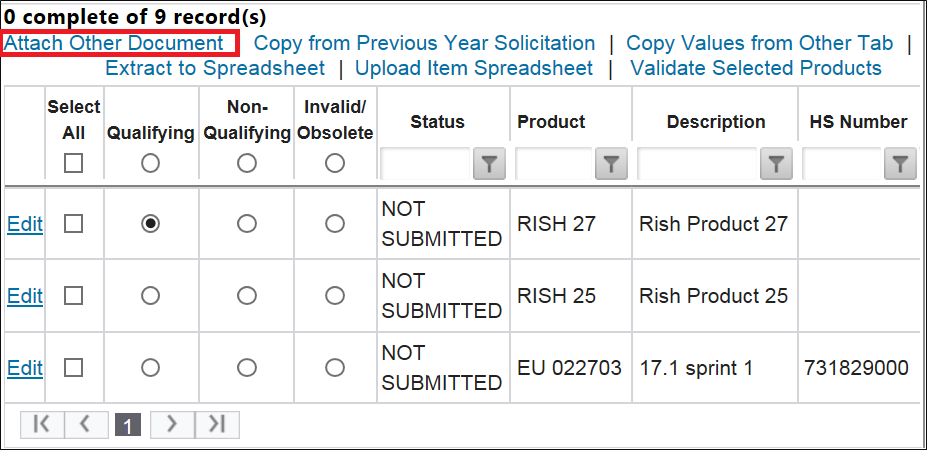
Clicking
Attach Other Document
will open a pop-up. Click Browse
… and select a document from the local hard drive to attach to all selected items on the response. The supplier can enter a display name for the attachment.
Wait for the system to recognize the document. Once the document has been recognized in the system, the pop-up will refresh to show that the file was successfully uploaded.
Click
Save and attach document to checked items
to save the uploaded document to the system.
If the
Attachment Name
field was left blank, the link to the attachment will show as Link. If a name was entered in the textbox, the attachment link will show the entered name.After the document(s) have been uploaded, but before the Certificate has been submitted, the Supplier can view or remove the document(s) by clicking the
Docs
link in the View
column.
Before a Certificate has been submitted, documents can be removed. This can be done by clicking
Remove
.
After a Certificate has been submitted, documents cannot be removed. They can, however, still be viewed.

Validate Selected Products
The
Validate Selected Products
link allows the Supplier to validate any or all of the selected products prior to proceeding to the next steps.If the Supplier does not choose to validate at this time, a subsequent validation is performed by the system prior to documents being generated.

Related Content
-
Free Trade Agreement (FTA) Management Supplier
Format: Article